
Blog
Guides for HanFlow PC programs — how to get everyday PC tasks done.

VLC alternative for studying — HanFlow Player
HanFlow Player plays video and music in the same window, adjusts speed in 0.1× steps up to 3× and loops a chosen section with A-B repeat. It does not support subtitles or streaming URLs. Compare what each tool says about itself.
Read more →
How to record your screen as a GIF on Windows
In HanFlow Cap, turn on Menu ▸ Record ▸ Record as GIF (no sound · up to 15fps), set the frame with Rec area (F1), press F2 to start and F2 again to stop. The .gif is saved to Videos ▸ HanFlow Cap.
Read more →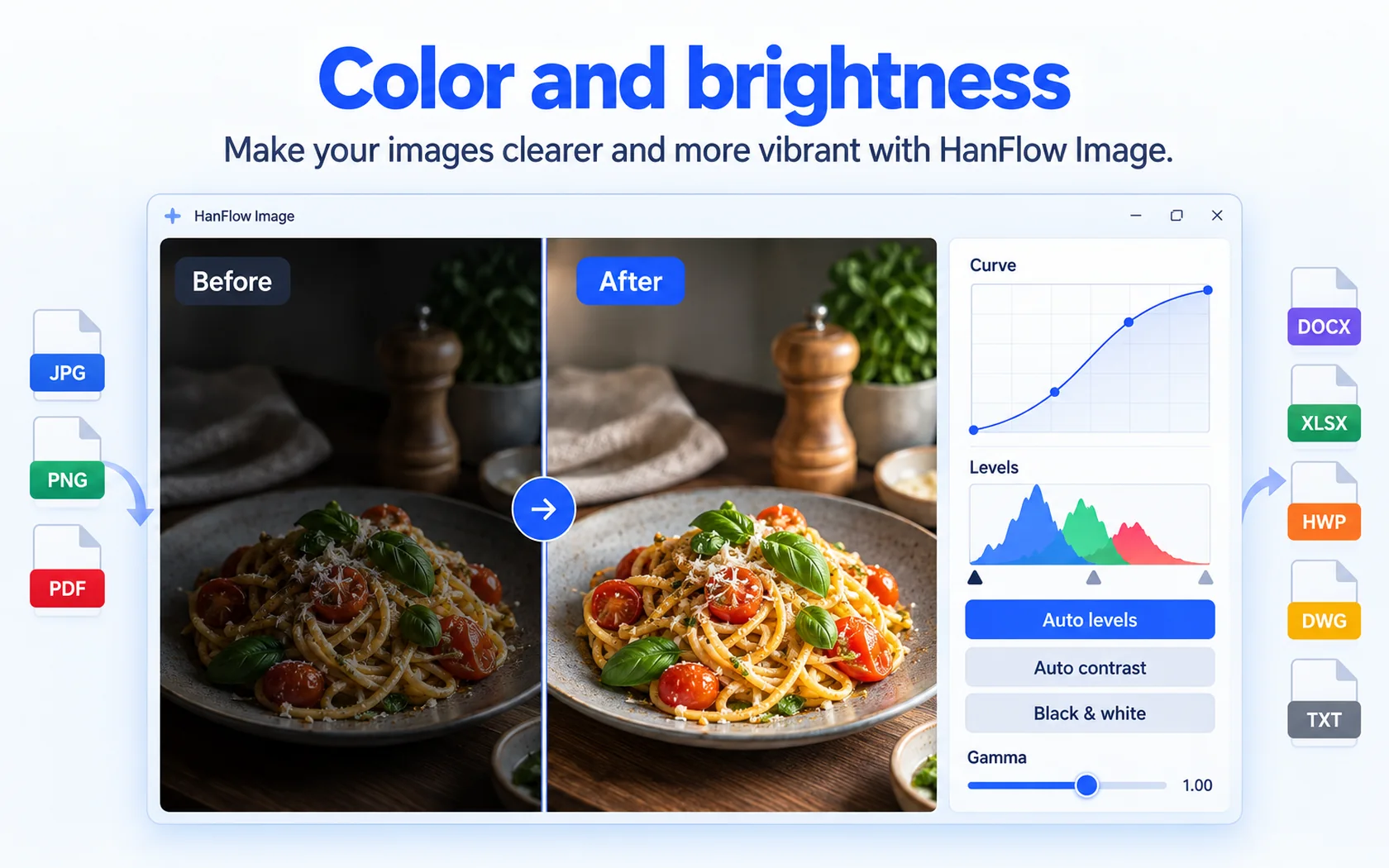
How to brighten a dark photo on your PC — auto levels, levels and curves
Open the photo in HanFlow Image and use Effects → Auto contrast (Ctrl+Alt+O) for a quick fix that keeps the color balance. For control, use Levels… (Ctrl+L) or Curves… (Ctrl+M).
Read more →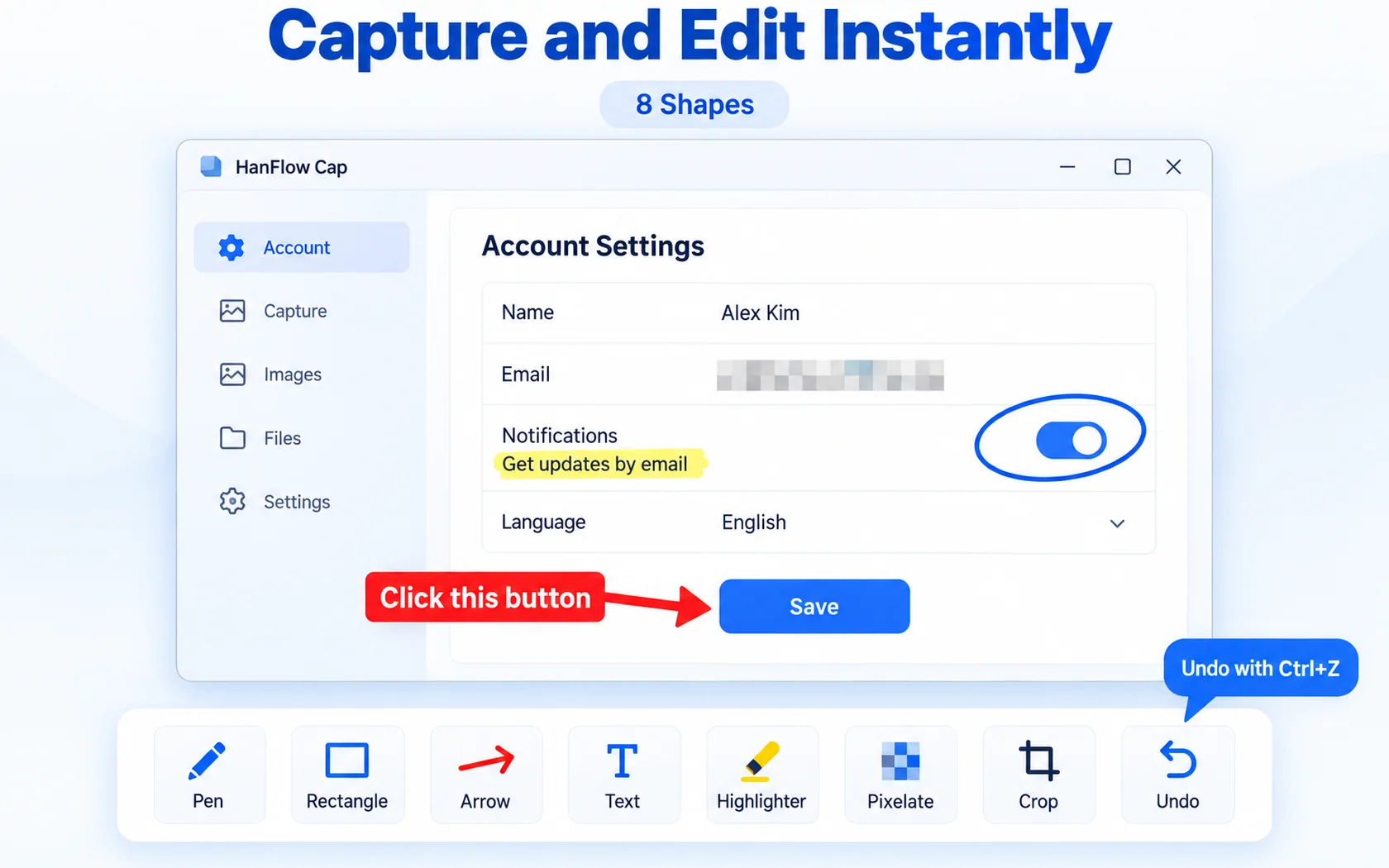
How to blur part of a screenshot — mosaic or black out private info
Capture with HanFlow Cap, pick Mosaic and drag over the spot to pixelate it. For passwords and account numbers use Redact, which covers the area in solid black. Then Ctrl+S or Ctrl+C.
Read more →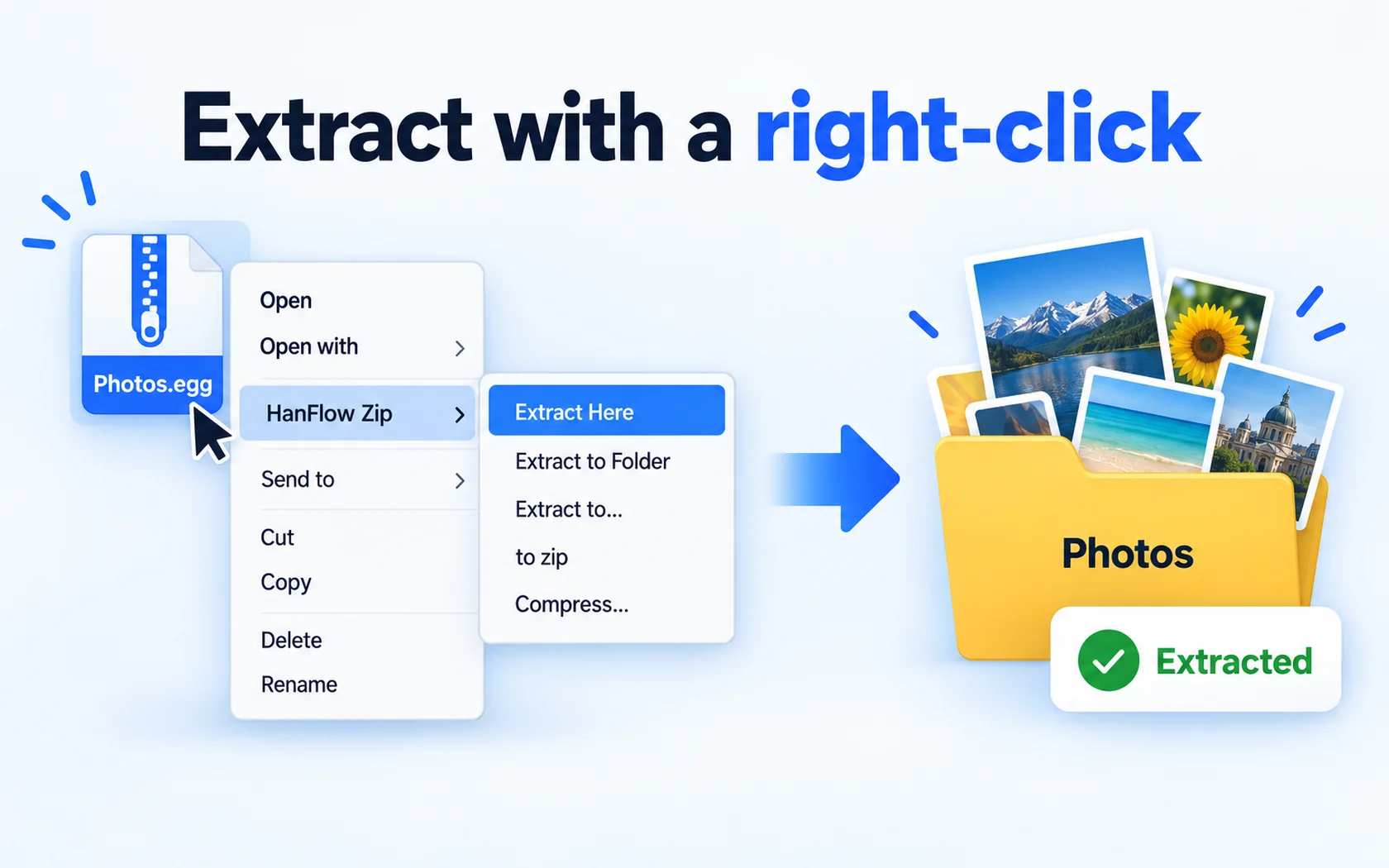
How to open RAR files on Windows — extract with a right-click
Right-click the .rar file and choose Extract to "name" or Extract here. HanFlow Zip opens rar along with 25 other formats, lets you look inside first, and keeps extracting after the 30-day trial.
Read more →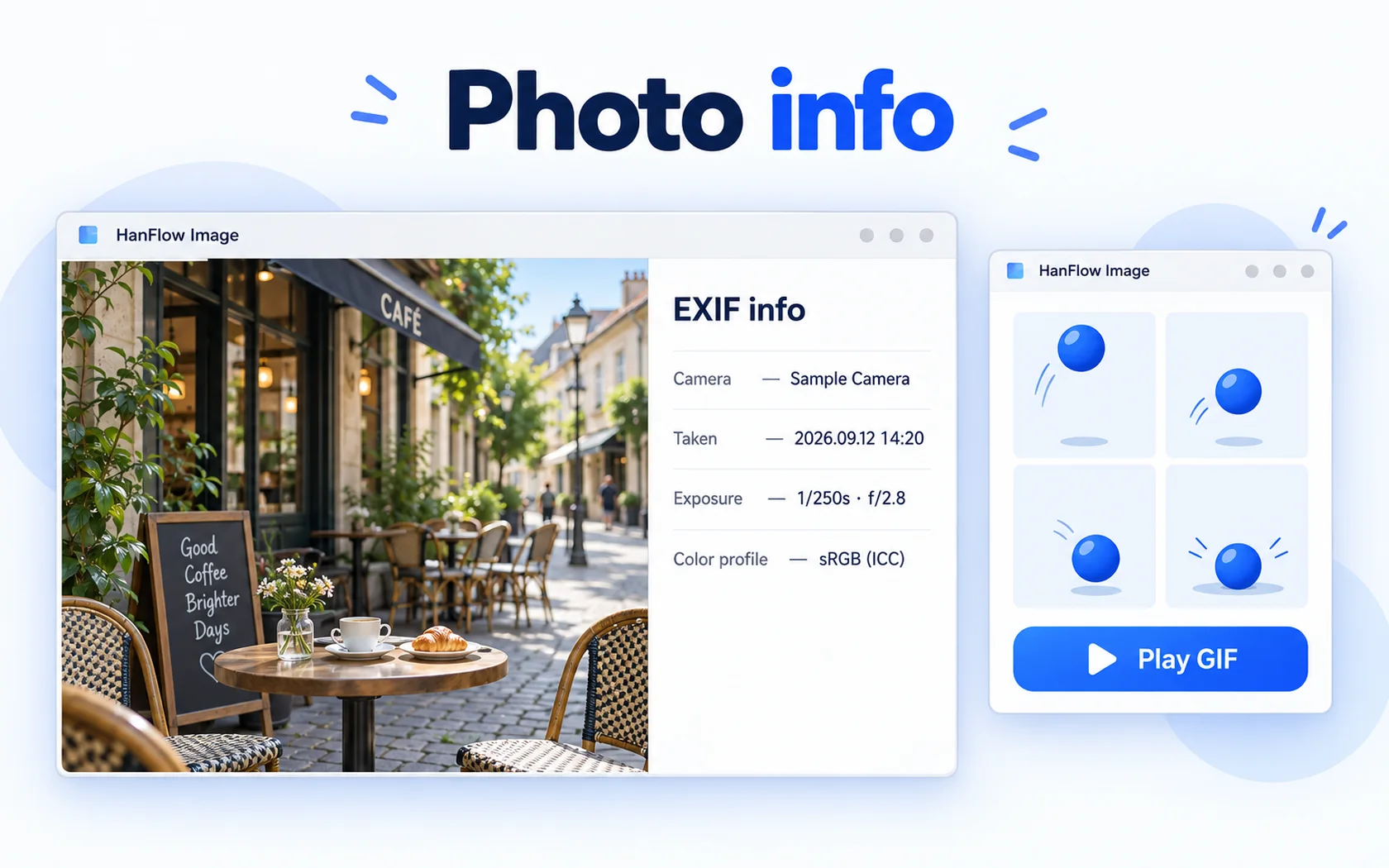
How to view a photo's EXIF data on your PC — camera, date taken, location
Open the photo in HanFlow Image and press I to see Date taken, Camera, Shutter, Aperture, ISO and Location. Properties… (Alt+Enter) adds file details, DPI and print size.
Read more →
How to extract audio from a video on your PC — save the sound as M4A
In HanFlow Cut, open the ≡ menu and choose Export audio only (.m4a)… to save what you hear on the timeline as an M4A (AAC) file with no video. Your original video is not changed.
Read more →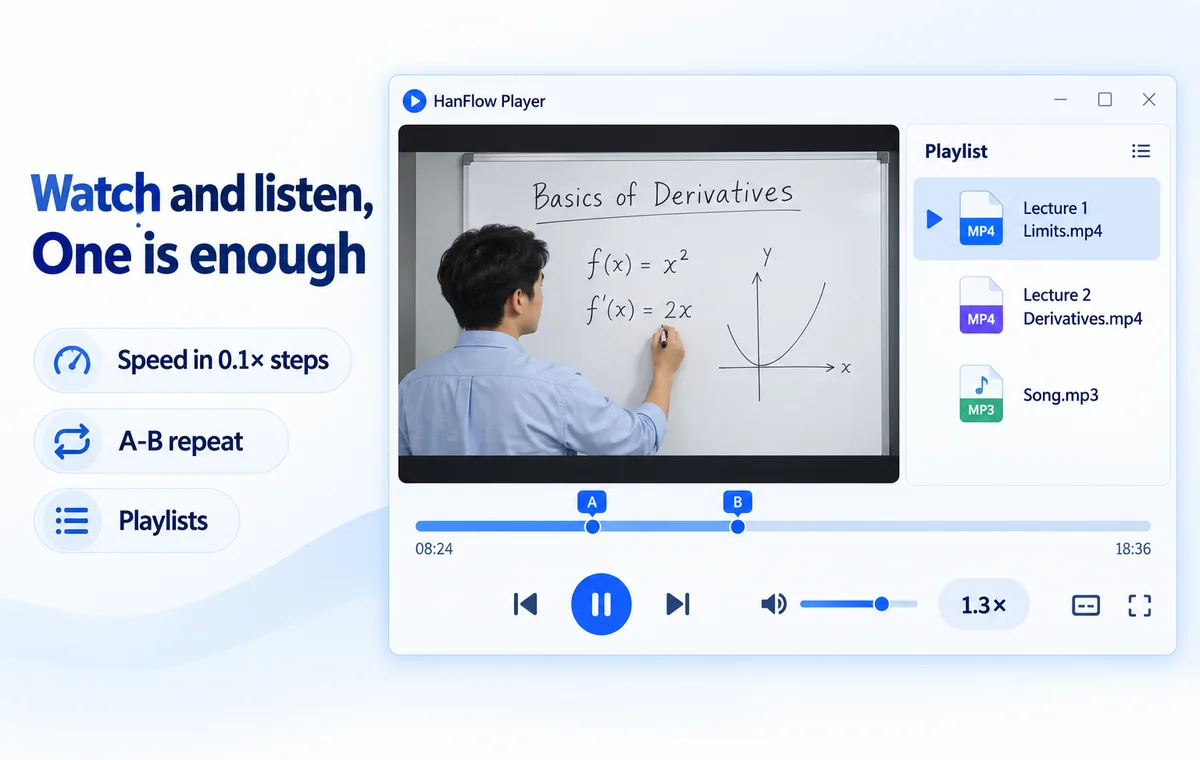
How to make a quiet video louder on your PC — volume boost up to 400%
In HanFlow Player, drag the volume bar past 100% or press ↑ to boost quiet lectures, meetings and call recordings up to 400%. The file itself is not changed.
Read more →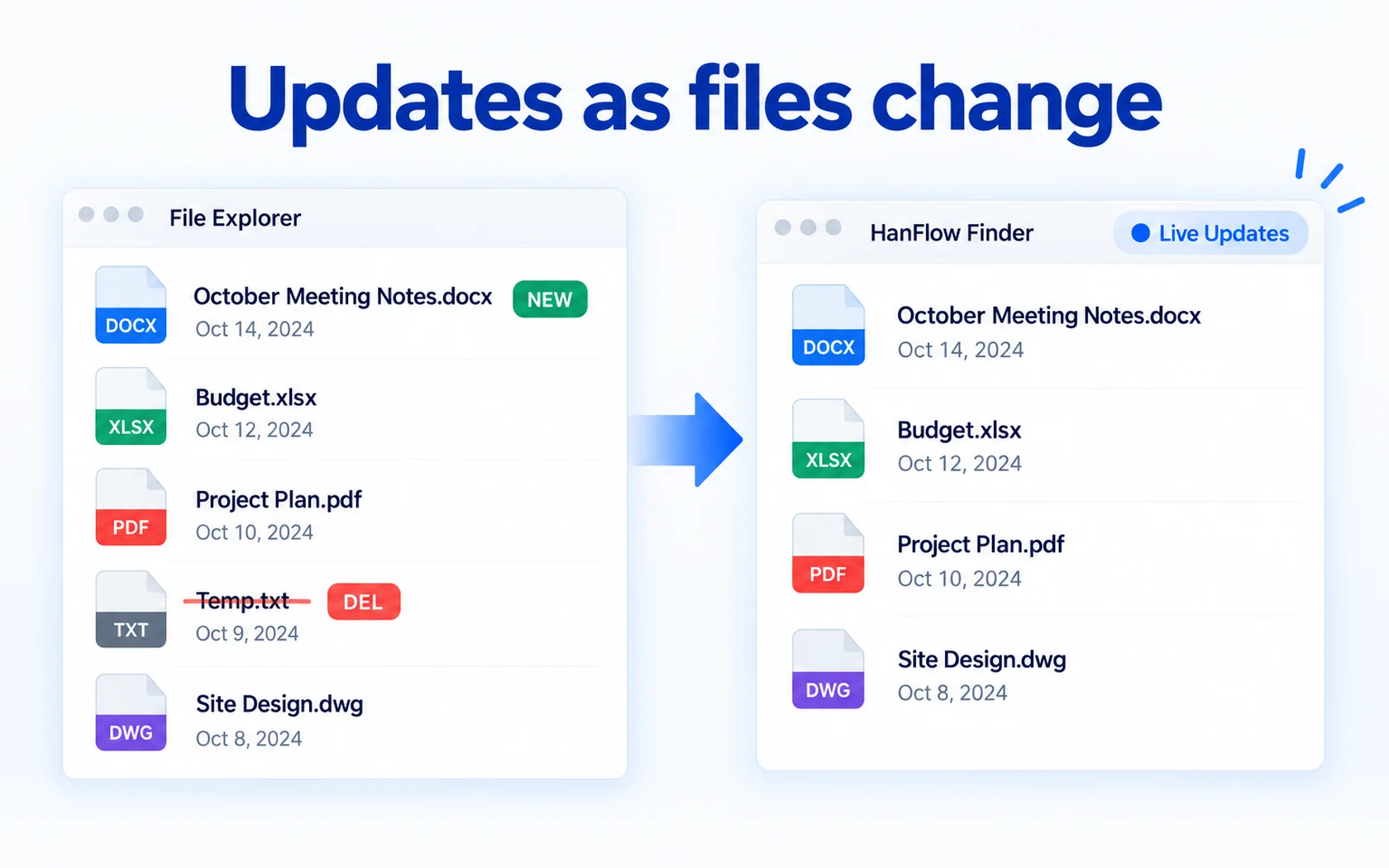
How to search files with wildcards and regex on Windows
In HanFlow Finder, turn on Wildcards *? for whole-name patterns like *.pdf, or Regular Expression (press Enter) for patterns anywhere in the name. Stack Filter by Extension… and This Folder Only….
Read more →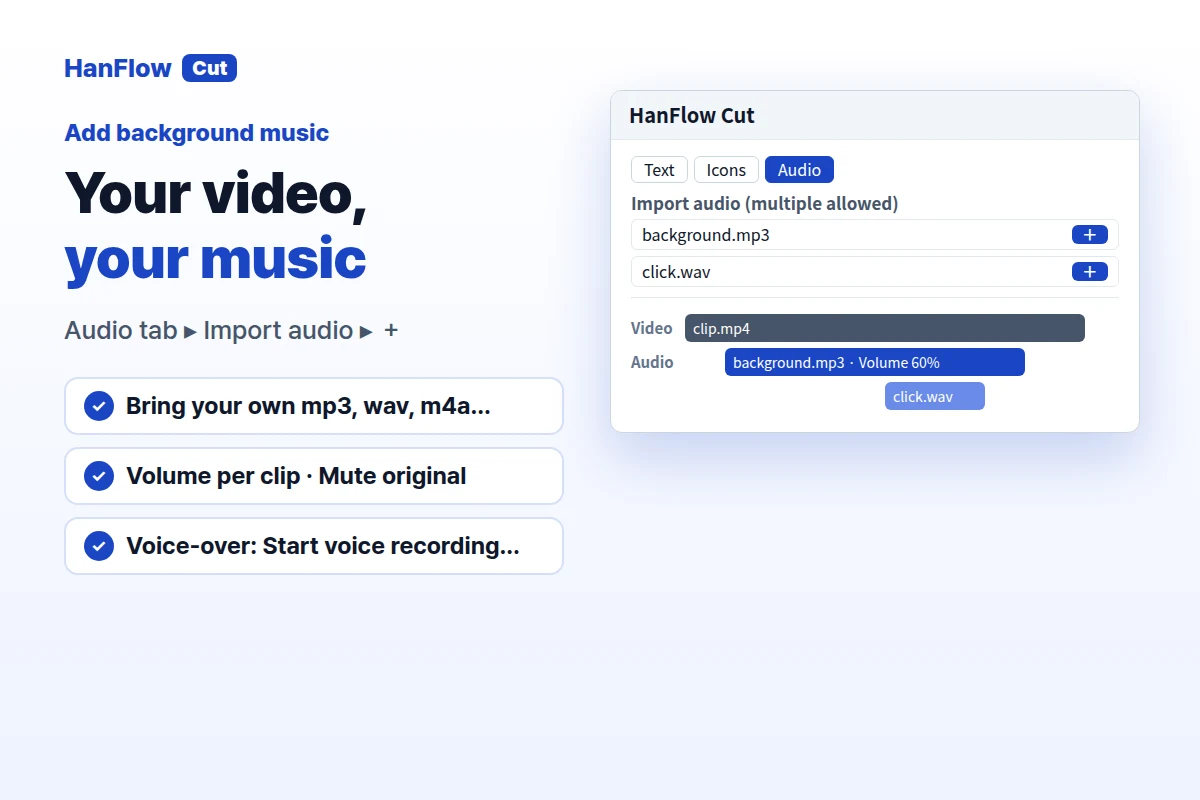
How to add background music to a video on Windows
Import your video, open the Audio tab, Import audio and press + at the playhead. Set Volume per clip, mute the original, trim with split and export MP4.
Read more →