
HanFlow Finder already narrows results as you type, but some searches need more precision. Wildcards and regular expressions let you describe exactly which file names you want — one with familiar patterns, the other with full pattern-matching power.
When to use what
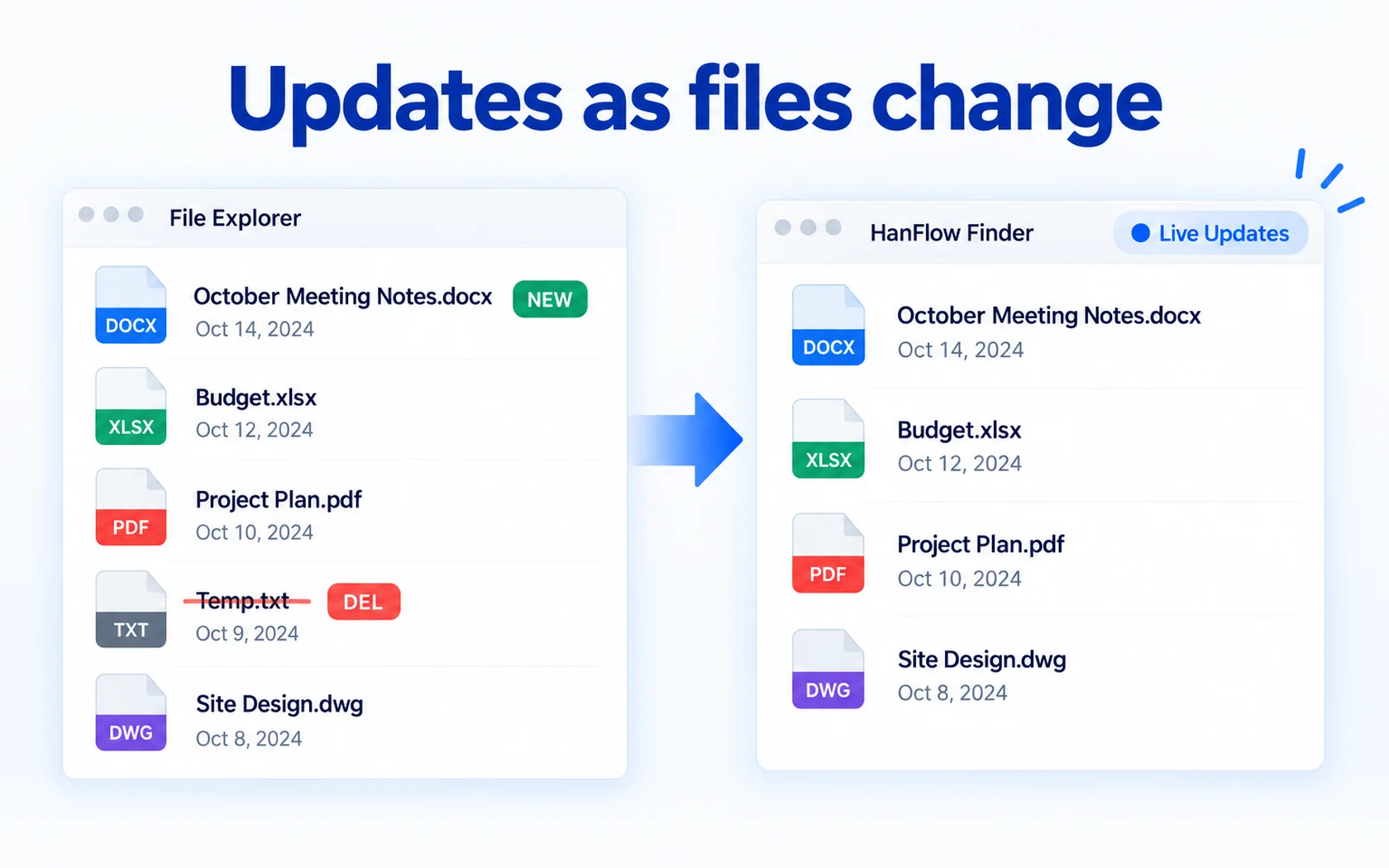
By default, Finder matches any part of a file name. Type two or more words and it shows files whose names contain all of them. Case does not matter. Results update with every keystroke.
That covers most lookups. When it does not, you have two options:
- Wildcards *? — familiar patterns like
*.pdforIMG_????.jpg. Good when you know the shape of the name but not the exact characters. - Regular Expression — full ECMAScript regex for precise control. Heavier, so the search runs only when you press Enter.
You can turn on one or the other, never both at the same time.
Wildcards *?
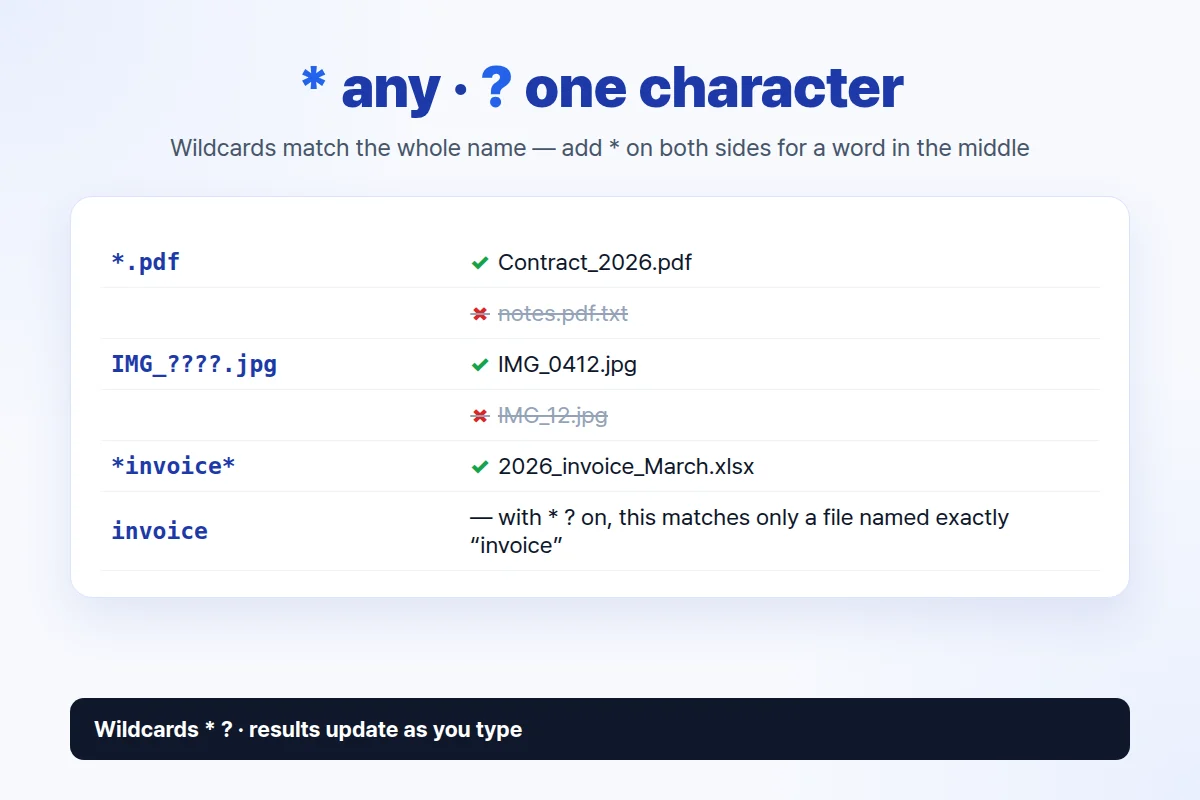
Turn on Wildcards *?. Two symbols do all the work: * matches any number of characters (including zero), and ? matches exactly one character.
One thing to remember: the pattern must match the entire file name, the same convention File Explorer uses. If you are looking for a word somewhere in the middle, put * on both sides.
*.pdf— every file whose name ends with .pdf.IMG_????.jpg— names like IMG_0001.jpg through IMG_9999.jpg, or any four characters between the underscore and the dot.report_202?_*— report files from any single year in the 2020s, followed by anything.*budget*— any file with budget anywhere in its name.
Regular Expression
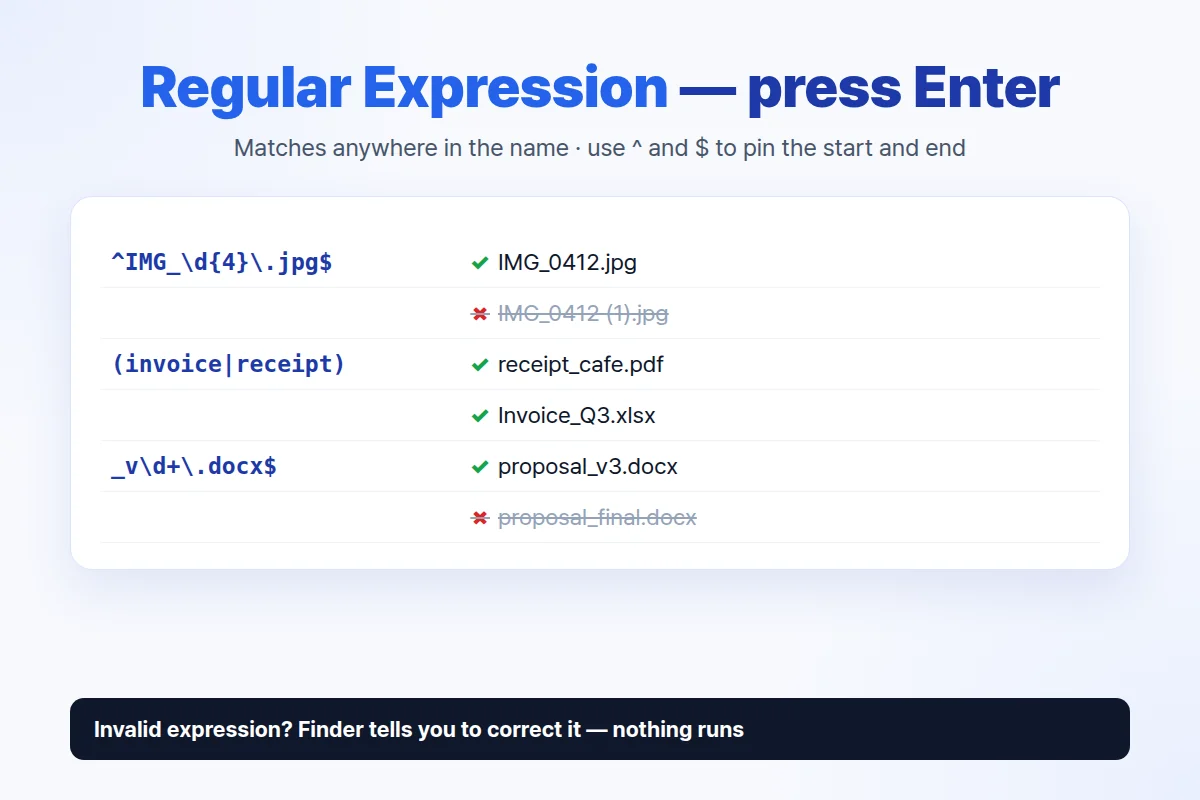
Turn on Regular Expression for patterns that wildcards cannot express. Finder uses standard ECMAScript syntax. Unlike wildcards, a regex matches anywhere inside the file name — no need to wrap it in .*. Anchor with ^ and $ when you want to match the full name.
Because regex is heavier to evaluate, results do not update on every keystroke. Type your expression, then press Enter to search.
^IMG_\d{4}\.jpg$— exactly IMG_, four digits, .jpg, nothing else.(invoice|receipt)— files with invoice or receipt anywhere in the name._v\d+\.docx$— Word documents whose names end with a version number like _v2.docx or _v14.docx.^\d{4}-\d{2}-\d{2}— names that start with a date pattern such as 2025-03-15.
Case is ignored by default. Turn on Match Case to make the regex case-sensitive. If your expression has a syntax error, Finder shows "Invalid regular expression — please correct it." instead of results.
Combine with other filters
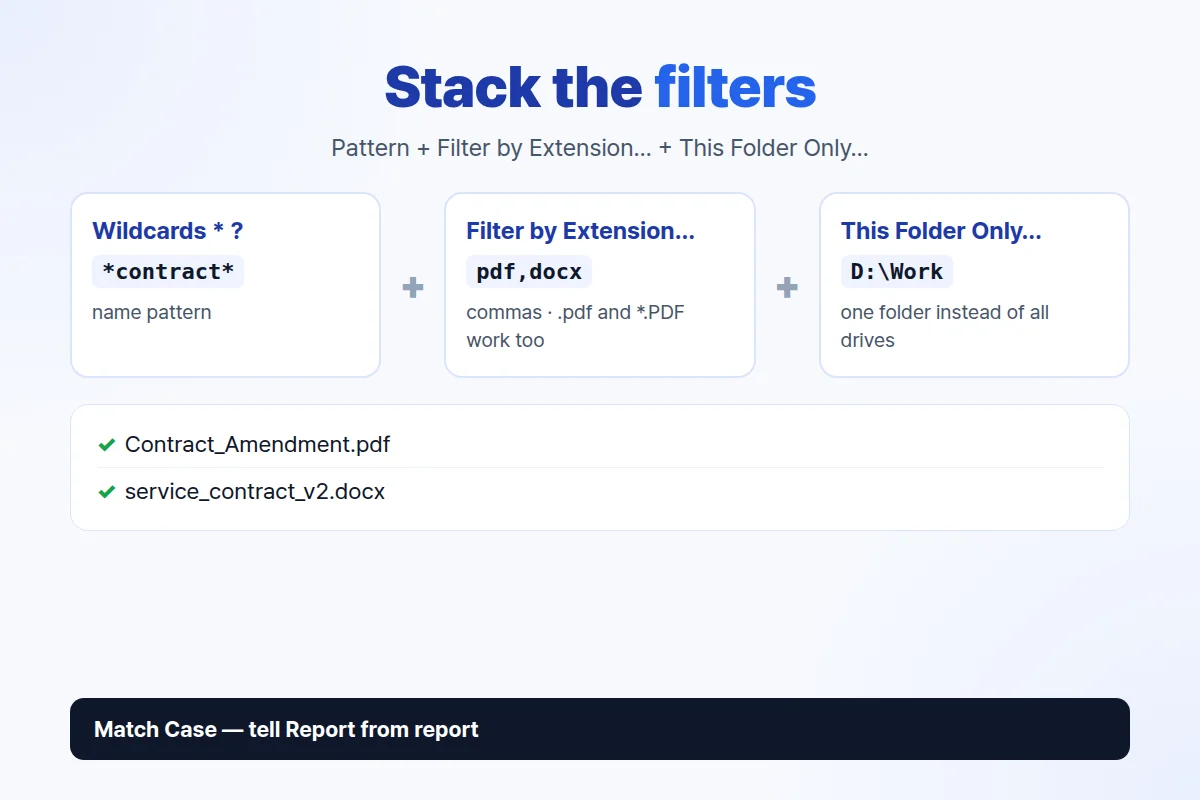
Wildcards and regex work alongside the other search options. Stack them to cut a long result list down fast.
Filter by Extension… accepts a comma-separated list of extensions — for example txt,pdf. Dot or asterisk prefixes and uppercase letters are handled the same way, so .TXT, *.txt, and txt all match. Leave it empty to search all file types. Folders are filtered out when an extension filter is active.
Match Case makes any search mode — default, wildcard, or regex — distinguish uppercase from lowercase letters.
This Folder Only… limits the search to a single folder you choose. Without it, Finder searches every indexed drive.
A practical combination: turn on Regular Expression, type (invoice|receipt), set Filter by Extension… to pdf, and pick your accounting folder with This Folder Only…. Press Enter. Only PDF invoices and receipts inside that one folder appear.
What stays after the trial
Every feature works for 30 days from install, no payment method required. After the trial, plain name search, opening files, and opening their folder keep working.
Wildcards, regular expressions, the extension filter, folder scope, whole-disk instant search, and file operations — copy, cut, delete, rename, drag and drop — need a license to continue using. No ads, no sign-in.
Frequently asked questions
Can I use wildcards and regex at the same time?
No. Wildcards *? and Regular Expression are separate modes. You can turn on one or the other, not both.
Why does nothing happen when I type a regex?
Regex search does not run on every keystroke. Press Enter to start the search. If you still see no results, check for a syntax error — Finder displays "Invalid regular expression — please correct it." when the expression cannot be parsed.
Do wildcards search inside files?
No. Both wildcards and regular expressions match file names only. HanFlow Finder does not read or index file contents. It searches fixed drives — not network drives or USB drives.
HanFlow Finder is built for 64-bit Windows, with a macOS 13 or later version available for Apple silicon. Every feature, including wildcards and regex, works for 30 days from install — no payment method, no ads, no sign-in.