
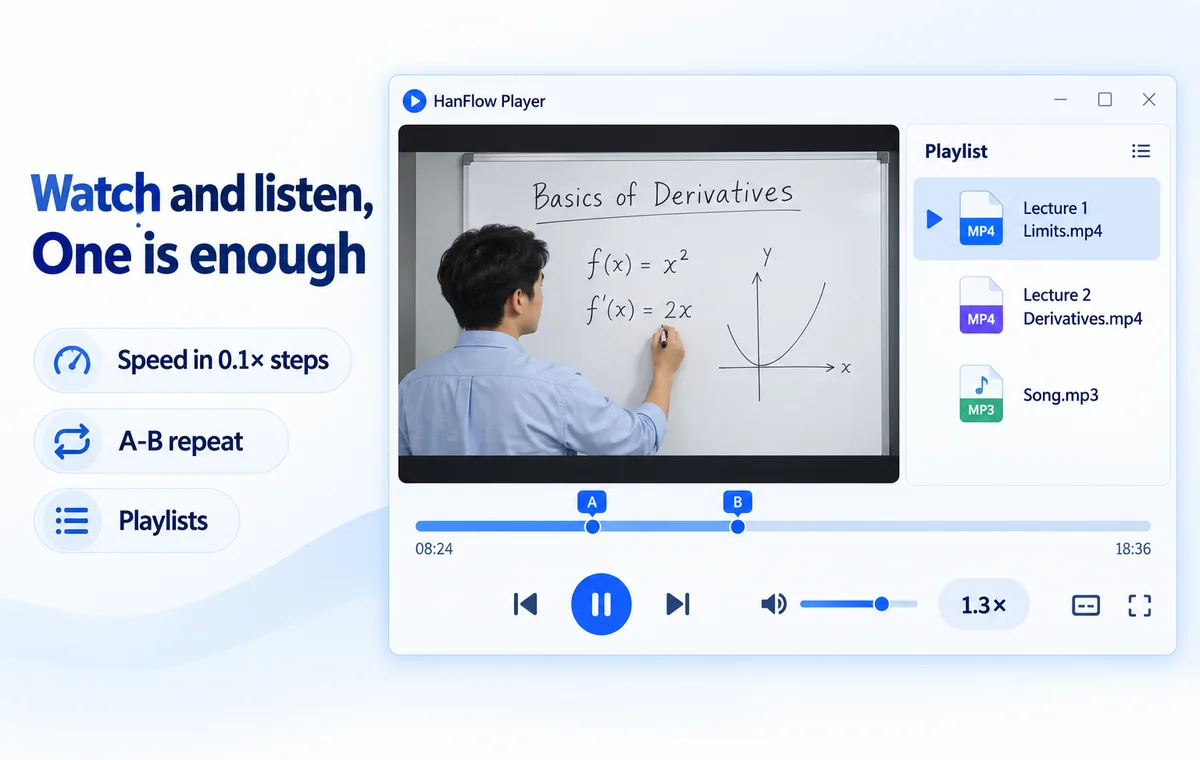
HanFlow Player lets you push volume past 100% — up to 400% — by amplifying the audio inside the app. Drag the volume bar into its boost zone or press the up-arrow key, and a quiet recording becomes audible without touching your system volume. The file itself is never modified.
Why some videos are too quiet even at 100%
Not every video is mixed at the same level. Screen recordings, lecture captures, and phone-call recordings often come out far quieter than commercial media. You turn the system volume all the way up, set the player to 100%, and the voice is still buried under room noise or barely audible through laptop speakers.
The problem is in the file. The audio was recorded or encoded at a low level, and no amount of slider-dragging in Windows will add what isn't there. What you need is a player that amplifies the signal beyond the normal ceiling — that is what volume boost does.
Boost the volume step by step
Open a video or audio file in HanFlow Player, then raise the volume past 100% in a few seconds:
- Open the file. Drag it onto the player window, or use the right-click menu to open it with HanFlow Player. The app plays MP4, MKV, WebM, AVI, MOV, WMV, and common audio formats like MP3, M4A, AAC, FLAC, WAV, WMA, OGG, and Opus.
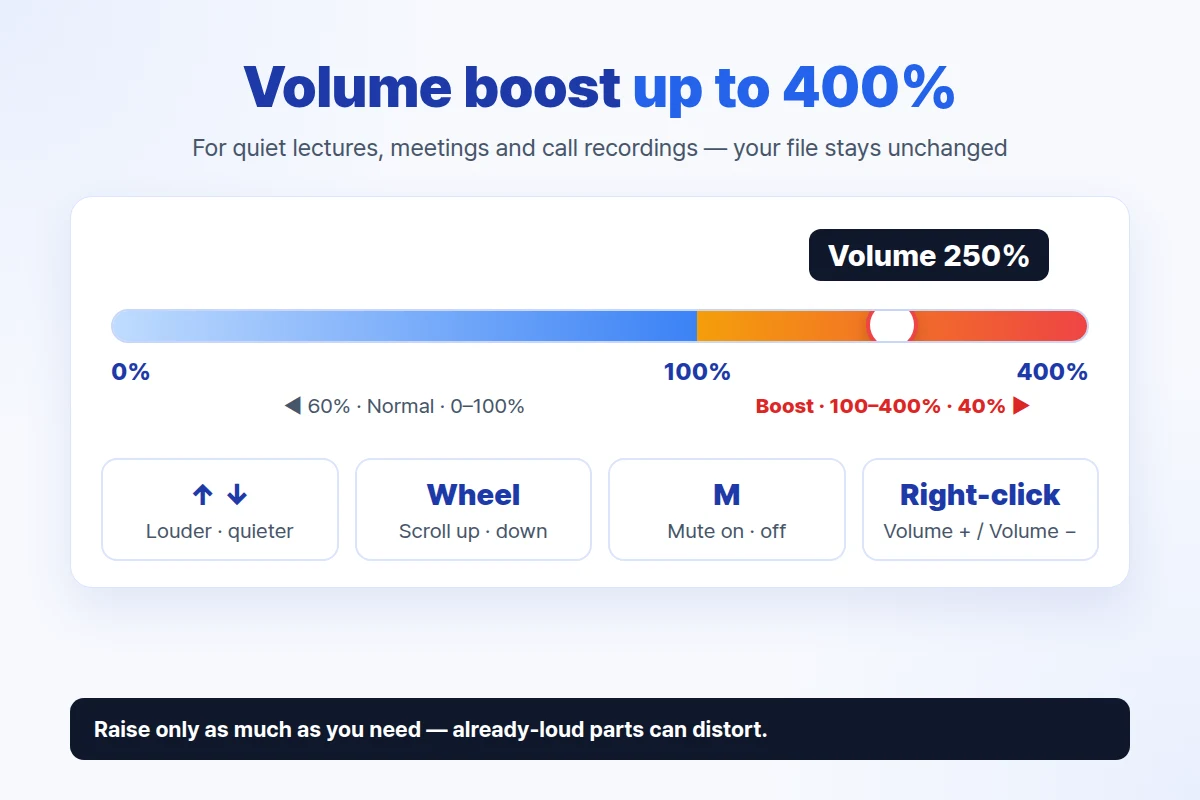
- Drag the volume bar to the right. The volume bar sits at the lower-right of the player. Pull it past the 100% mark and into the boost zone. You can also press ↑ to raise the volume in steps, scroll the mouse wheel up, or right-click and choose Volume + ↑.
- Watch the readout. As you change the level, a brief overlay — Volume 250%, for example — appears on screen so you know exactly where you are.
To bring it back down, drag left, press ↓, scroll down, or right-click and choose Volume − ↓. Press M — or click the speaker icon next to the bar — to mute and unmute.
How the volume bar works
The bar is split into two unequal zones. The left 60% of the bar covers the normal range, 0% to 100%. The right 40% covers the boost range, 100% to 400%. This layout gives you fine control in the everyday range while still offering a wide boost ceiling when you need it.
When you drag near the boundary, the bar snaps to exactly 100%. That snap point makes it easy to return to normal volume without overshooting into the boost range or accidentally dropping below it.
Tips for a clean boost
Raise only as much as you need. Volume boost amplifies everything in the audio stream. Passages that are already loud hit the maximum sample value and get clipped — you hear crackling or a harsh edge. Quiet recordings with a consistent level tolerate a bigger boost. A loud concert video does not. Start low, nudge upward, and stop when the voice or instrument sits comfortably above the background.
The file is never changed. Amplification happens during playback, inside the player. Close the file and it is exactly as it was before. You can boost, rewind, boost again — nothing is written back.
Works for music too. HanFlow Player handles video and audio files in the same window. A quiet FLAC rip or a low-level podcast episode benefits from the same boost.
What stays after the trial
Every feature works for 30 days from install, no payment method required. After the trial, you can still open files, play them at normal speed, and keep the volume at up to 100%. A-B repeat stays available too.
Volume boost above 100%, variable playback speed, and playlist saving need a license to continue. If you try to push past 100% after the trial, the bar stops at 100% and a message tells you a license is required — right-click and choose License… to get one. No ads, no sign-in.
Frequently asked questions
Can I go above 100%? How high?
Yes. HanFlow Player goes up to 400%. The range from 100% to 400% is the boost zone. It amplifies the audio signal inside the player, so the effect stacks on top of your system volume.
Does volume boost change my file?
No. The amplification happens only during playback. Your original file is not modified, re-encoded, or copied.
Does volume boost work after the trial?
During the 30-day trial every feature is available. After the trial, boosting above 100% requires a license. Playback at normal volume (up to 100%) remains available without one.
Does it make sound from my web browser louder?
No. Volume boost applies to what HanFlow Player itself plays — the video and music files you open in it. Sound from a browser tab or another app is not affected.
A quiet video does not have to stay quiet. Open it in HanFlow Player, drag the volume bar past 100%, and hear what you have been missing.