
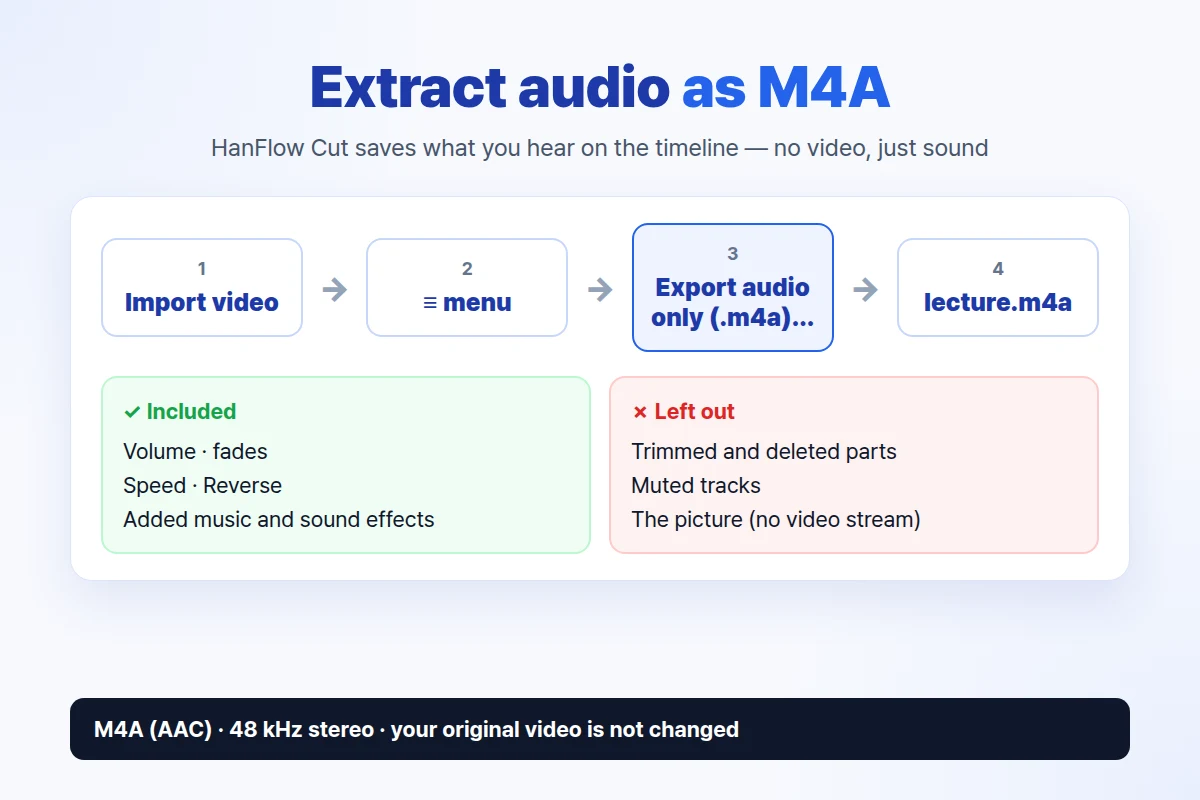
You can extract the audio from a video file in HanFlow Cut with a single menu command. Open the ≡ menu at the top of the window, choose Export audio only (.m4a)…, pick a file name and folder, and you have a standalone M4A (AAC) file — no video stream, just the sound.
Step by step
- Import your video and put it on the timeline. Drag a file into the HanFlow Cut window or use Import. Supported formats: mp4, mov, m4v, avi, mkv, webm, and wmv.
- Open the menu. Click the ≡ button in the bar at the top of the window.
- Choose Export audio only (.m4a)… If the timeline is empty — no clips added yet — the option is grayed out.
- Pick a name and folder. The save dialog suggests a default name based on the first file you imported, with an .m4a extension. For example, importing lecture.mp4 gives you lecture.m4a. If a file with that name already exists, HanFlow Cut asks whether you want to overwrite it.
- Wait for the confirmation. When the export finishes, you see the message Audio extracted.
That is the entire process. The output format is always M4A (AAC) at 48 kHz stereo.
What ends up in the file
The exported audio matches what you hear when you play the timeline. HanFlow Cut runs the same mixer it uses for video playback and full video export, so every edit you made carries over:
- Trims and deleted sections are left out. Only the parts of each clip that sit on the timeline (between the in and out points) make it into the file.
- Volume, fades, speed, and reverse are included. If you lowered a clip's volume, added a fade-in, sped it up, or flipped it with Reverse, those changes stay in the audio.
- Background music and sound effects are mixed in. Anything you added from the Audio tab — music, sound effects, or sound on overlay tracks — is part of the final mix.
- Muted tracks are silent. If you muted a track, its sound does not appear in the export.
- Freeze frames produce silence. A still-image freeze section contributes no audio.
Think of the M4A as a "render" of everything audible on the timeline, minus the picture.
Keep only part of the audio
You do not have to export the full timeline. If you only need a segment — the first five minutes of a recording, or a single section in the middle — trim the timeline before exporting.
- Move the playhead to the point where you want to cut.
- Press Ctrl+B to split the clip at that point.
- Select the piece you do not need and press Delete.
- Repeat as needed to isolate the section you want.
- Use Ctrl+Z to undo any split or delete if you go too far.
Once the timeline holds only the audio you want, run Export audio only (.m4a)… as described above.
Good uses for audio extraction
Pulling the sound out of a video file is useful more often than you might expect.
- Lectures and meeting recordings. Convert a long video recording to an audio file you can listen to while commuting or exercising — no screen required.
- Music from your own clips. Recorded a performance or jam session on video? Extract the audio so you can listen to it or share it as a music file.
- Voice tracks for transcription. Export the voice from a video as an M4A file and use it in a transcription workflow that accepts M4A.
- Podcast or narration drafts. If you recorded narration over footage, grab just the voice to review or re-edit separately.
Frequently asked questions
Can I save the audio as MP3 or WAV?
No. HanFlow Cut exports audio in one format: M4A with AAC encoding at 48 kHz stereo. There is no option to choose MP3 or WAV. If you need another format, convert the exported M4A afterward.
Does extracting audio change my original video?
No. Your source video file stays untouched. HanFlow Cut works inside a project — all edits, mutes, and trims happen in the project, and a new file is created only when you export.
What happens if my video has no sound?
HanFlow Cut shows the message This project has no audio to extract (the source has no audio). It does not create an empty file.
Can I separate the voice from the background music?
No. HanFlow Cut does not have a feature to separate a voice from background music. The exported file contains the timeline's sound mixed together. You can still trim out unwanted sections or lower a clip's volume before exporting.
Trial and license
Every feature in HanFlow Cut — including audio extraction — works during the 30-day trial. After the trial ends, exporting audio requires a license. A prompt in the app will guide you if you try to export without one.
Looking for the opposite? You can also remove the audio and keep the video.