
Sometimes the audio in a clip works against you — background chatter from a phone recording, copyrighted music you can't publish, or a soundtrack you simply want to replace. HanFlow Cut gives you three quick ways to strip audio from a video and one way to swap it for something new.
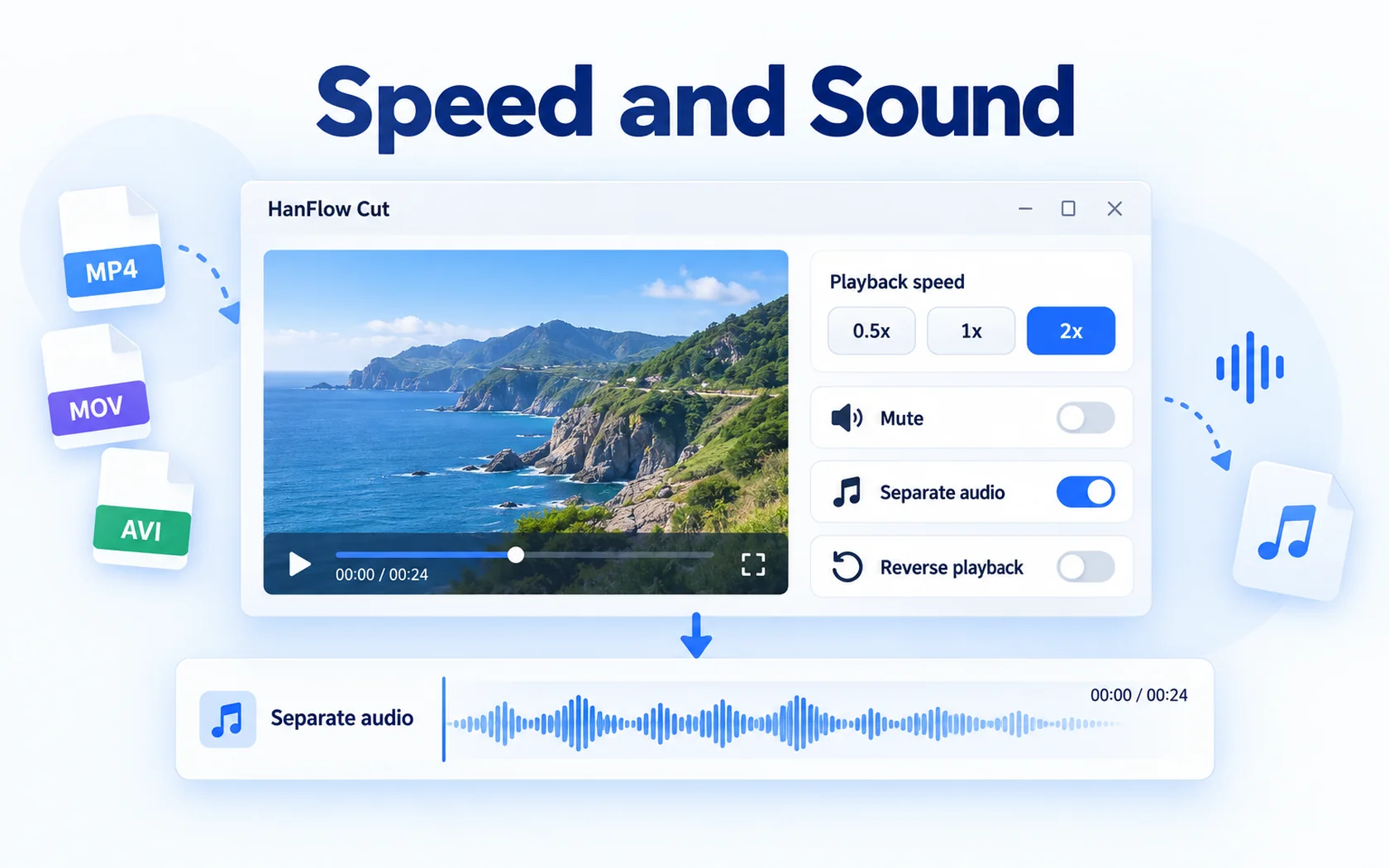
Three ways to remove audio
1. Mute the clip
The fastest option. The audio stays inside the clip but nothing plays.
- Import your video — drag it into the window or use Import — and put it on the timeline.
- Right-click the video clip on the timeline and choose Mute.
- Export as usual — the muted clip produces silent video. To bring the sound back later, right-click the clip and choose Unmute.
2. Detach, then delete or trim the audio track
Use this when you want to cut out part of the audio — an interruption mid-clip, for example — and keep the rest.
- Right-click the video clip and choose Detach audio (separate track). The audio moves to its own track below the video. (The option is grayed out if the clip has no audio or is already muted.)
- To remove all of it, select the detached audio clip and press Delete.
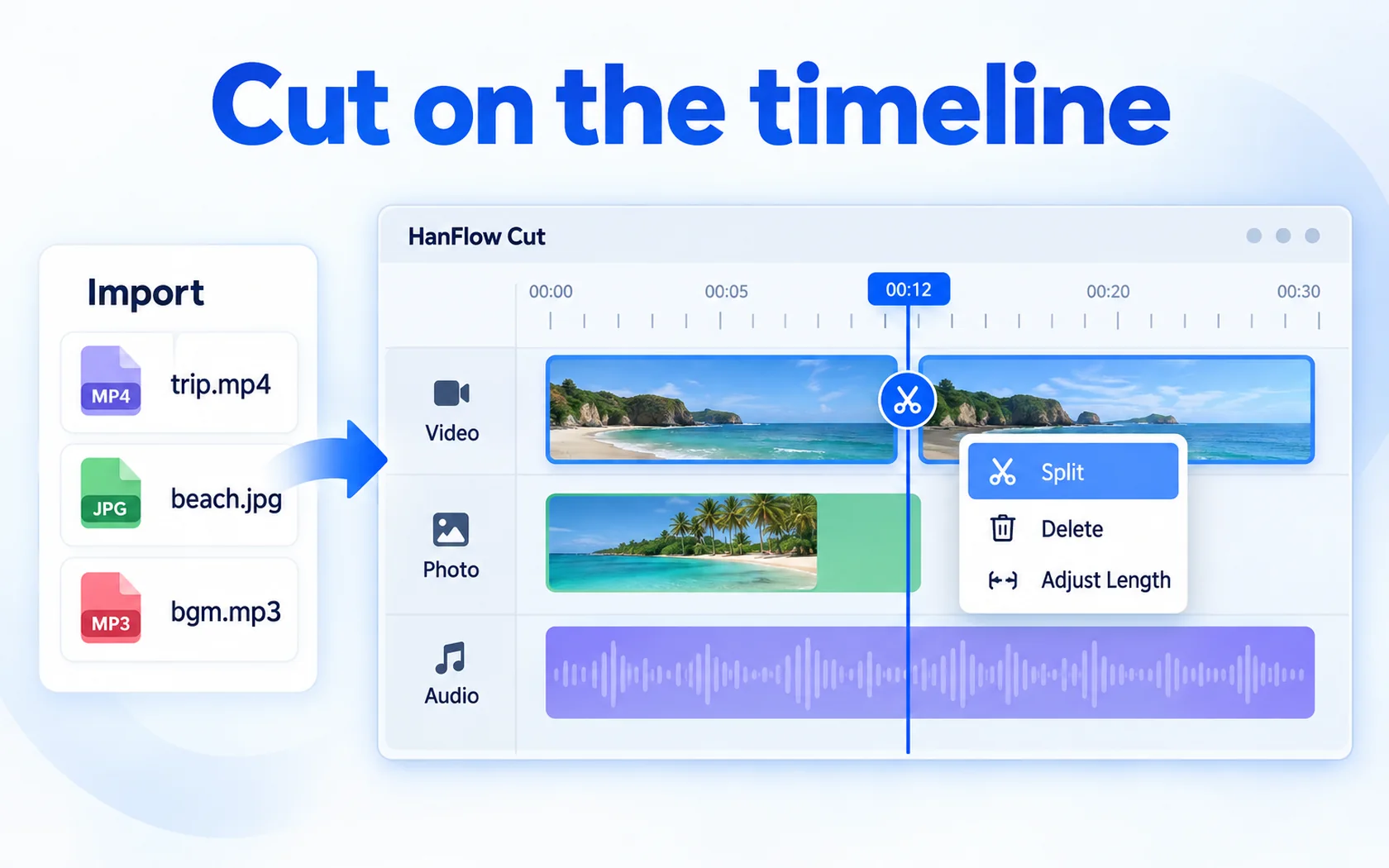
- To remove only a section, move the playhead to the start of the unwanted part, press Ctrl+B to split, move the playhead to the end, split again, select the middle piece, and press Delete.
- Use Ctrl+Z to undo any step.
3. Export with audio set to None
Leave the timeline untouched and simply tell the exporter to drop the audio.
- Open the menu (≡) and choose Export….
- In the export window, find the Audio field and set it to None.
- Export. The resulting MP4 contains no audio track at all.
Keep the sound, drop the video
Going the other direction — you want just the audio from a video file — takes one menu click. Open the menu (≡) and choose Export audio only (.m4a)…. HanFlow Cut saves the audio as an M4A file and shows Audio extracted. when it finishes.
Add new music instead
After muting or removing the original audio, you can lay down a fresh soundtrack. Open the Audio tab, browse or import background music or sound effects, and click + to drop them onto the audio track. Select a clip and adjust Volume in the right-side panel if the new track is too loud or too quiet.
Frequently asked questions
Is the original file changed?
No. HanFlow Cut works on a project. Your source video stays untouched — every mute, detach, or delete happens inside the project, and a new file is created only when you export.
Can I remove only the voice and keep the background music?
HanFlow Cut does not separate vocals from music. What you can do is mute the whole clip, detach the audio and trim out sections you don't want, or lower the Volume in the right-side panel. If the voice and music are on the same track in the source file, they cannot be isolated from each other.
Which formats does it support?
Import: mp4, mov, m4v, avi, mkv, webm, and wmv. Export: MP4 (H.264 video, AAC audio at 48 kHz stereo) or M4A for audio-only export. Every feature is available during the 30-day trial.