
You downloaded an image and it's a WebP file. That's fine until you need to upload it somewhere that only takes JPG, or email it to someone whose phone won't open it. HanFlow Image converts WebP to JPG in one window.
Convert WebP to JPG — five steps
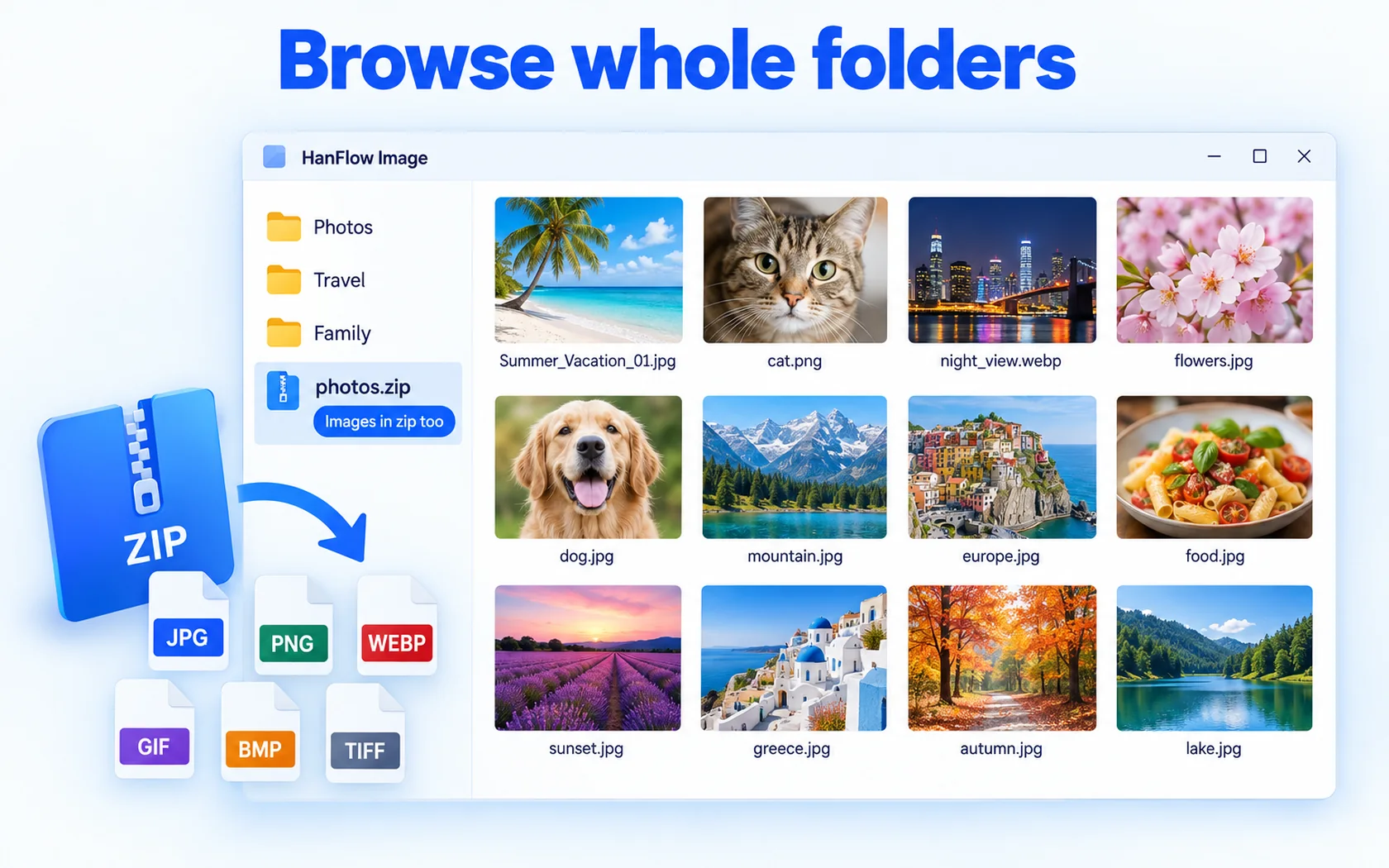
- Install and open HanFlow Image (every feature is yours to try for 30 days). Open the WebP file you want to convert. You can also browse a folder in thumbnail view, right-click a WebP file, and choose Convert….
- Open the Convert window: press Ctrl+E, click the Convert button on the toolbar, or choose Edit ▸ Convert… in the File menu.
- In the Convert image format window, pick JPG under Target file format. Set Quality (%) — it defaults to 90.
- Under Save path, the original folder is already filled in. Click Browse… to pick a different folder. Under Save options, choose whether to append text to the file name, how to handle duplicates, and whether to delete the original after conversion. The list shows the Original file name next to the Output file name, so you can check before you start.
- Click OK. The file is converted and saved.
Choosing save options
The save options sit below the path. Add text to output file name lets you add text before or after the name — useful when you want to keep the original and the converted copy side by side. Duplicate files offers Add number, Skip or Overwrite. There is also a checkbox to Delete originals after conversion (to Recycle Bin). If you're new to this, leave it off until you're sure the converted file looks right.
Good to know
- Transparent WebP? JPG doesn't support transparency. Convert to PNG instead — PNG can hold transparency.
- Animated WebP — only the first frame is shown and converted.
- Camera data (EXIF) and color profiles are carried over only from a JPEG original saved as JPEG. They won't transfer from a WebP source.
- Need a smaller file? Use Resize… (Ctrl+R) and its Resize by file size (JPG) option to aim for a target size.
Frequently asked questions
Can I go the other way — JPG to WebP?
Yes. Open the JPG, press Ctrl+E, and pick WebP from the format list. The same save options apply.
What quality should I use?
The default is 90 — start there. Lower values make a smaller file; higher values keep more detail. Try a few settings and compare until you're happy with the result.
Can I still convert after the trial?
Viewing and opening files stay available. Saving and converting require a license after the 30-day trial.