
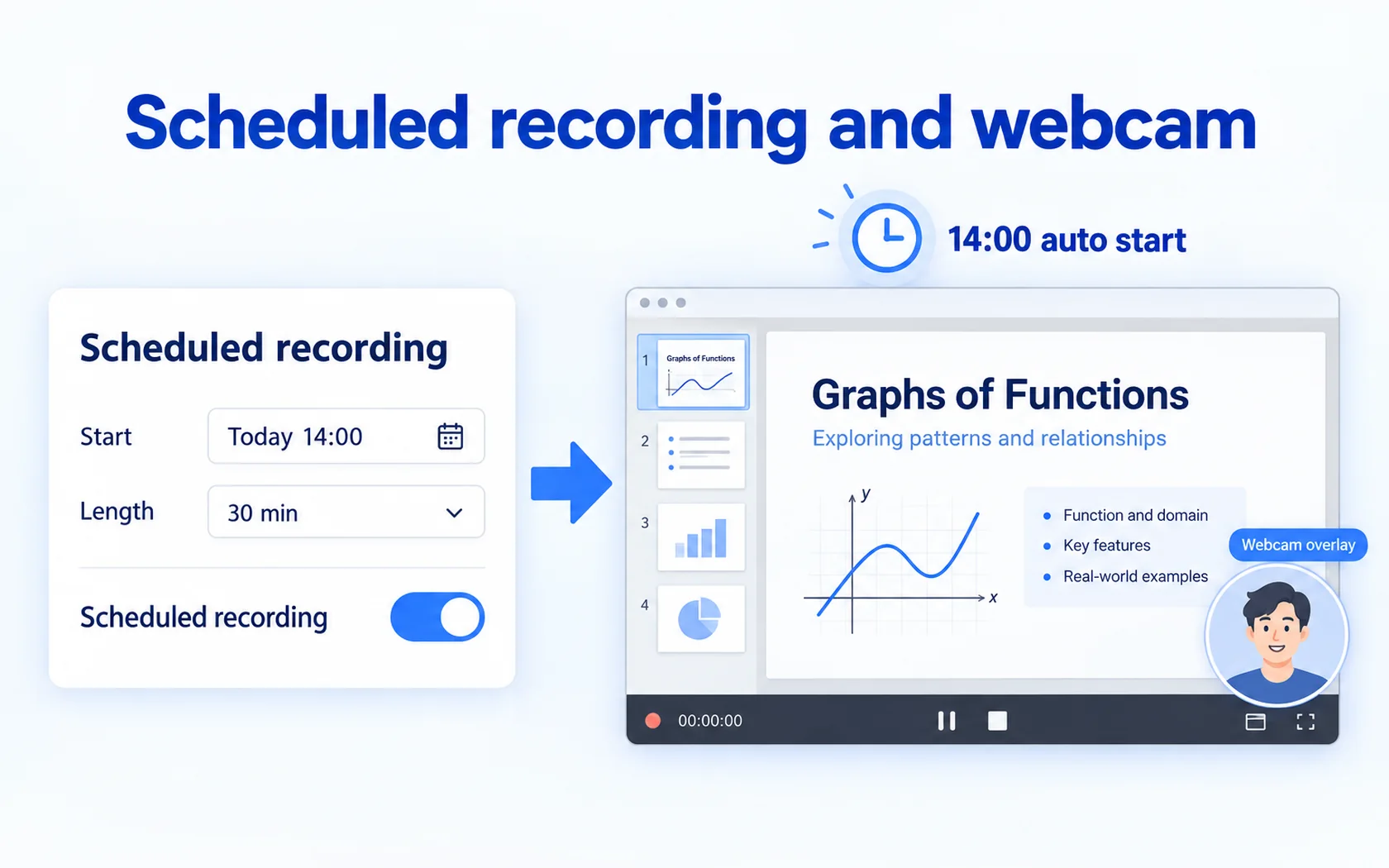
If a webinar starts in two hours or a render finishes overnight, you don't have to sit and wait with your finger on the record button. HanFlow Cap's Scheduled recording… lets you set a start time and how long to record. The recording stops by itself and saves an MP4 when it's done.
Schedule a recording — four steps
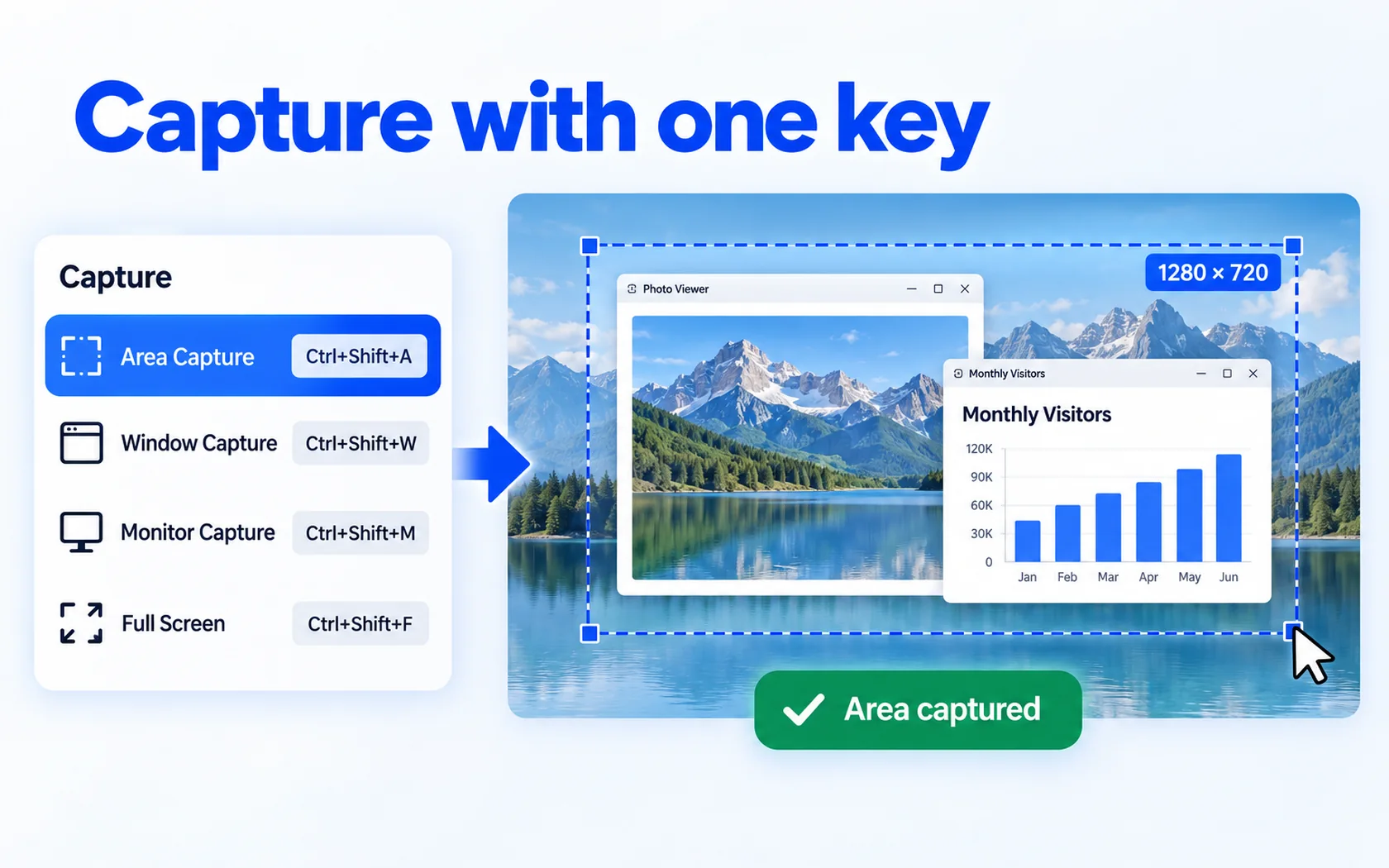
- Install and open HanFlow Cap (every feature is yours to try for 30 days). Click Rec area (F1) to show the recording frame and drag its handles over the area you want to capture. For the whole screen, use Fit frame to full screen in the menu.
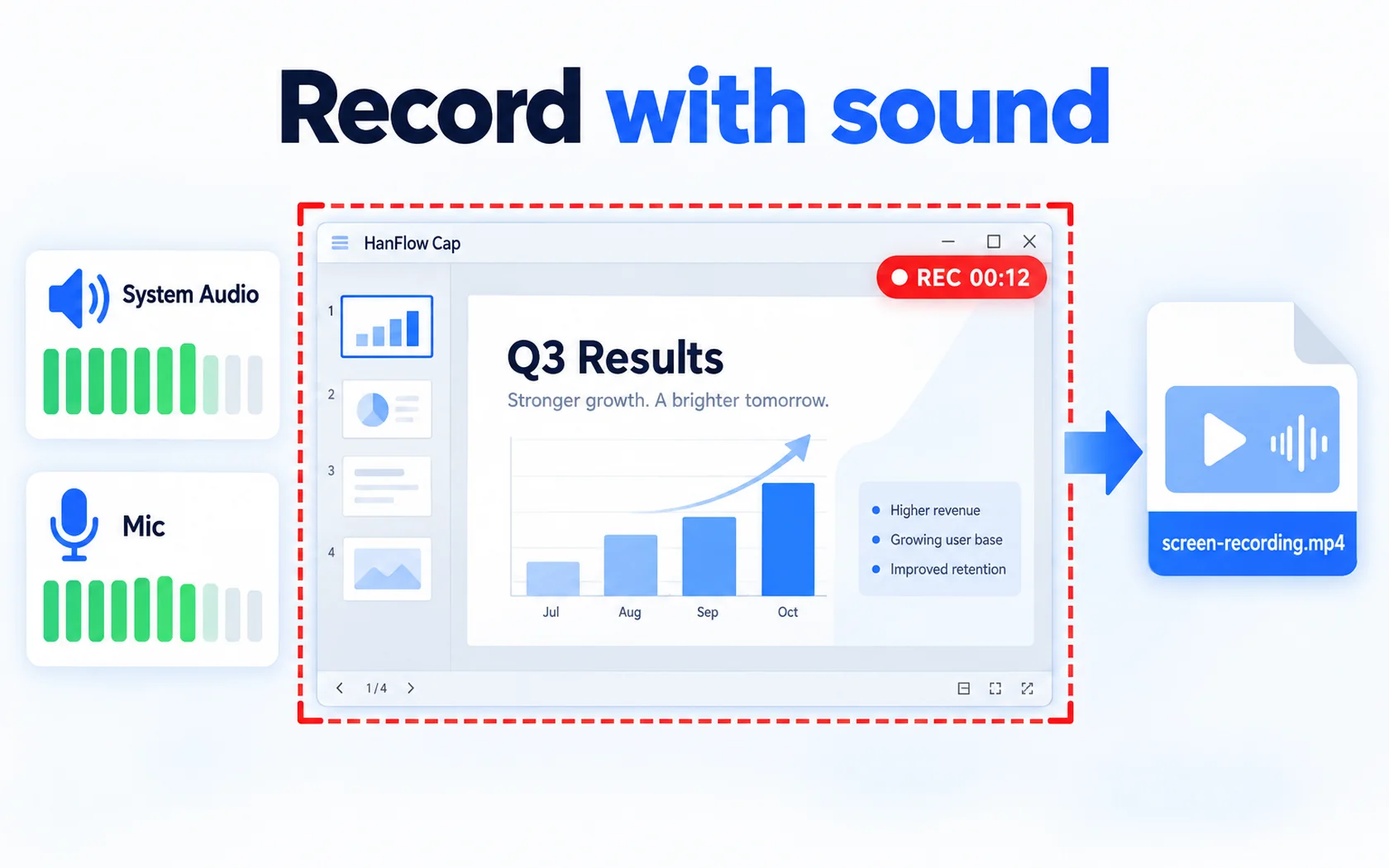
- In the recording menu, turn on Record system sound or Record microphone — or both — if you need audio. Turn on Record mouse pointer if pointer movement matters.
- Open Scheduled recording… in the recording menu. Set when to start: after a number of seconds, at a specific time such as
14:30, or on a future date such as11-05 09:00(within 8 days). Then set how many seconds the recording should run before it stops. - Leave HanFlow Cap open. You'll see ⏱ Scheduled — starts in …. When time is up the recording starts, runs for the duration you set, stops by itself, and saves the file as MP4. You'll see: Stopped at the scheduled time — recording saved.
Change or cancel a schedule
Changed your mind? Click Scheduled recording… again in the recording menu. The pending schedule is canceled (Schedule canceled). Two things to keep in mind: you cannot set a schedule while a recording is already running, and the start time must fall within 8 days.
When it helps
- An online lecture or webinar that starts later — schedule the recording for the exact start time and step away until it's over.
- A long process you want to capture — set the duration and let the recording stop on its own so you don't end up with hours of dead air.
- Recording while away from the desk — as long as HanFlow Cap stays open, the schedule runs without you.
Need your face in the corner? Turn on Webcam overlay… before the scheduled start. The webcam sits in a corner of the recording, at 5–60 % of the recording width.
Frequently asked questions
Can I schedule a recording for tomorrow?
Yes. Use the MM-DD HH:MM format — for example 11-03 08:00 — and the recording will start at that date and time. Scheduling is limited to within 8 days from now.
Does it stop by itself?
It does. The recording runs for the number of seconds you set, then stops and the file is saved.
What format are recordings saved in?
Video is saved as MP4 (H.264 video, AAC audio). With GIF recording turned on you get a GIF; sound-only recordings are saved as M4A.