
When you send a ZIP file that holds contracts, tax documents or personal photos, anyone who gets that file can open it — unless you set a password. In HanFlow Zip the password is set at compression time. You choose ZIP as the format, type a password, pick an encryption method and click Compress. The archive is protected from the start. The recipient types the password to extract it.
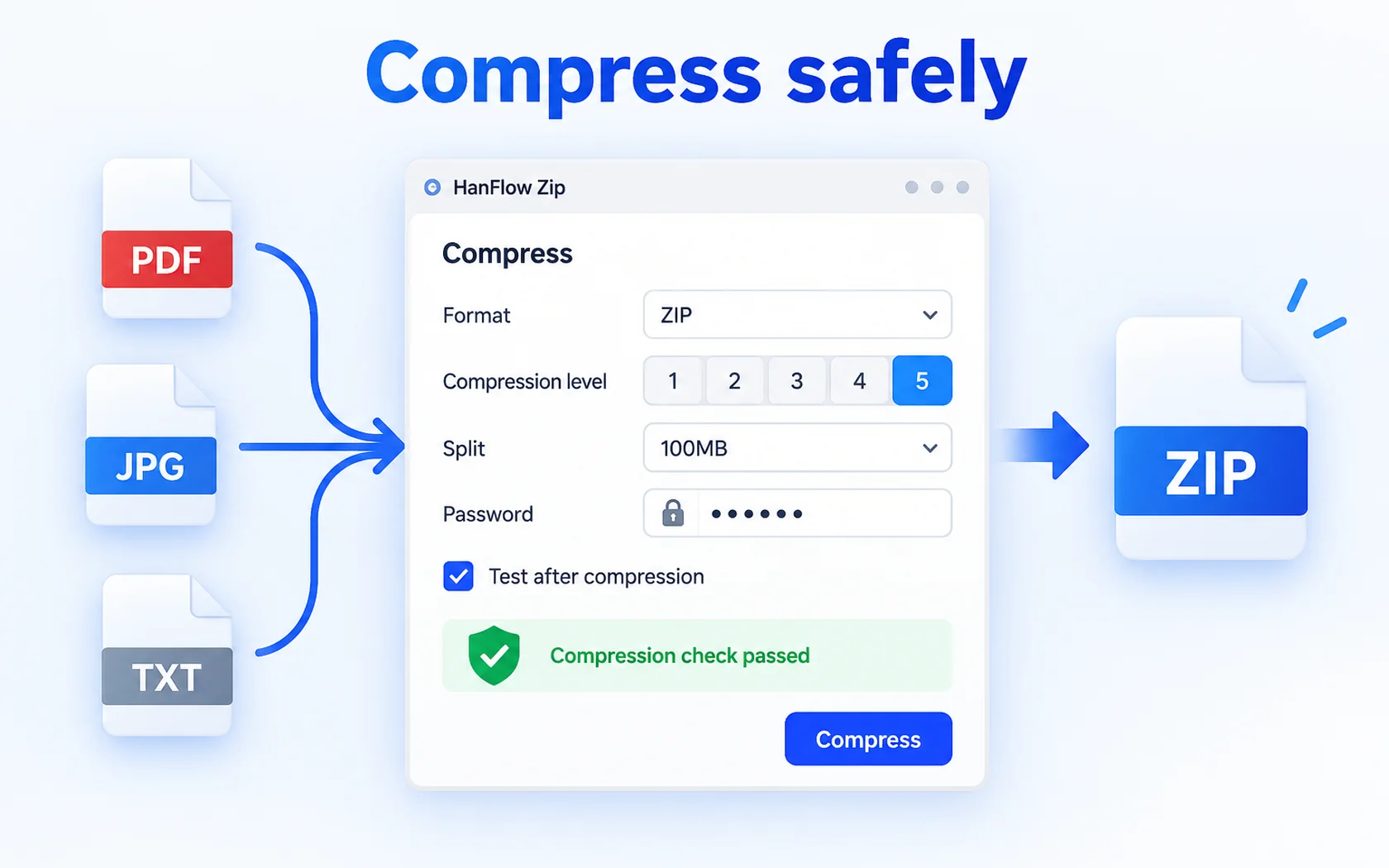
Add a password in four steps
- Select the files or folders you want to protect in File Explorer.
- Right-click the selection. Choose Compress with HanFlow Zip from the right-click menu. This opens the compression window with the password settings; the one-click Compress to “name.zip” item compresses right away without a password.
- Set Format to ZIP. Turn on Password, type the password twice, and pick the Encryption: AES-256 (recommended), AES-128 or ZipCrypto (compatible). Leave Test after compressing on if you want the finished archive checked.
- Compress. Anyone who tries to extract the files will need the password first.
AES-256, AES-128 or ZipCrypto?
HanFlow Zip offers three encryption options for a ZIP password. AES-256 and AES-128 are both AES encryption — the difference is key length — and the app marks AES-256 as recommended.
ZipCrypto is the older ZIP encryption method, and the app labels it "compatible" because more unzip tools can open it. Pick ZipCrypto only when the person receiving the archive uses a tool that cannot open AES-encrypted ZIP files.
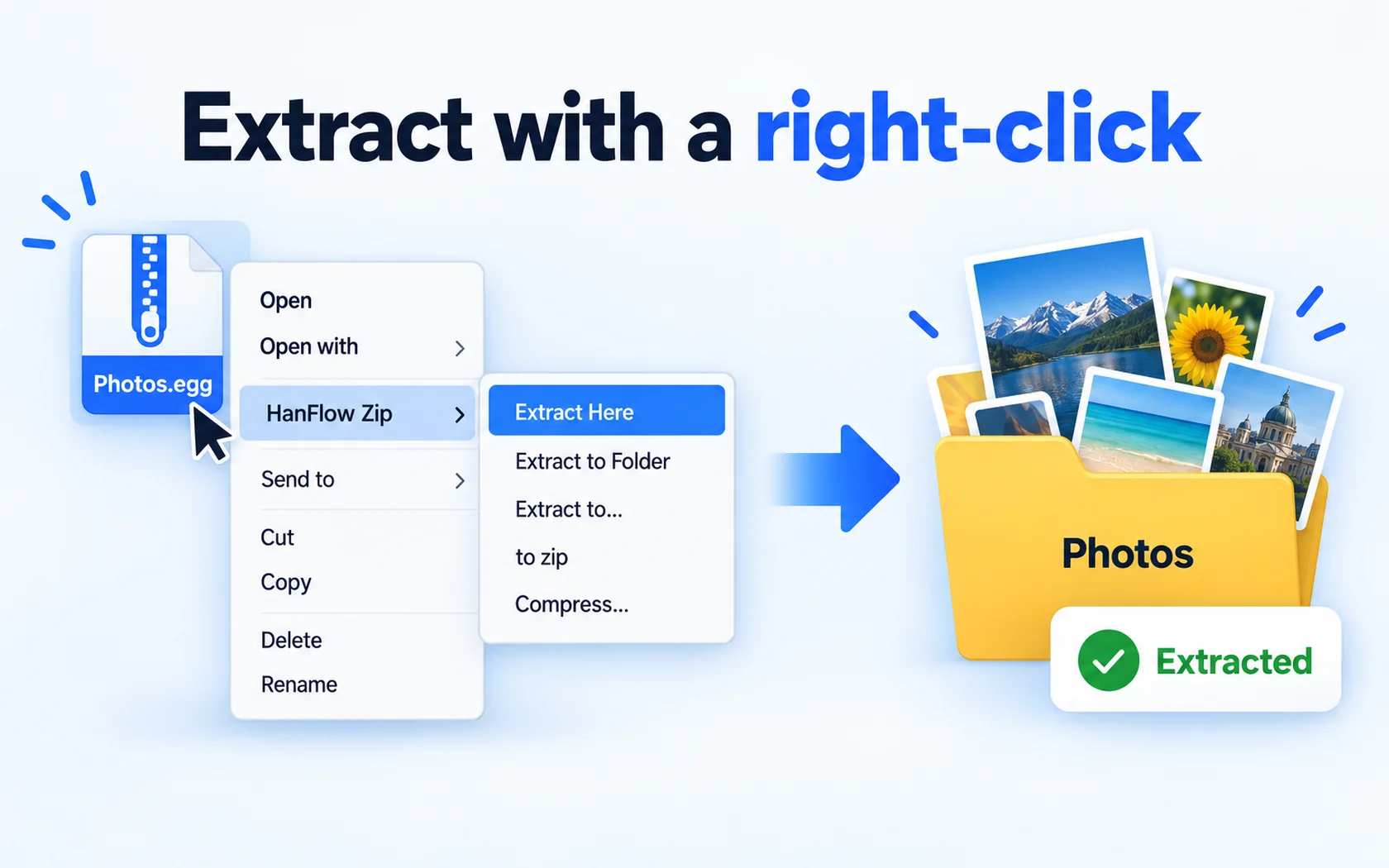
Big files: split and test
A password-protected archive can still be too large to email or upload to a file-sharing service. HanFlow Zip splits the archive into numbered .001 parts so each piece stays within the limit. Set the part size in Split before you compress.
Level offers five compression levels, from lighter to tighter packing.
With Test after compressing on, HanFlow Zip tests the finished archive, so a problem shows up before you send the file rather than after.
Frequently asked questions
Can I put a password on a 7z file?
No. In HanFlow Zip, password encryption is available for the ZIP format only. You can still compress to 7z, but the archive will not carry a password.
Can HanFlow Zip open password-protected EGG or ALZ files?
No. HanFlow Zip extracts regular EGG and ALZ archives, but it cannot open them when they are password-protected.
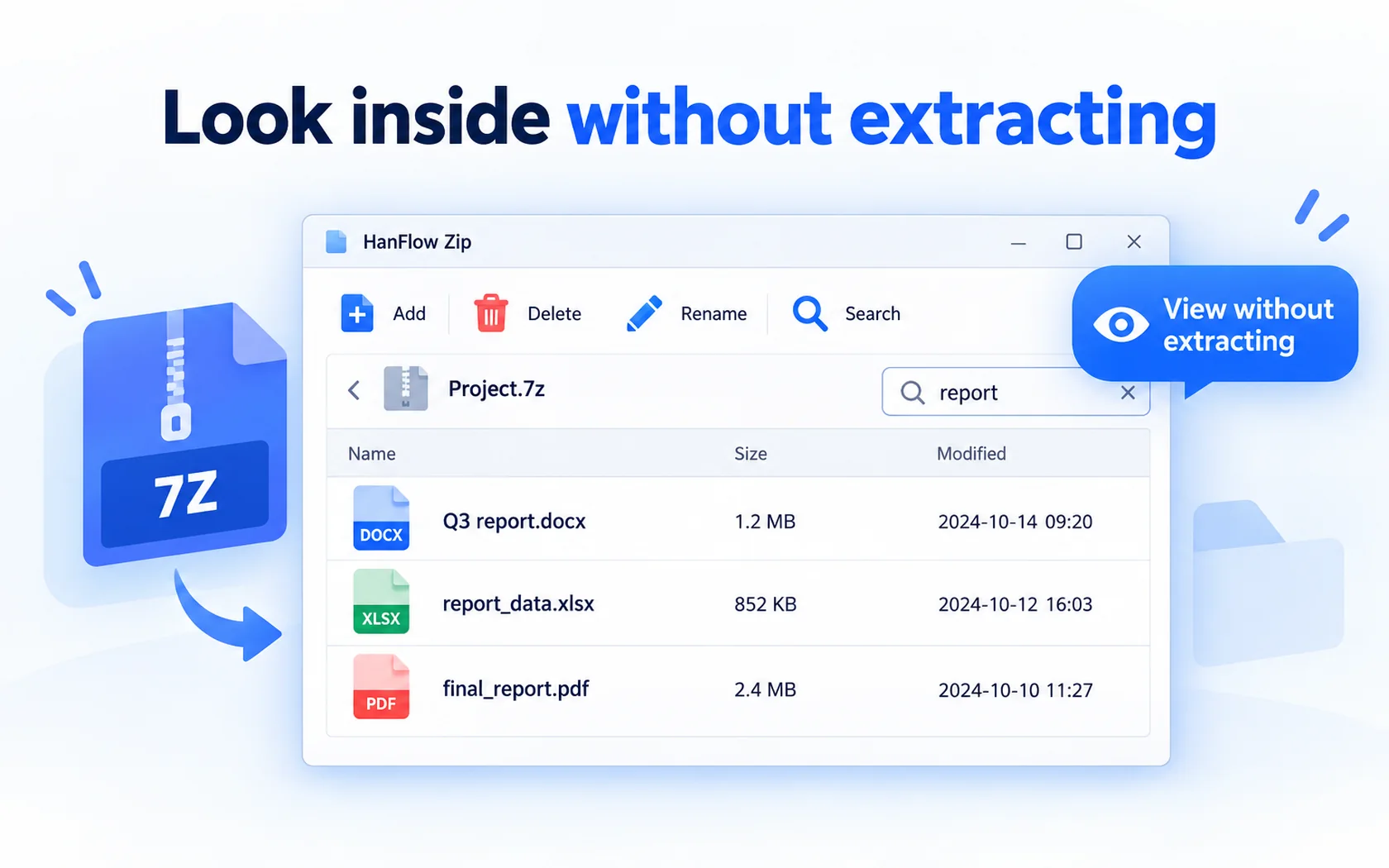
Can I rename or delete files inside a password-protected ZIP?
No. HanFlow Zip does not rename or delete items in a password-protected archive, because rewriting it would remove the password. Extract, change the files, and compress again with a password.