
A screen recording or phone video can quickly grow too large to attach to an email or upload to a messaging app. The fix is straightforward: cut the parts you do not need, export at a smaller size, or let the editor compress the result. HanFlow Cut gives you all three options.
Three ways to make a video smaller in HanFlow Cut
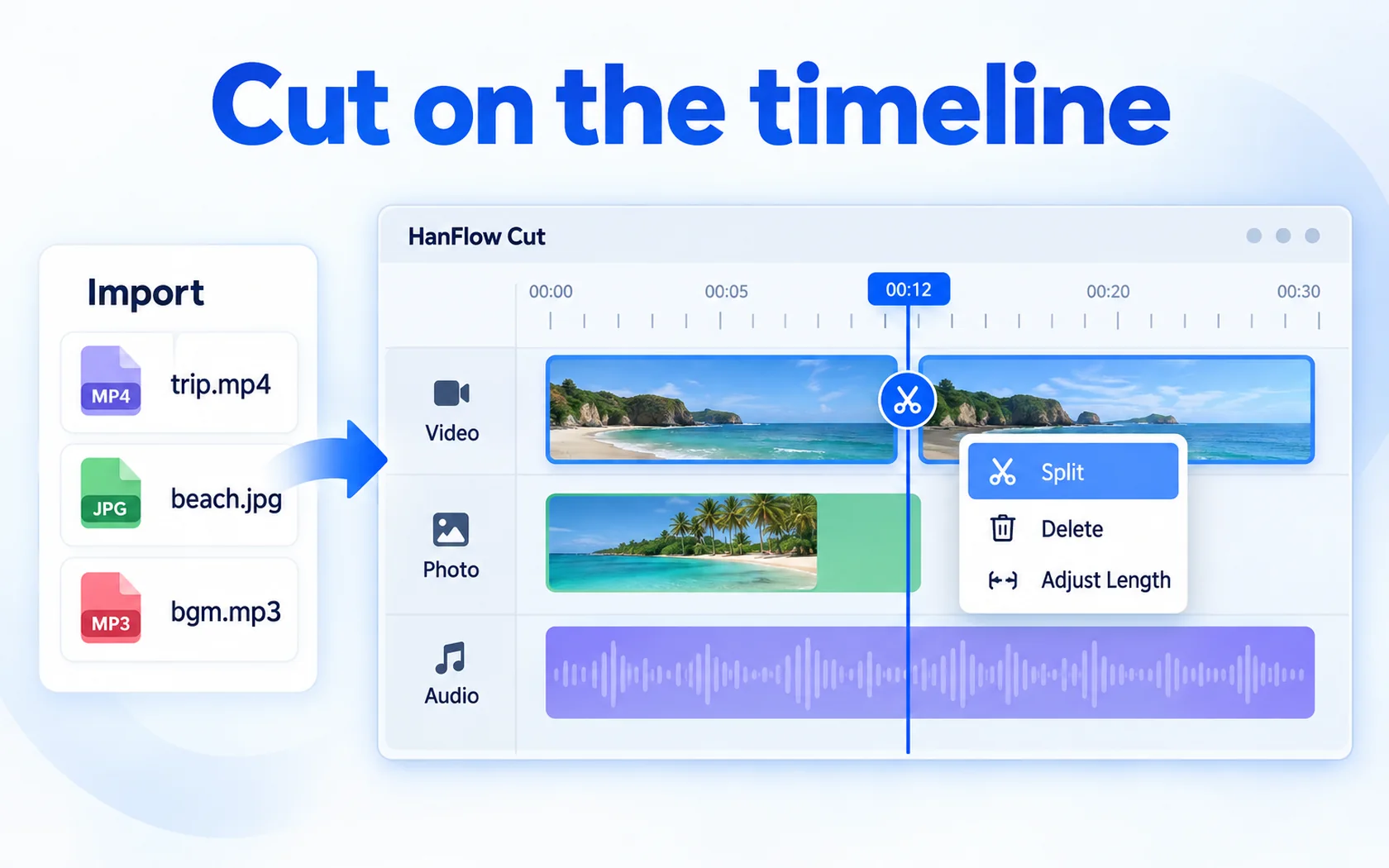
- Trim the parts you don't need. Most recordings have dead air at the start and end. Click the clip on the timeline, place the playhead where the good part begins, and click Trim start. Move the playhead to where it ends and click Trim end. To remove a section in the middle, Split (Ctrl+B) at its start and end, select the middle piece, and press Del. Less footage means a smaller file. HanFlow Cut also offers lossless trimming.
- Export at a lower resolution or frame rate. When you export, you can choose a resolution from the original up to 4K and a frame rate from 24 to 60 fps. A lower resolution or frame rate gives a smaller MP4.
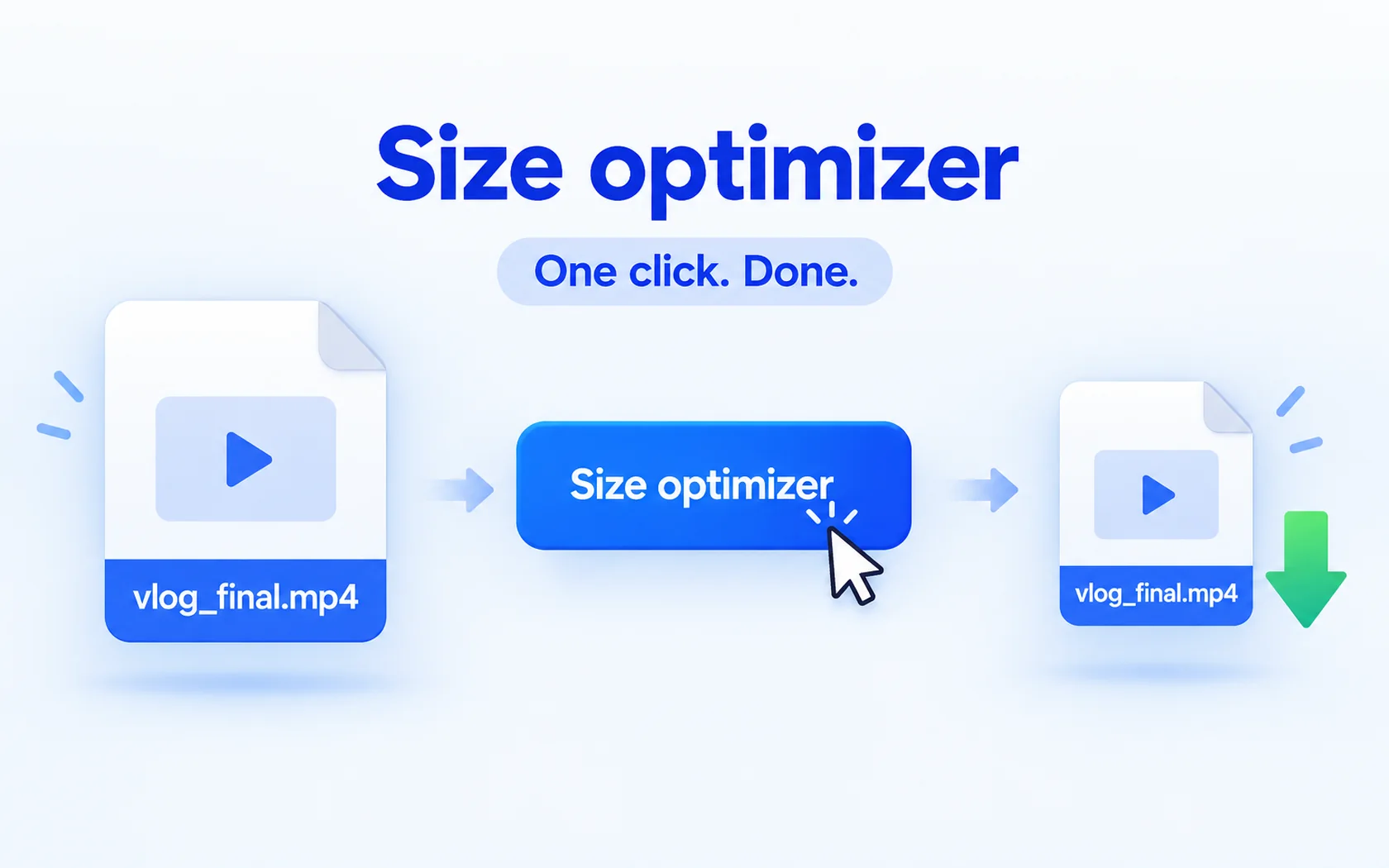
- Use size optimization. If the exported video is still too large, size optimization shrinks it with one click — no need to re-edit the project.
Other things that make files big
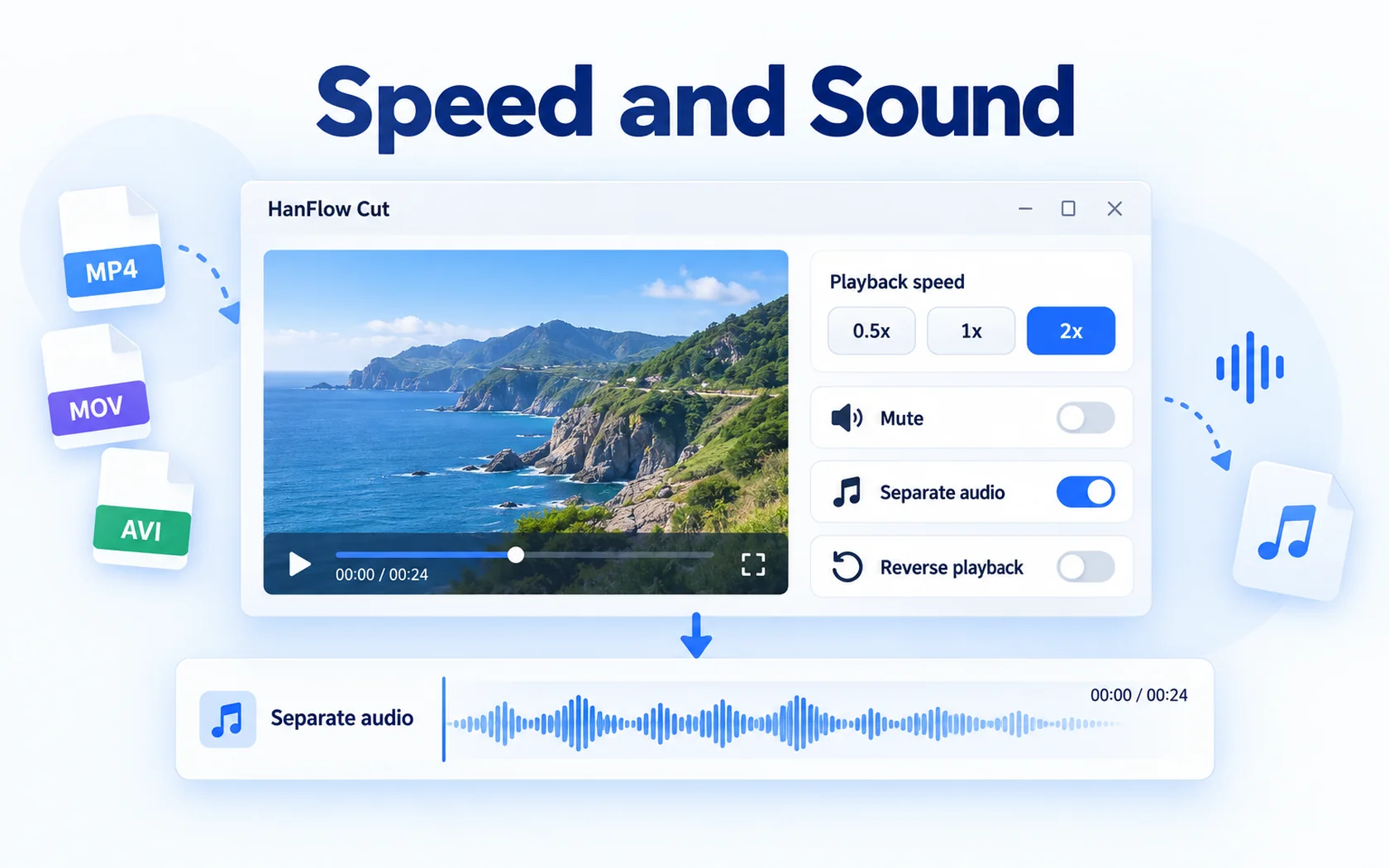
Long, uncut recordings are the most common culprit, but resolution and audio matter too. A higher resolution stores more pixels in every frame. Background music or a second audio track adds data the viewer may never hear. In HanFlow Cut you can mute a clip or use separate audio to pull the sound off the video, then delete whatever you do not need. Every bit you remove brings the file size down.
Frequently asked questions
Does this change my original video file?
No. Trimming happens on the timeline only; Export writes the result to a new MP4 file.
Which formats can I import and export?
You can import mp4, mov, m4v, avi, mkv, webm and wmv. Export is MP4 (H.264, AAC).
Can I do this on a Mac?
Yes — HanFlow Cut for Mac (macOS 13 or later, Apple silicon) can trim, join and export MP4, and has size optimization.