
Open your photo in HanFlow Image and press I — a compact window shows the camera, date taken, GPS coordinates, and other EXIF fields stored in the file. For the complete picture, open Metadata → Properties… (or press Alt+Enter) and switch to the EXIF info tab. EXIF is read from JPEG, PNG, WebP, TIFF, AVIF, and HEIC files.
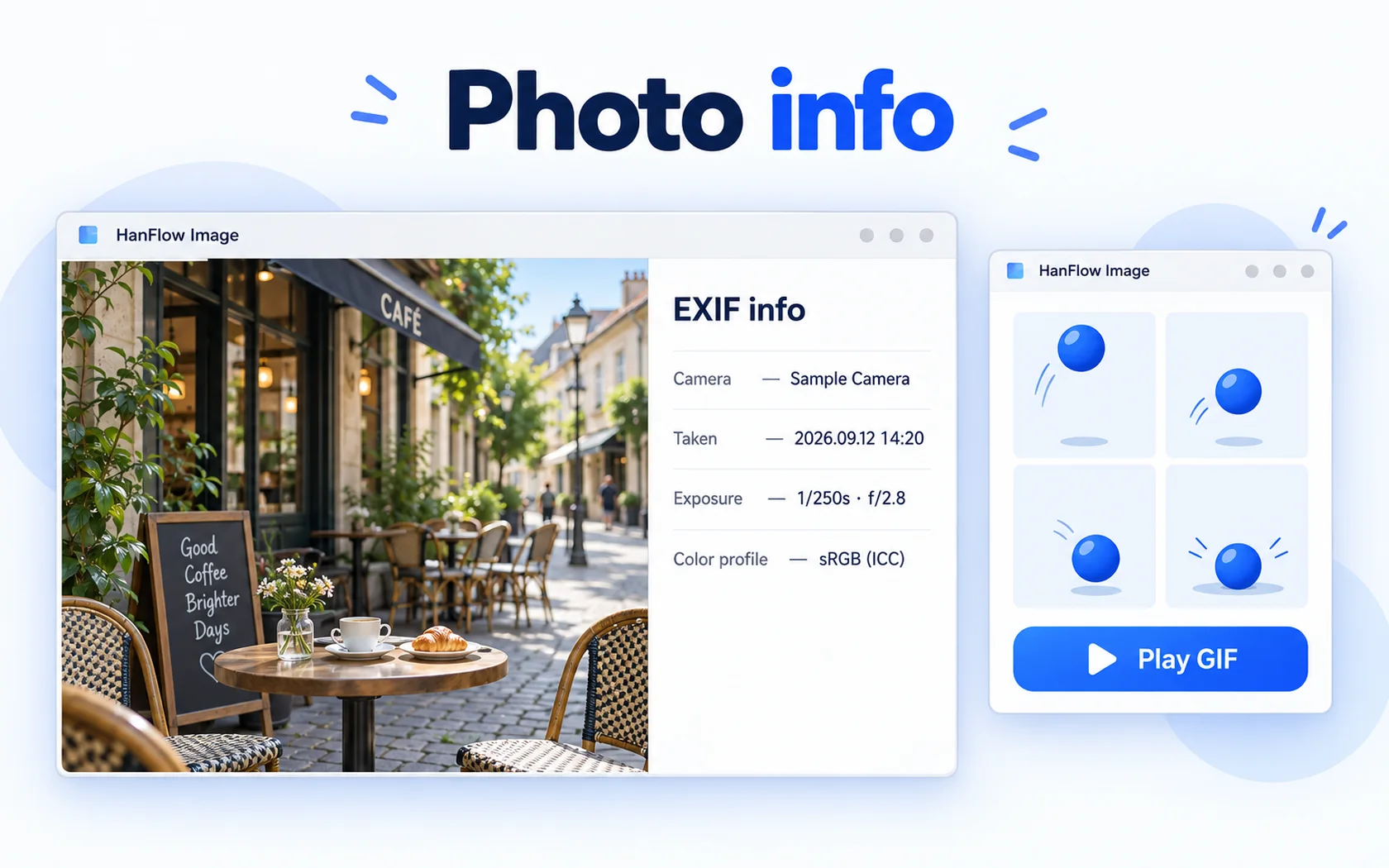
Quick view: press I
This is the fastest way to check a photo's shooting data.
- Open a photo in HanFlow Image — drag it into the window or use File → Open… (Ctrl+O).
- Press I, or go to Metadata → View EXIF info.
- A small window titled EXIF appears. At the top you see the file name, image dimensions (Size: W × H pixels · N channels), and file size in KB.
- Below that, the shooting data appears — only the fields the photo actually contains. If no EXIF is found, the window tells you.
The lines you may see:
- Date taken
- Make
- Camera
- Lens
- Shutter (e.g. 1/250 s)
- Aperture (e.g. f/2.8)
- ISO speed
- Focal length (e.g. 35 mm)
- Software
- Location (latitude, longitude to six decimal places)
If the photo carries an orientation tag, the window also notes that the image is shown upright.
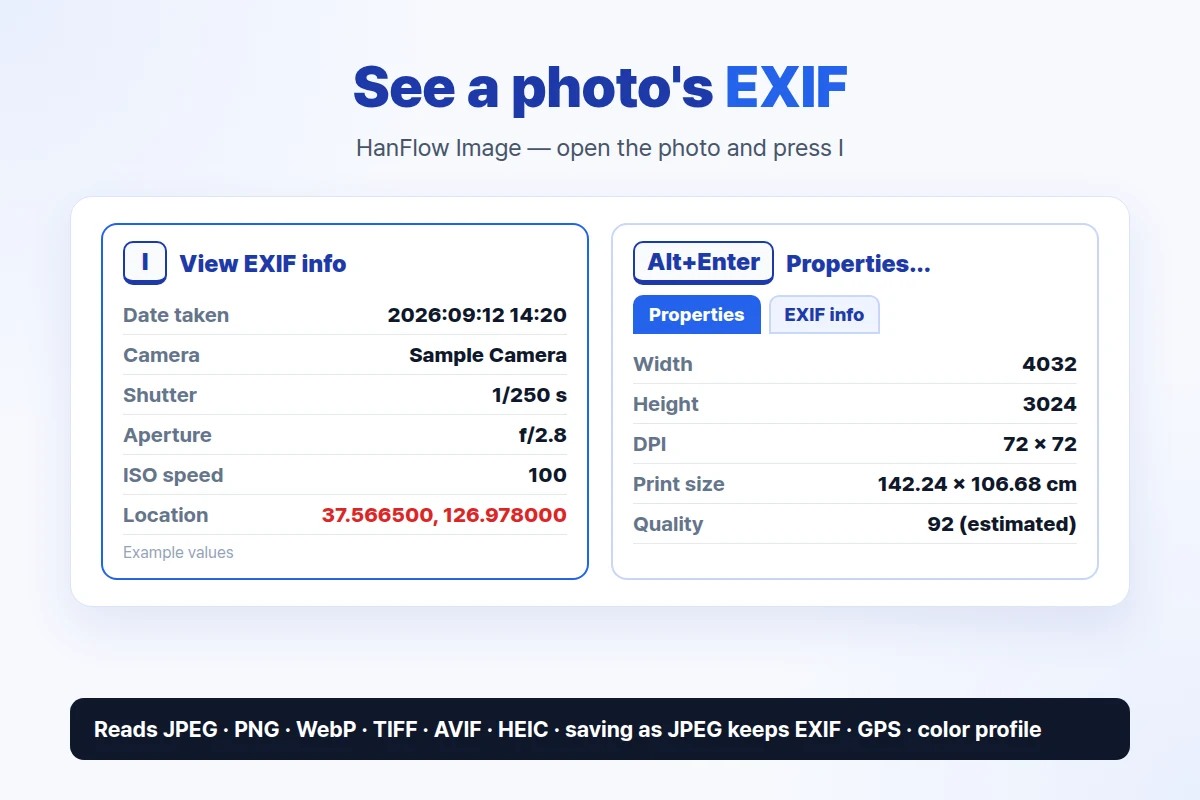
Full details: Properties (Alt+Enter)
Properties shows the same shooting data plus file and image details. Open it from Metadata → Properties…, the File menu, the right-click menu, or the Properties button on the toolbar. It works on thumbnails in the folder browser too: select a photo there and open Properties.
The window has two tabs:
Properties tab
Under File: file name, file path, format description, file size (in MiB and bytes), date created, date modified, and date accessed. Under Image: format, width, height, megapixels, bit depth, color model (RGB, RGB + alpha, grayscale, etc.), DPI, print size in centimeters and inches (shown when DPI is recorded; otherwise Not recorded), and EXIF orientation.
For JPEG files you also see compression type (Baseline or Progressive), chroma subsampling, and an estimated quality value. This quality number is not read from the file — it is reverse-estimated by the app, which is why it is labeled (estimated).
EXIF info tab
Make, Model, Lens, Software, Date taken, Exposure, Aperture, ISO, Focal length, and Position (latitude, longitude). The same shooting data as the quick view, laid out alongside the file-level details on the other tab.
What each field tells you
- Date taken — the date and time recorded for the shot.
- Make / Model — the manufacturer and camera body, e.g. a phone brand and model or a DSLR name.
- Lens — the lens attached at the time of capture.
- Shutter / Exposure — how long the sensor was exposed (e.g. 1/250 s).
- Aperture — the lens opening (e.g. f/2.8).
- ISO speed — sensor sensitivity.
- Focal length — the focal length of the lens, in millimeters.
- Software — the app or firmware that last processed the file.
- Location — GPS coordinates as latitude and longitude (e.g. 37.566500, 126.978000), if the camera or phone recorded them.
Before you share a photo
Check the Location line. If coordinates are stored in the photo, HanFlow Image shows them as latitude and longitude, so you can see what is there before you send the file. It does not, however, have a button to remove location data or to edit any EXIF field. If you need the coordinates gone before sharing, you will need a separate tool for that step.
Which formats carry EXIF
HanFlow Image reads EXIF data from JPEG, PNG, WebP, TIFF, AVIF, and HEIC. HEIC files open when the Windows photo extensions are installed on your system. Photos that contain an orientation tag are automatically shown upright; you can also reapply it from Image → Rotate · Flip → Re-apply EXIF orientation.
Editing and EXIF
When you adjust brightness, crop, or otherwise edit a photo and save it as JPEG, HanFlow Image carries over the EXIF data, GPS coordinates, and color profile to the new file. If you save to a format that cannot store EXIF — for example PNG — the app warns you (The save format (.png) cannot store EXIF) so nothing is silently lost. EXIF stored inside an AVIF original is not carried over yet; the app tells you this as well.
Frequently asked questions
Why do I see no EXIF data?
Usually the photo has none. Screenshots and many edited or exported images do not contain shooting data. HanFlow Image tells you when no EXIF is found.
Can I see where a photo was taken?
Yes — if the camera or phone recorded GPS coordinates, they appear in the Location line as latitude and longitude. Press I or open the EXIF info tab in Properties to check.
Does viewing EXIF still work after the 30-day trial?
Yes. Once the trial ends, opening photos and viewing information — including EXIF — continues to work. Only saving and exporting require a license.
Can I edit or remove EXIF data?
No. HanFlow Image reads EXIF and carries it over when you save as JPEG (except EXIF inside an AVIF original), but it does not edit or remove EXIF fields.
Related guides: convert HEIC photos to JPG · resize many photos at once.