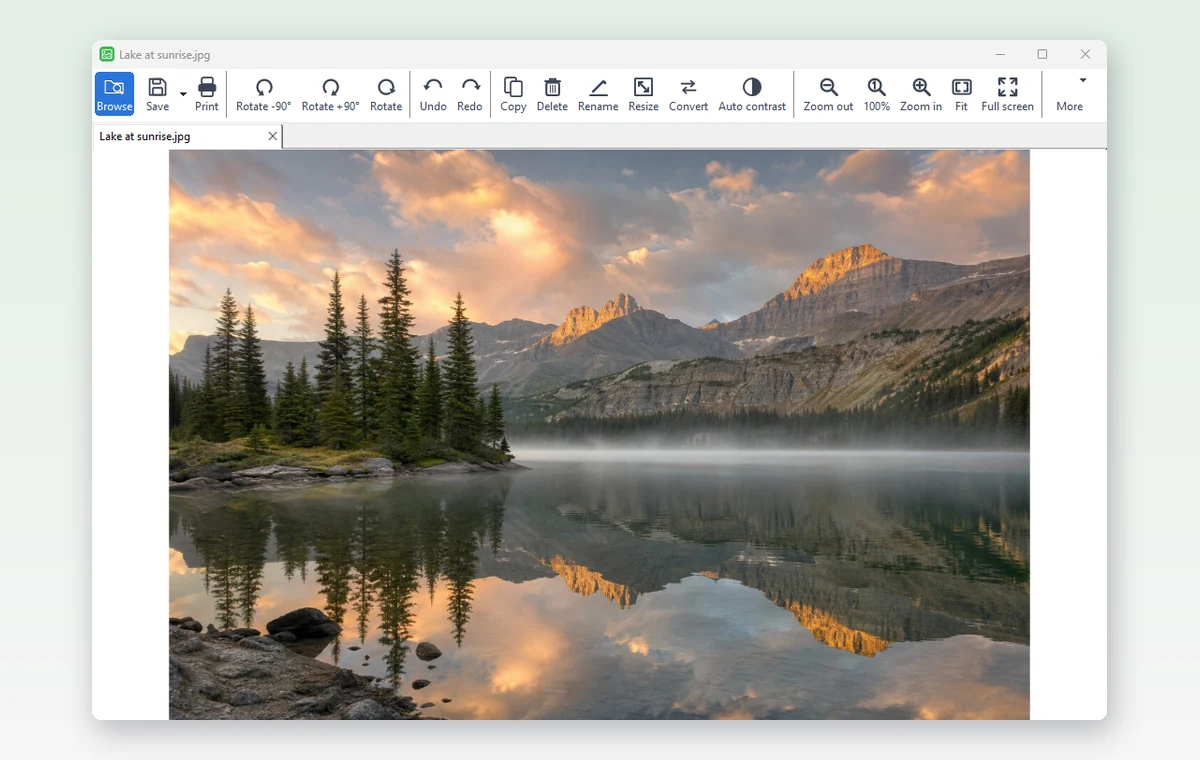
You have a folder of photos too large to email or upload. Here is the short version: open that folder in HanFlow Image, press F3 to launch Batch edit…, tick Resize image, choose a method, set your save options, and hit Start(S). The files in the list are resized in one pass.
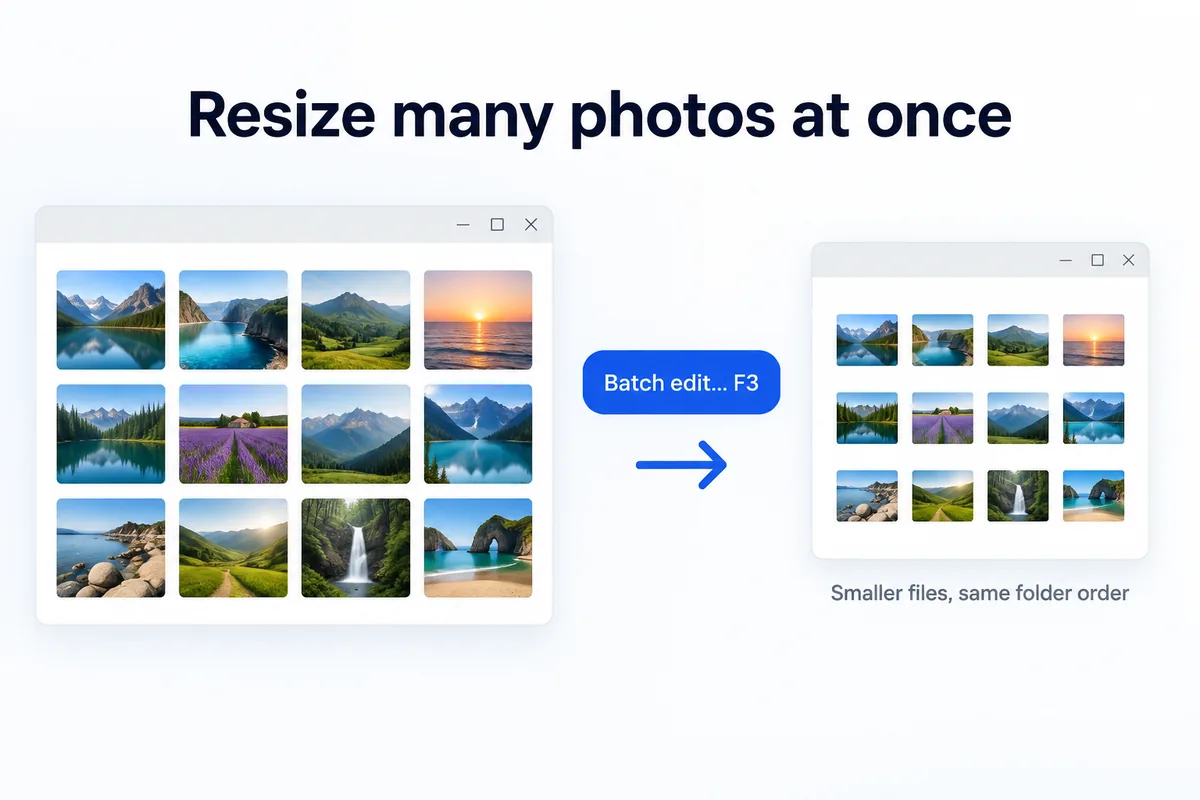
Open the folder, then press F3
Open any photo or folder in HanFlow Image. The app builds a file list from whatever is in that location. Every file in the list becomes part of the batch.
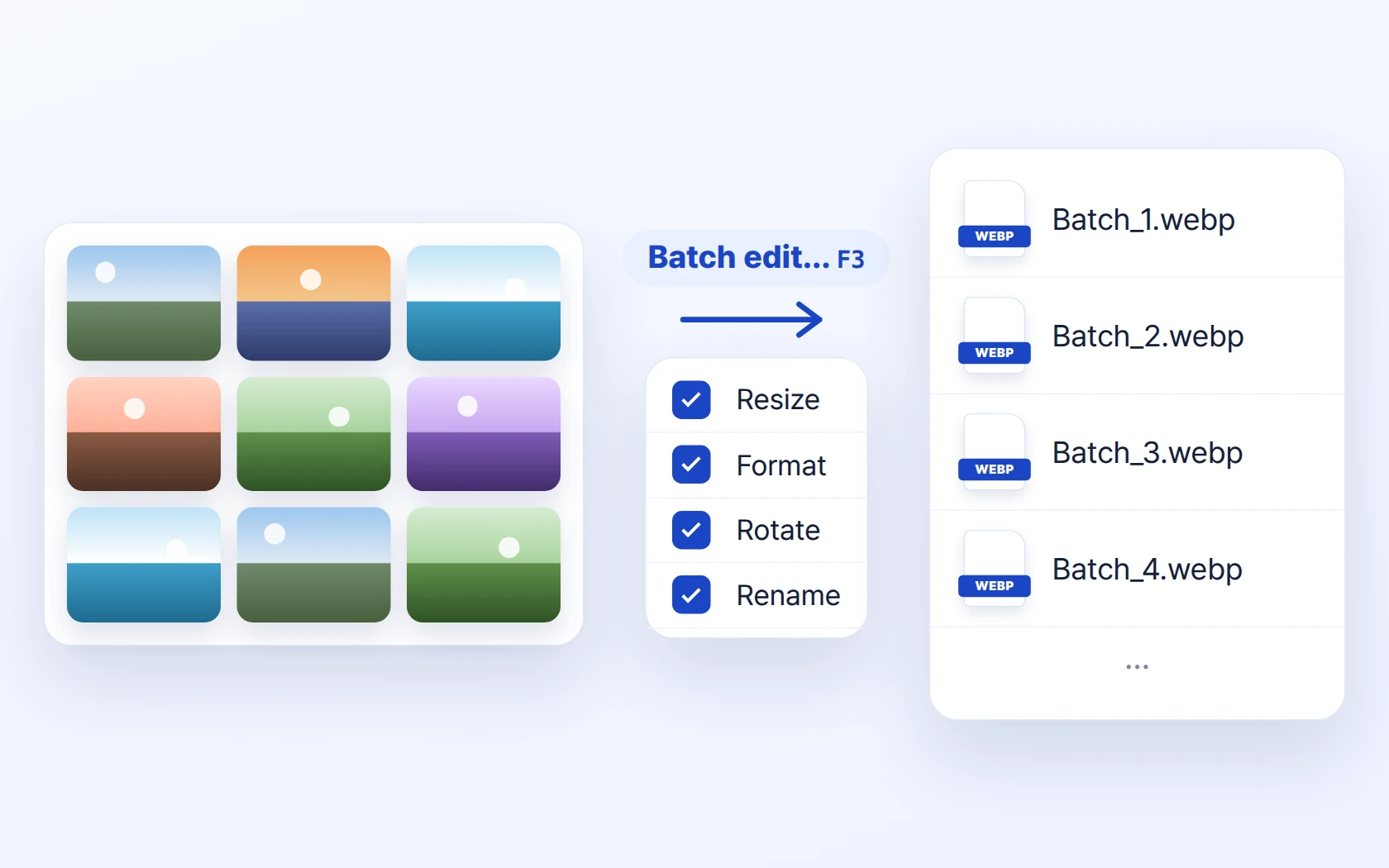
Press F3 (Batch edit…, also in the File menu) and a wizard appears. The first step, Select tasks, shows four checkboxes: Resize image, Rotate image, Rename, and Convert/save image format. Tick one or all four — the wizard walks you through each in order, and everything runs in a single pass.
Pick how big
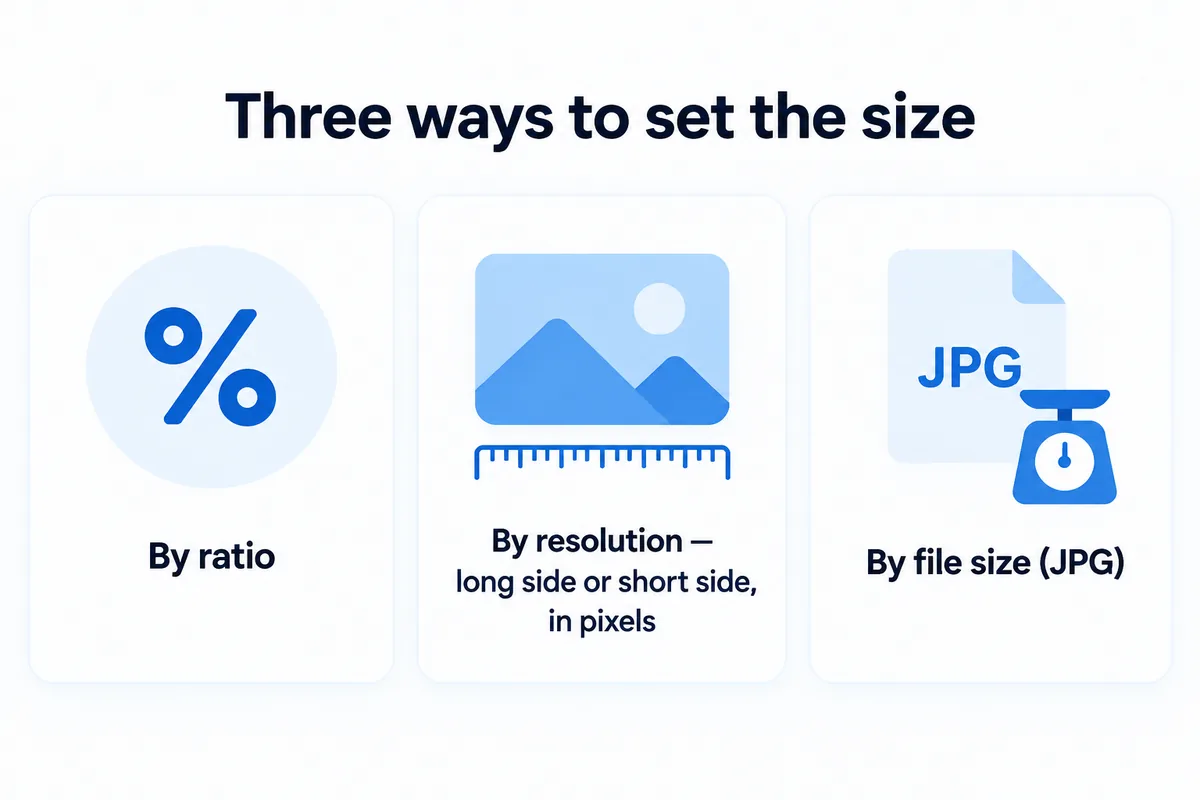
After you tick Resize image and click Next(N) >>, three methods appear:
- Resize by percentage — scale everything to, say, 50 %. Quick when you just need smaller files for email.
- Resize by resolution — set the Long side or Short side in pixels. Useful when a website demands a specific dimension or you need a consistent gallery.
- Resize by file size (JPG) — target a maximum file size per image. Handy when an upload form caps each file at a certain number of kilobytes.
Resolution mode keeps proportions intact: set the Long side and every photo — landscape or portrait — gets the same longest edge, while the other side follows.
Rename and convert in the same pass
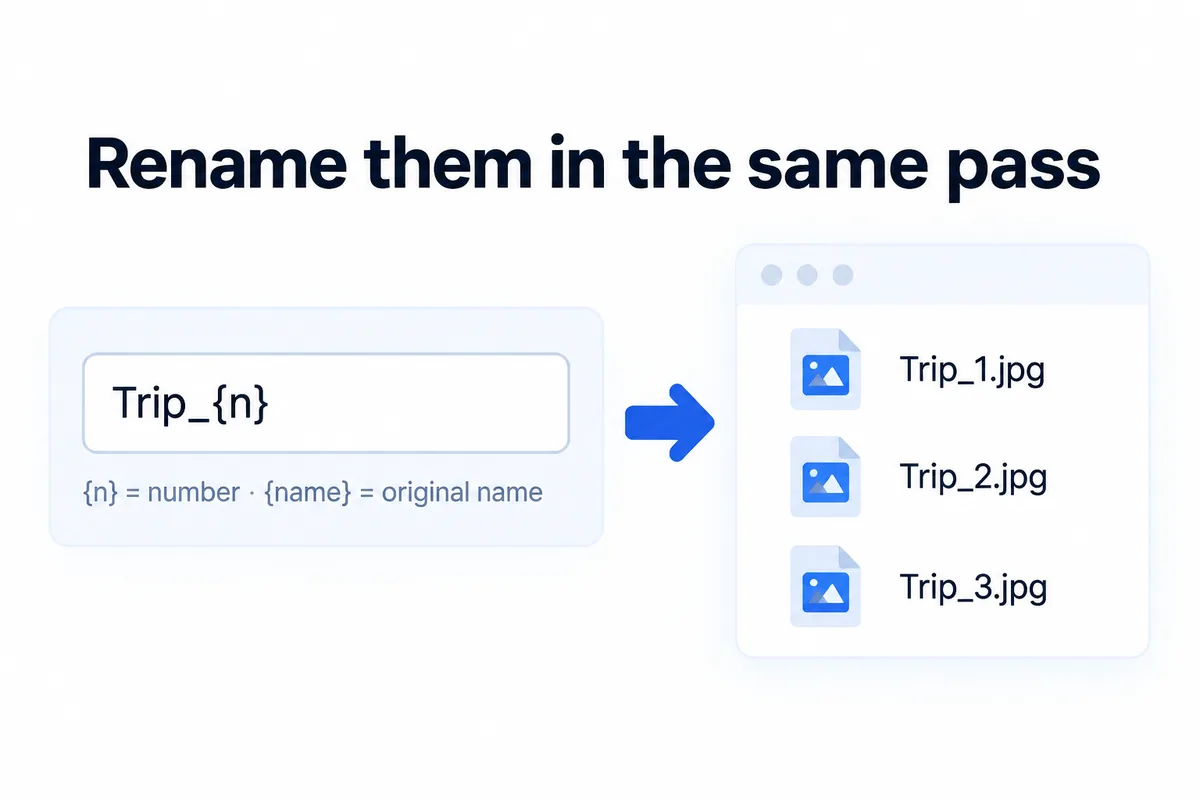
Back on the Select tasks screen, tick Rename to give the output files a clean sequence. The pattern uses two tokens: {name} for the original file name and {n} for a running number. A pattern like Trip_{n} produces Trip_1, Trip_2, Trip_3, and so on.
Tick Convert/save image format to change the output type at the same time. HanFlow Image can save to JPEG, PNG, BMP, TGA, WebP, TIFF, and AVIF. Converting a batch of TIFF scans to WebP while resizing them is one wizard run, not two.
Decide where the results go
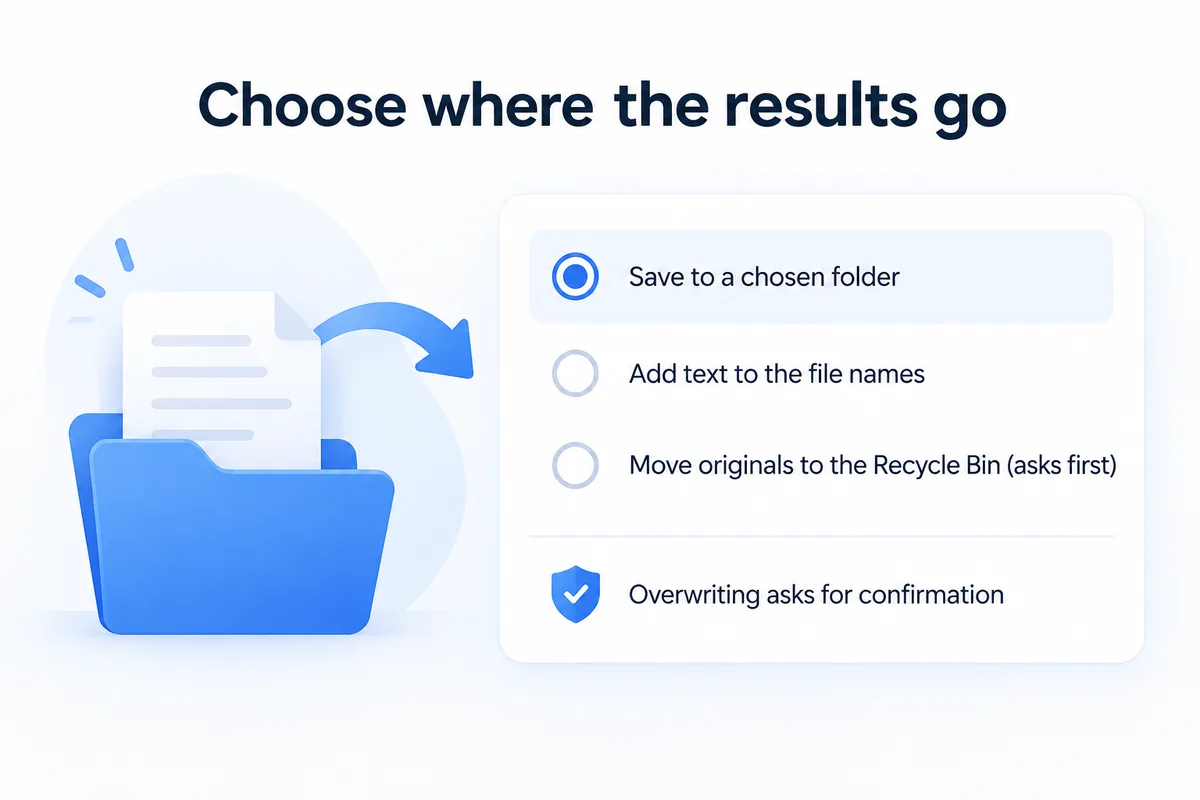
The Save options step controls the output destination. Save to specified folder lets you pick any folder (or create a subfolder). Add text to output file name adds text to each output name so results are easy to tell apart from the originals.
There is an option to Delete originals after conversion (to Recycle Bin). The app asks for confirmation before deleting anything. If a file would overwrite an existing file, you get a separate confirmation — and that overwrite cannot be undone.
A practical tip: keep originals until you have checked the results. The Recycle Bin safety net is there, but verifying first costs nothing.
In short
Open a folder, press F3, tick the tasks you need, walk through the wizard, and hit Start. The folder is resized, renamed and converted in one run, and the Batch edit results screen lists any file that was skipped or failed. HanFlow Image offers a 30-day trial with every feature enabled; after the trial, conversion and batch editing require a license. The app runs on Windows (x64) only. It opens HEIC files only when the Windows HEIC extension is installed.