
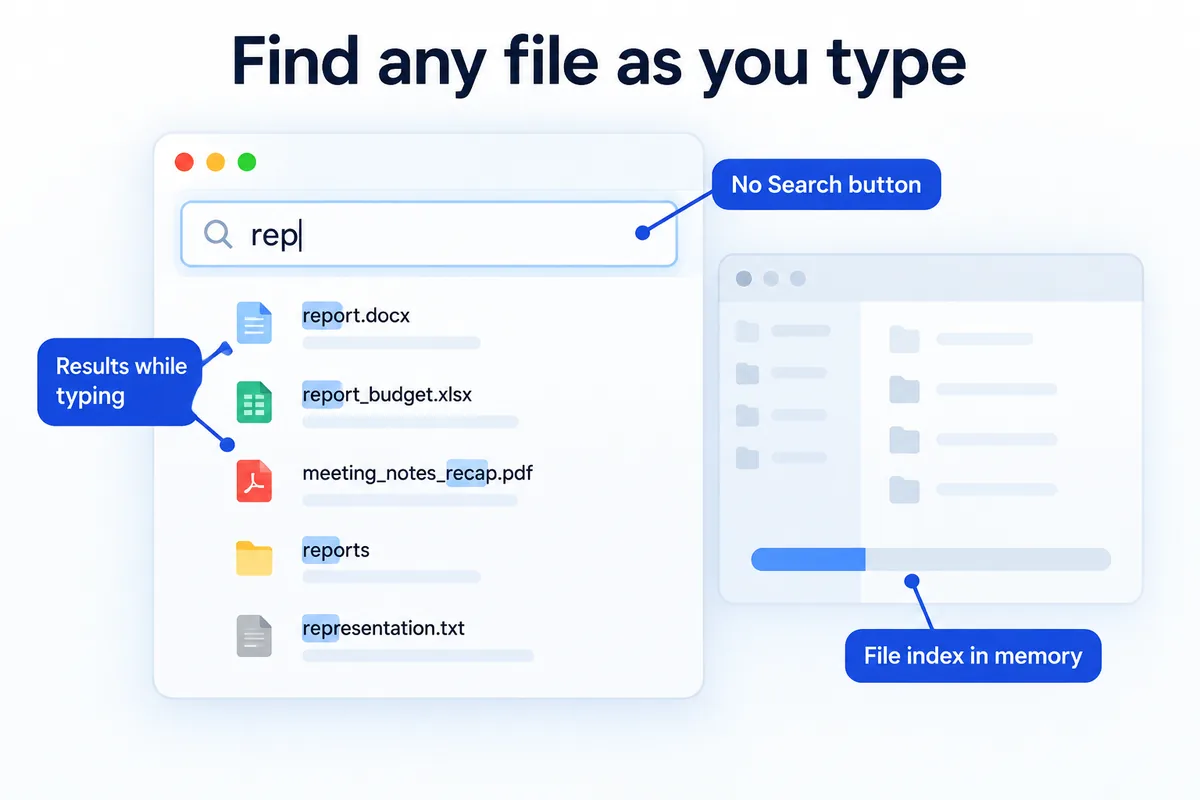
You know the wait. You type a file name into File Explorer, hit Enter, and watch the progress bar crawl across folders you'll never open. HanFlow Finder works differently. Results appear the moment you start typing — there is no Search button to press.
Why it is instant
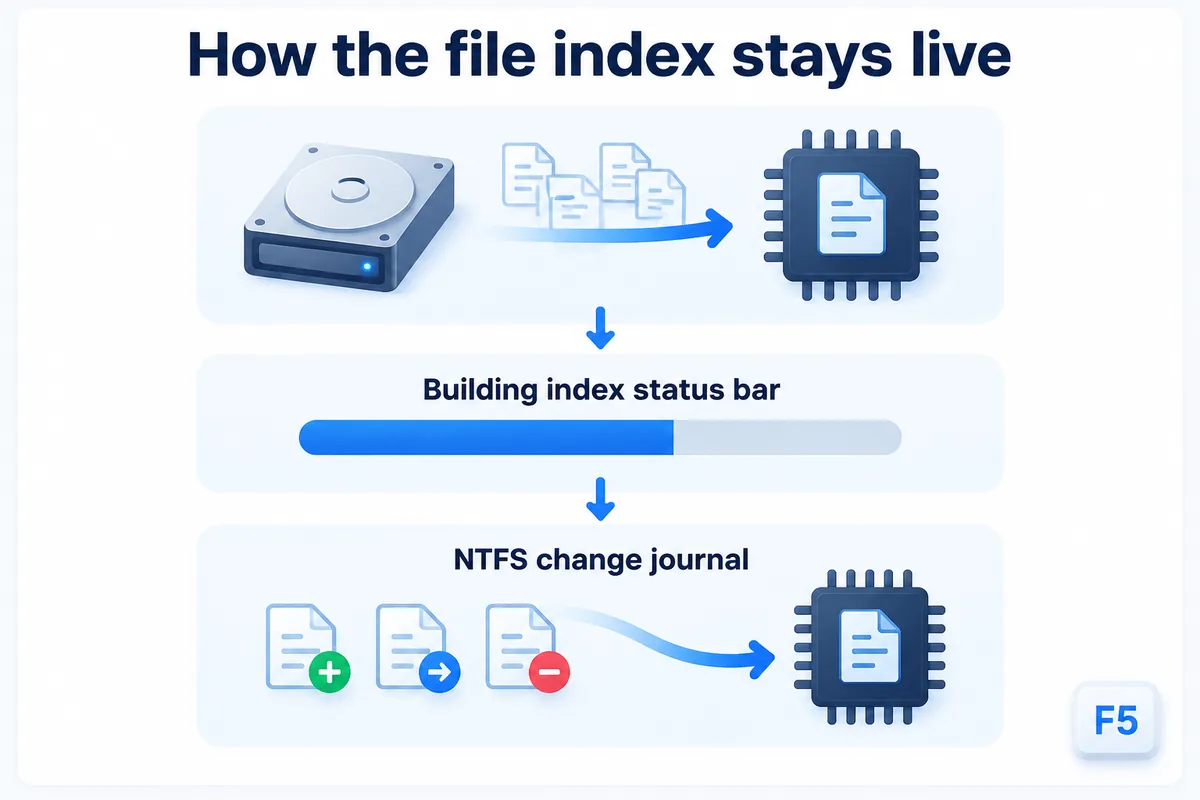
When HanFlow Finder starts, it loads the disk's file index into memory. That is why results show up as you type each letter.
While the index is still building for the first time, the status bar says "Building index". Even then, Finder searches whatever it has loaded so far, so you can start working right away.
Once the index is built, it stays live. Created, moved, and deleted files are reflected through the NTFS change journal — no administrator rights needed for this. Drives whose journal cannot be read fall back to folder watching. If anything seems off, Search ▸ Rebuild Index (F5) starts the index from scratch.
Narrow it down
Typing a name is often enough. When it isn't, Finder gives you several ways to cut through a long result list:
- Wildcards *? — match any part of a file name with familiar patterns.
- Regular Expression — for precise pattern matching. Because regex is heavier, the search runs when you press Enter rather than on every keystroke.
- Match Case — distinguish Report from report.
- Filter by Extension… — enter extensions separated by commas (e.g. txt,pdf) to see only certain file types.
- This Folder Only… — limit the search to a single folder scope.

Search every drive at once
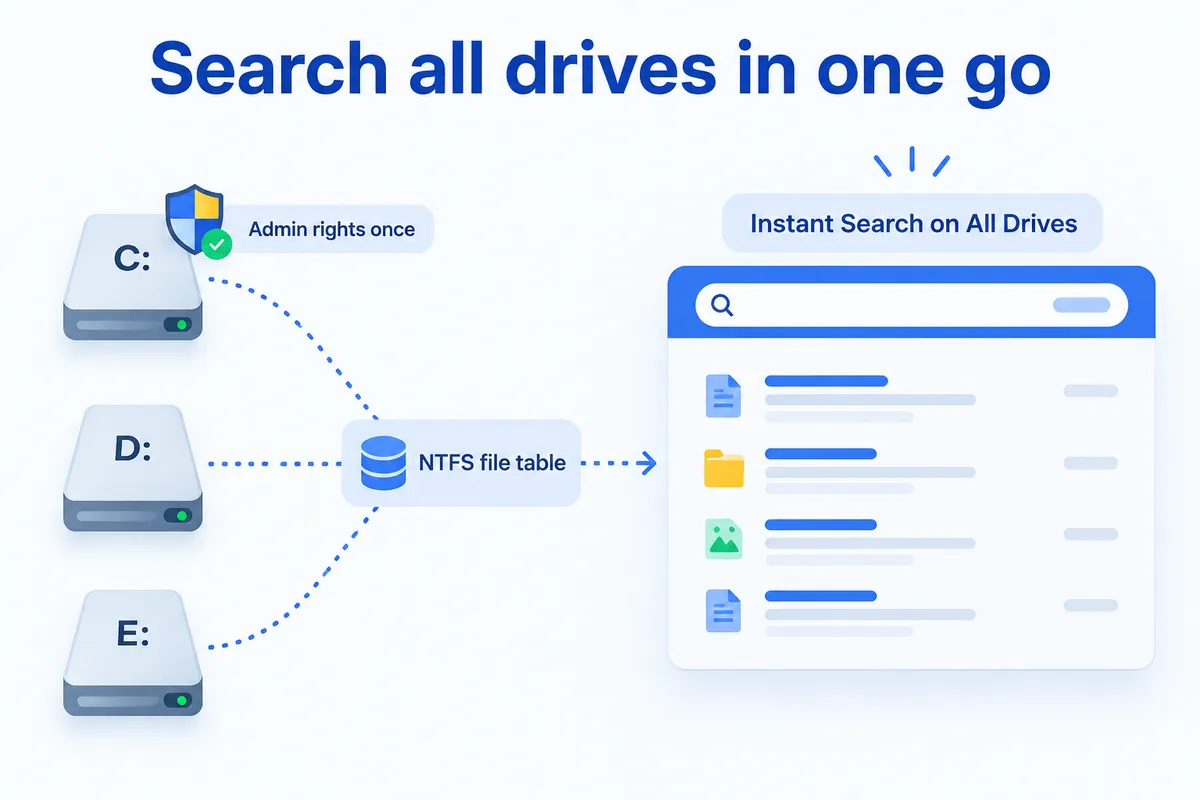
Instant Search on All Drives reads the entire NTFS file table, which lets Finder search file names across every fixed drive in one go. Windows requires administrator rights for this, so the first time you use it, Finder asks to reopen with elevated permissions. It asks once.
To be asked again later, use Tools ▸ Ask Again for Instant Search Permission.
Act on what you found
Finding a file is only half the job. Finder lets you do something with it right from the results list.
- Show in Folder (Ctrl+Enter) — opens the file's location in Explorer.
- Drag and drop — drag a found file onto a folder row to move it.
- Undo (Ctrl+Z) — moved a file to the wrong place? Undo puts it back in its original location.
- Delete — sends the file to the Recycle Bin. Undo restores it.

What it does not search
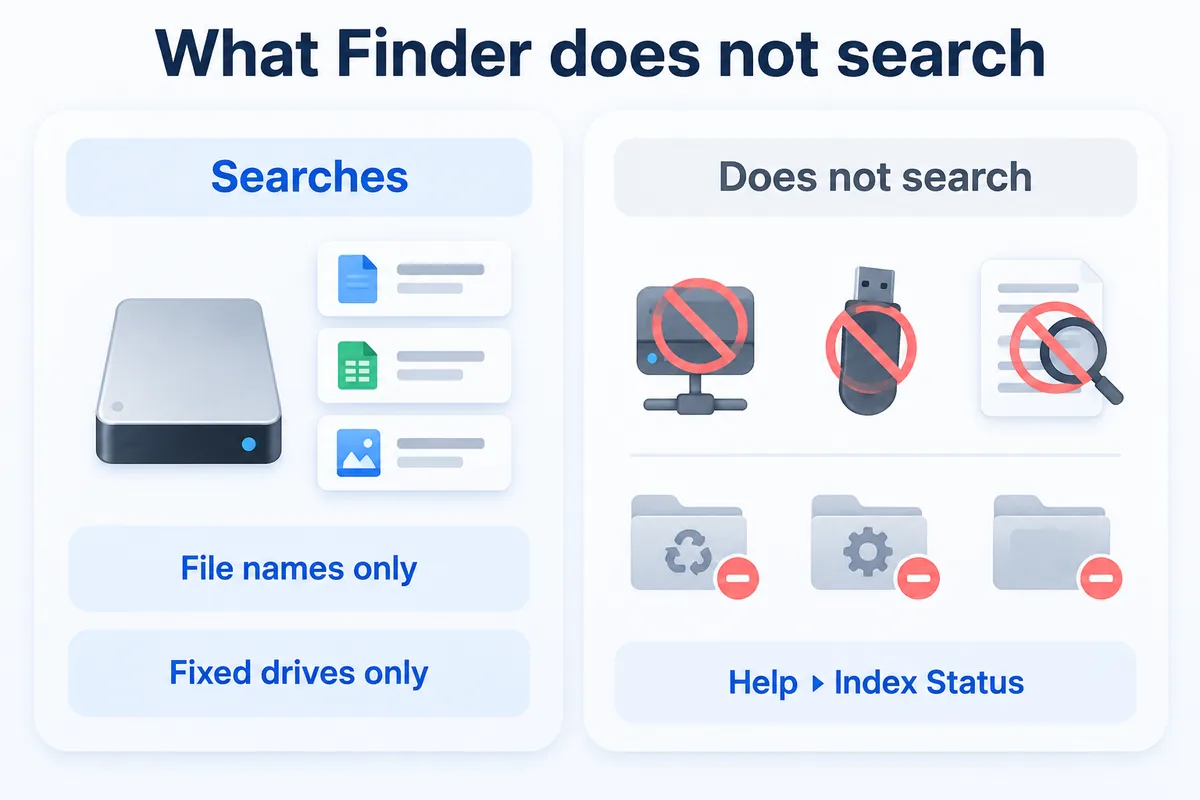
HanFlow Finder searches file names on fixed drives. It does not search file contents, network drives, or USB drives.
Three folders are deliberately excluded from the index: Recycle Bin, System Volume Information, and Windows.old. If you want to see which folders were skipped and why, open Help ▸ Index Status.
Frequently asked questions
Does it search inside files?
No. HanFlow Finder searches file names only. It does not read or index file contents.
Do I need administrator rights?
Not for basic use. Finder builds its index and tracks file changes without administrator rights. Administrator rights are only needed for Instant Search on All Drives, which reads the full NTFS file table.
What happens after the 30-day trial?
Searching by name, opening files, and opening their folder keep working. Advanced search features — wildcards, regular expressions, extension filters, folder scope, and whole-disk instant search — along with file operations like copy, cut, delete, rename, and drag and drop, require a license.
Does it run on Mac?
No. HanFlow Finder is a 64-bit Windows application.
HanFlow Finder is built for 64-bit Windows. Every feature works for 30 days from install, no payment method required. After the trial, name search and file opening stay available; advanced search and file operations need a license. No ads · no sign-in.