
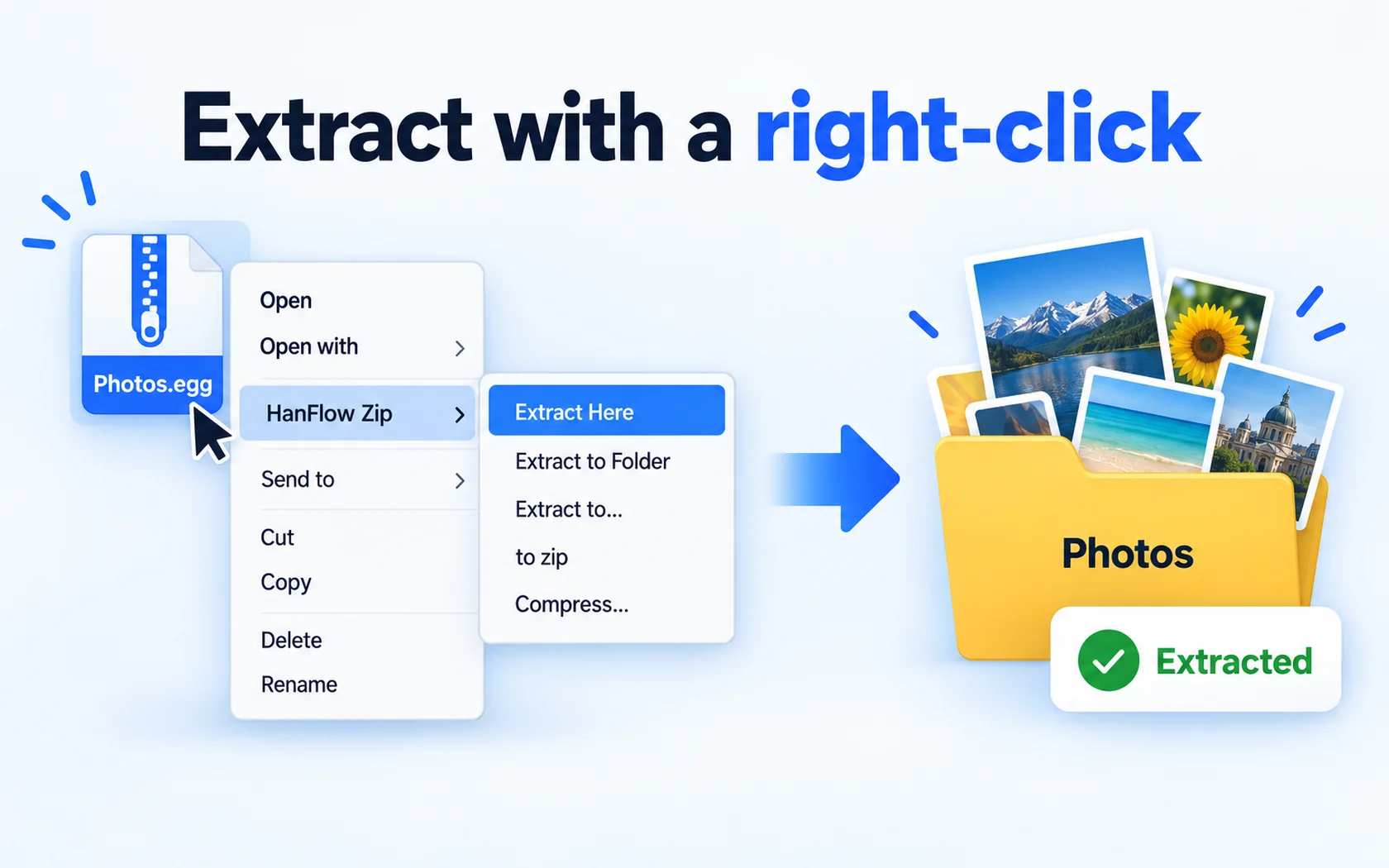
Right-click the .rar file, choose Extract to "[name]", and the contents appear in a new folder — done. That menu comes from HanFlow Zip, a file archiver for 64-bit Windows that opens 26 archive formats including RAR. If you prefer everything unpacked right where the archive sits, pick Extract here instead.
What is a RAR file?
RAR is an archive format: one .rar file holds other files and folders. To open one, you need an app that can read .rar archives; what Windows opens on its own depends on your Windows version. HanFlow Zip is one such app: install it, and RAR extraction works from the right-click menu, with no ads and no sign-in.
Extract with a right-click
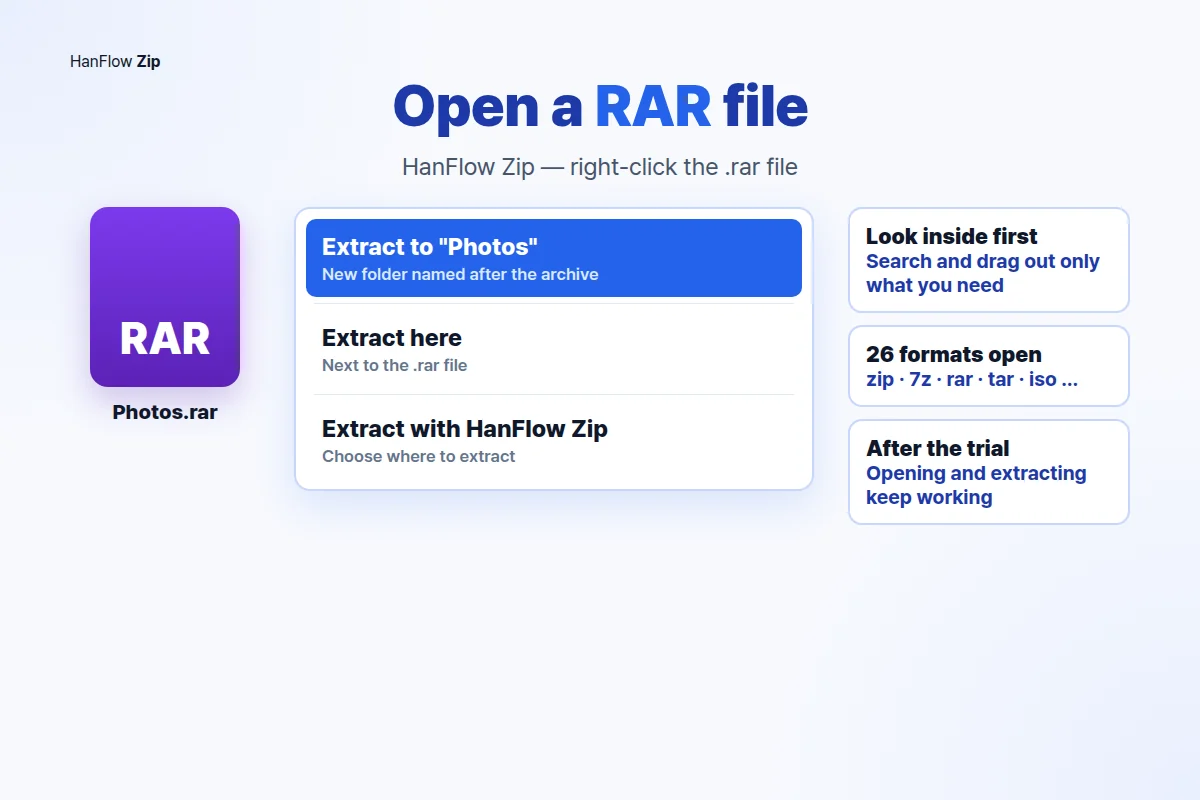
After you install HanFlow Zip, right-click a .rar file in File Explorer. You will see three extraction options:
- Extract to "[name]" — creates a folder named after the archive and unpacks everything into it. If a folder with the same name already exists, a new one is created with "(2)" appended. The folder opens automatically when extraction finishes.
- Extract here — unpacks the contents into the same folder where the .rar file sits, then opens that location.
- Extract with HanFlow Zip — opens a window where you choose exactly where to unpack.
Select several .rar files at once and the menu shows Extract each to its own folder — every archive gets its own named folder in one step.
If an extracted file has the same name as a file already in the destination, a duplicate-check dialog appears so you can decide what to do. You can also cancel from the progress window.
Look inside without extracting
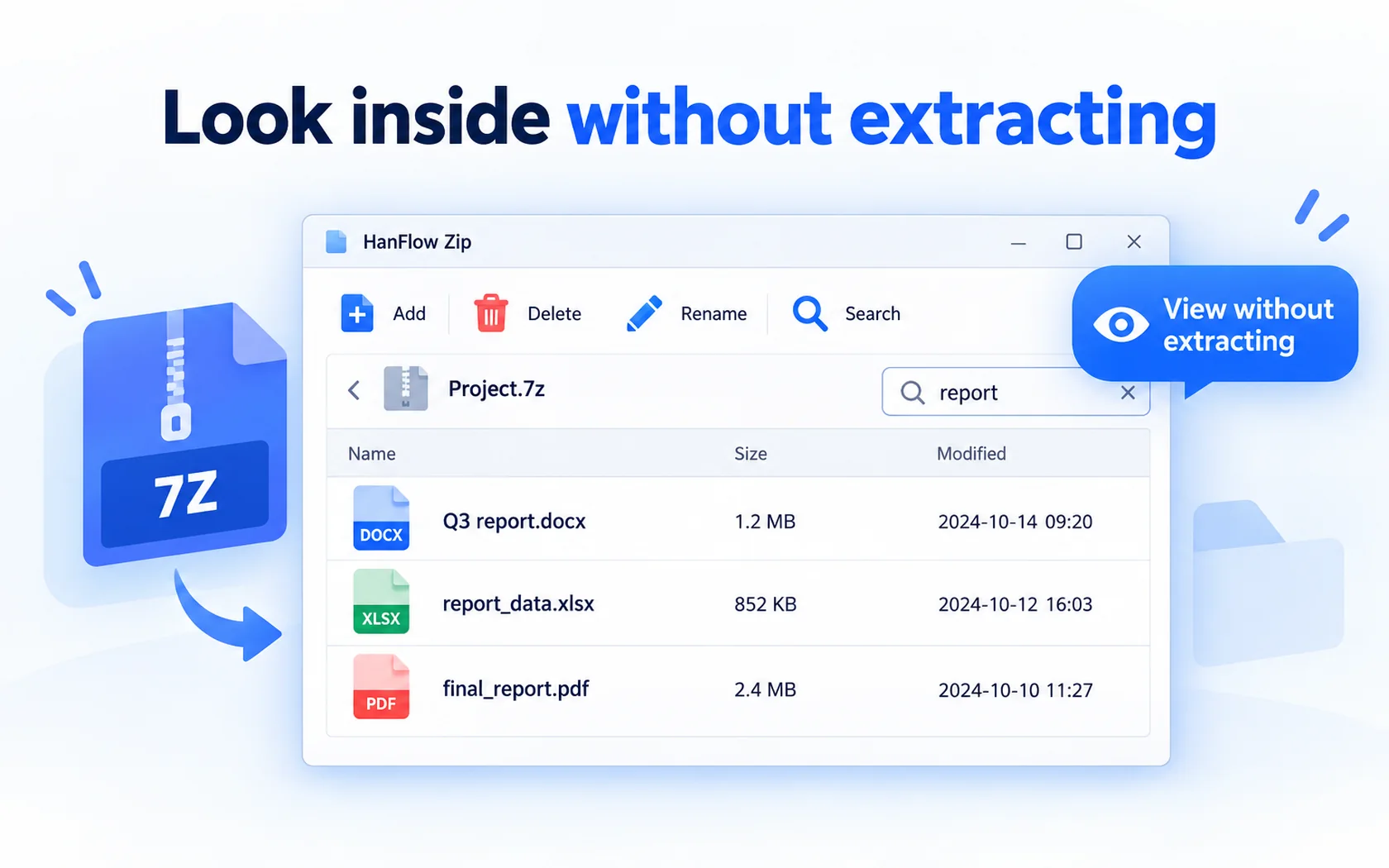
Sometimes you only need one or two files from a large archive. Open the .rar file in HanFlow Zip and you can browse its contents, search for a file by name, and drag out only what you need — no full extraction required. When you open or drag out a file this way, a temporary copy is created. You can clear those copies later from the settings with Clear temporary files now.
Other formats HanFlow Zip opens
RAR is one of 26 archive formats the app opens. The full list includes .zip, .7z, .rar, .tar, .gz, .tgz, .bz2, .xz, .zst, .lz4, .cab, .iso, .lzh, .cpio, .jar, .war, .apk, .alz, and more.
One thing to note: RAR is extract-only. HanFlow Zip can open and unpack .rar files but cannot create them. It does create archives in 14 other formats, including .zip, .7z, and the .tar family.
After the 30-day trial
Every feature is available during the 30-day trial, and you do not need a payment method to start. When the trial ends, opening, browsing, and extracting existing archives — including .rar files — still works. Only creating new archives requires a license. See the pricing page for details.
Frequently asked questions
Can I open a RAR file without WinRAR?
Yes. HanFlow Zip reads .rar files and extracts them through the right-click menu or its own window. WinRAR is not required.
Can HanFlow Zip create RAR files?
No. HanFlow Zip can extract .rar archives but cannot create them. It creates archives in 14 other formats, including .zip and .7z.
Does extracting still work after the trial?
Yes. Once the 30-day trial ends, you can still open, browse, and extract any supported archive, RAR included. A license is only needed to create new archives.
Can Windows open RAR files by itself?
Windows opens plain .zip files on its own. What else it supports depends on your Windows version. HanFlow Zip opens .rar files on 64-bit Windows, along with 25 other formats.
Related guides: WinRAR alternative · 7-Zip alternative · split a large file.