
If you are looking for a WinRAR alternative, HanFlow Zip is one option: it extracts and compresses from the right-click menu, lets you look inside an archive without extracting, opens 26 formats including rar and 7z, and has no ads and no sign-in. Below is what each tool offers, based on their own pages, so you can choose for yourself.
What WinRAR offers
WinRAR is a long-standing archiver best known for the RAR format. Its feature page lists RAR, ZIP, CAB, ARJ, LZH, TAR, GZip, UUE, ISO, BZIP2, Z and 7-Zip, and says it can be used as a 40-day trial (win-rar.com). Its licenses are perpetual; to stay up to date, WinRAR sells a separate Support & Maintenance Package that covers upgrades for 12 months (win-rar.com FAQ). On a Mac, RARLAB offers «RAR for macOS» as a command-line tool, not a window app (rarlab.com).
If you need to create RAR archives, WinRAR remains the tool for that. If you mostly open rar files and make zip or 7z archives, a different archiver can cover your day.
What HanFlow Zip does
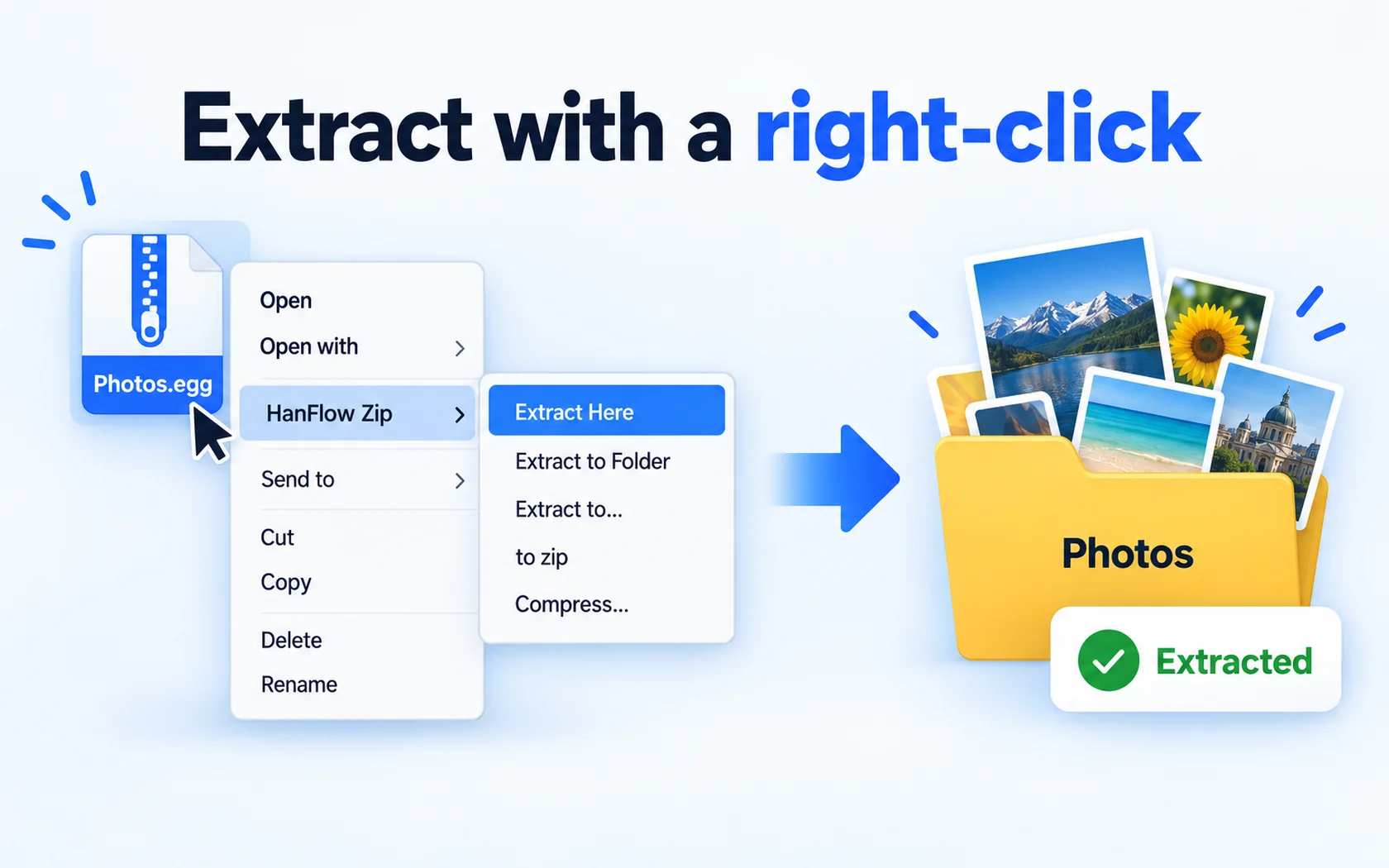
- Right-click in Explorer: Extract here · Extract to folder · Extract each separately · Add to zip · Compress each separately.
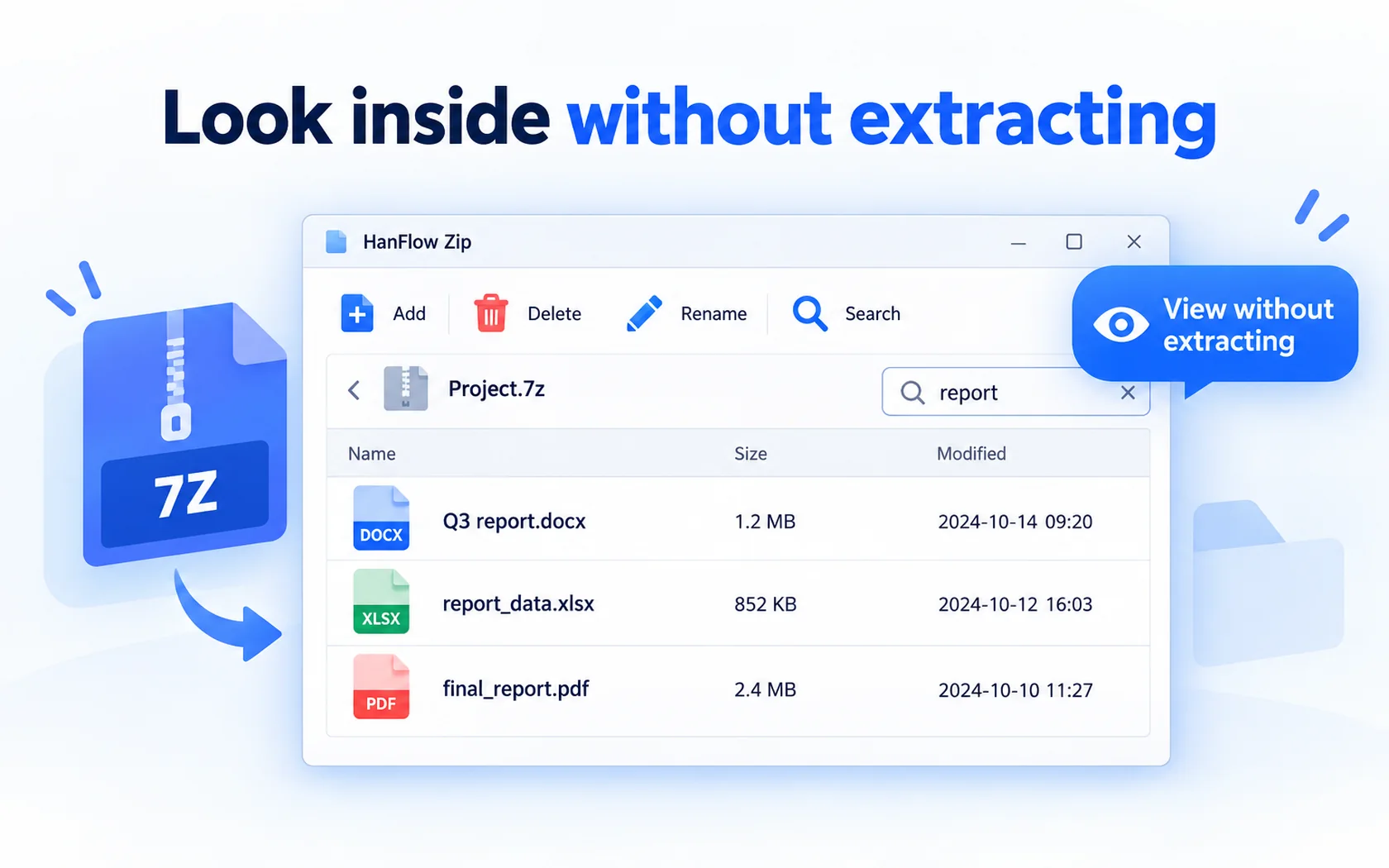
- Look inside without extracting: browse, search, add, delete and rename inside an archive, then drag out only the files you need.
- Opens 26 formats, including zip, 7z, rar, tar, gz, cab and iso, and creates 14, including zip, 7z and tar variants.
- Compress safely: five compression levels, split archives, ZIP passwords (AES-256) and a test after compression.
- No ads, no sign-in, 26 interface languages.
What HanFlow Zip does not do
HanFlow Zip opens rar files but does not create them. Passwords are supported for ZIP archives, not for 7z. If either of these matters to you, keep WinRAR for those jobs.
Windows and Mac
HanFlow Zip runs on 64-bit Windows and, as a window app, on macOS 13 or later on Apple silicon. If you move between a Windows PC and a Mac, you can use the same archiver on both.
Trial and license
HanFlow Zip has a 30-day trial with every feature, and no payment method is needed to start it. After the trial you can still open, view and extract existing archives; creating new archives is what needs a license. It is sold as a perpetual license — see pricing for the current price.
Which one to choose
- Choose WinRAR if you need to create RAR archives or password-protect 7z files.
- Choose HanFlow Zip if you mainly extract rar, 7z and zip files and make zip or 7z archives, and want a right-click archiver without ads that also runs as a window app on Apple silicon Macs.
- For extract-only needs, Windows can open plain zip files on its own.
Frequently asked questions
Can HanFlow Zip open rar files?
Yes. It opens rar along with 25 other formats such as 7z, tar and iso. rar is extract-only.
Can HanFlow Zip create rar files?
No. It creates 14 formats including zip, 7z and tar, but not rar.
What happens after the 30-day trial?
You can keep opening, viewing and extracting archives. Creating new archives needs a license.