
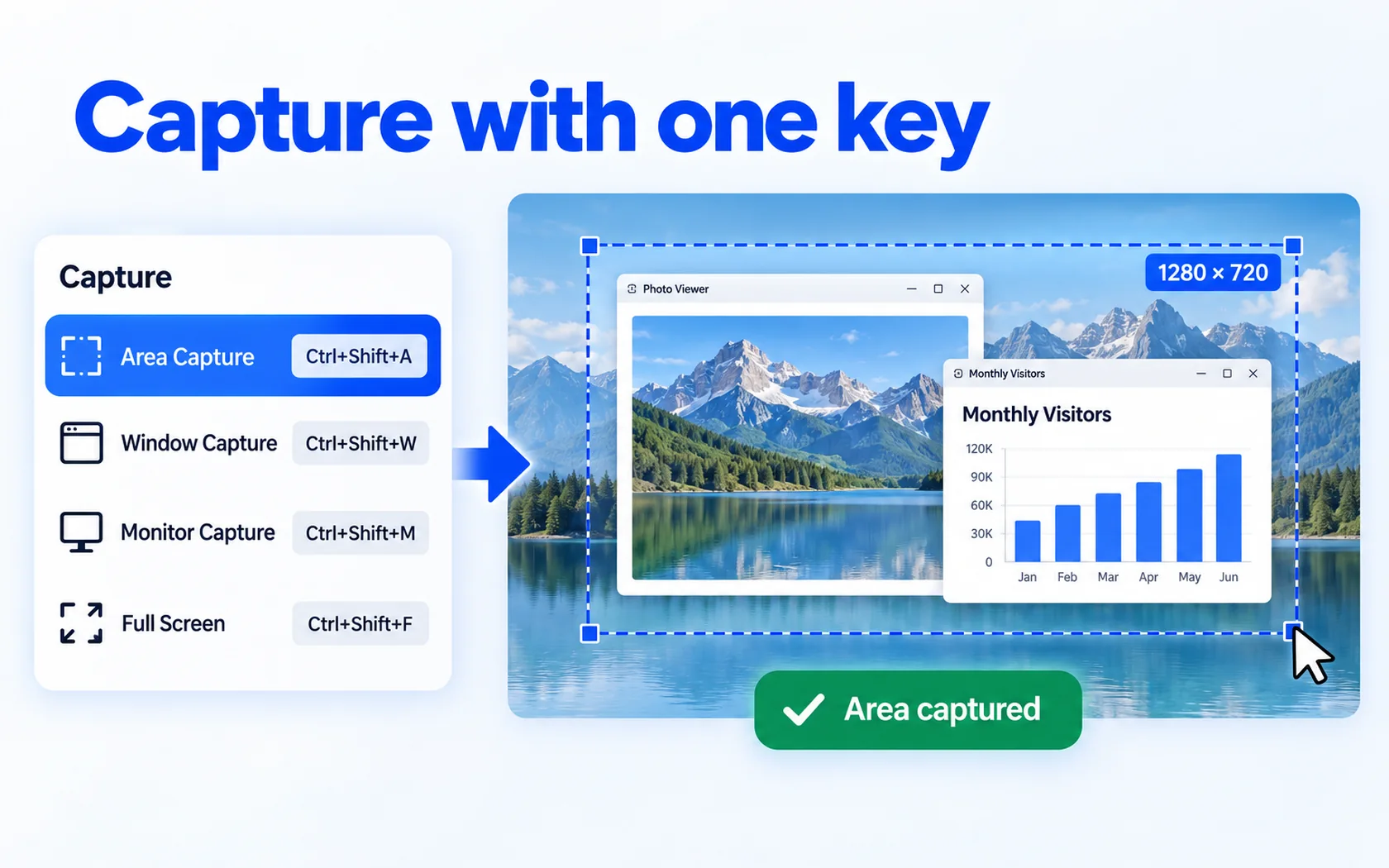
If you like Lightshot's quick area capture but also need scrolling screenshots and screen recording with sound, HanFlow Cap is one option: it captures a region, window, monitor or full screen with one key, saves long pages as one image, lets you mark up a capture right away and records MP4, GIF or audio-only M4A, with no ads and no sign-in. Below is what each tool offers, based on their own pages, so you can choose for yourself.
What Lightshot is good at
Lightshot is a small screenshot tool for Windows and Mac, with browser extensions for Chrome, Firefox, Internet Explorer and Opera. Its page describes selecting any part of the screen in two clicks, editing the screenshot while you take it or later in an online editor, uploading it to a server to get a short link to share, and searching for similar images. The download is offered without charge (Lightshot). If quick area captures and share links are all you need, Lightshot may be enough.
What HanFlow Cap does
- Capture with one key: region, window, monitor and full screen (Ctrl+Shift+A, W, M, F), fixed-size capture and a delayed capture of 3, 5 or 10 seconds.
- Scrolling capture: save a long web page or document as one image.
- Pin to screen: keep a capture floating on top while you work.
- Edit right away: pen, rectangle, arrow, text, mosaic and crop, 8 shapes and undo.
- Watermark and print for captures, and a watermark for recordings.
- Save as PNG or JPG; record to MP4, GIF or M4A.
- No ads, no sign-in, 26 interface languages.

Screen recording with sound
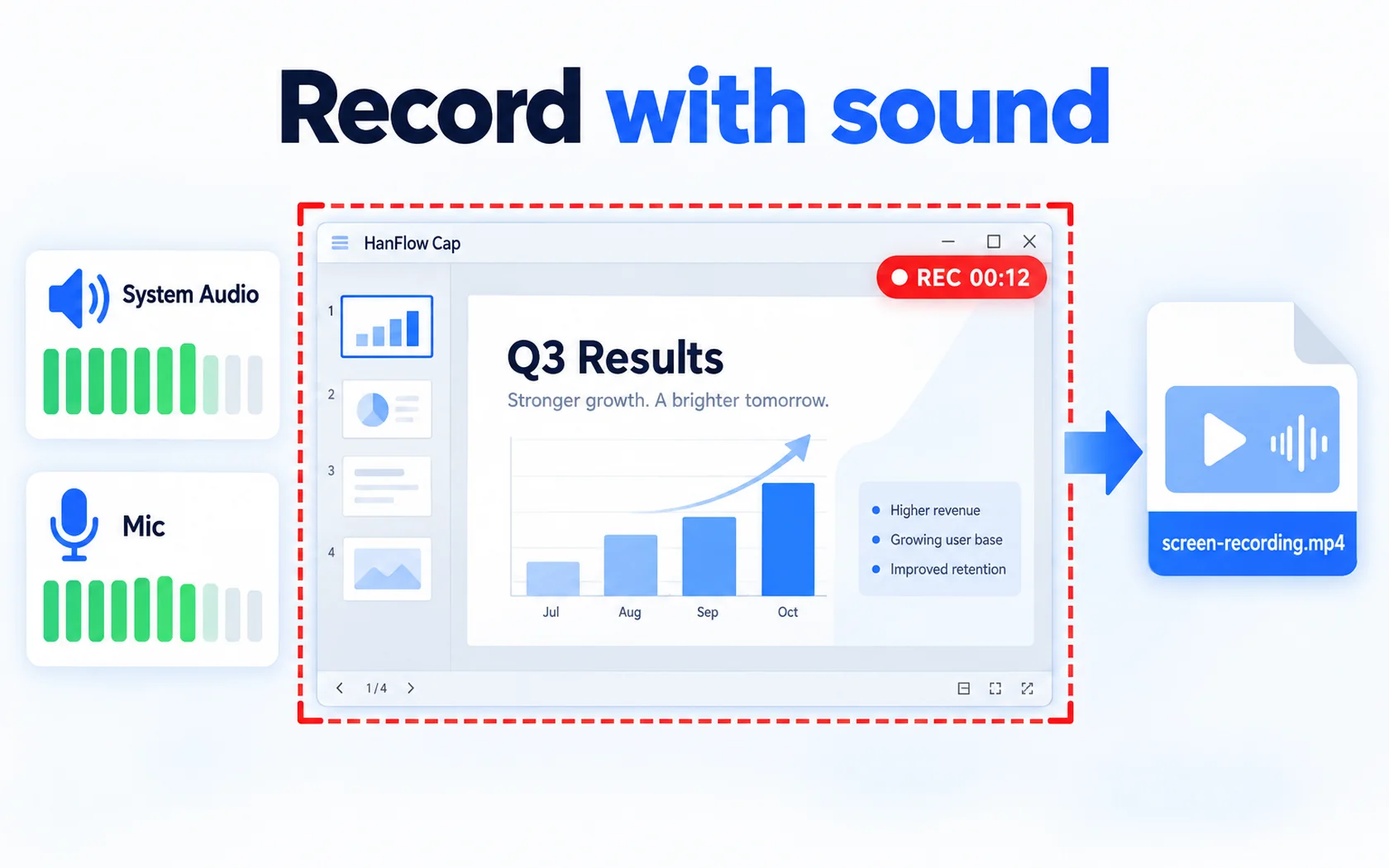
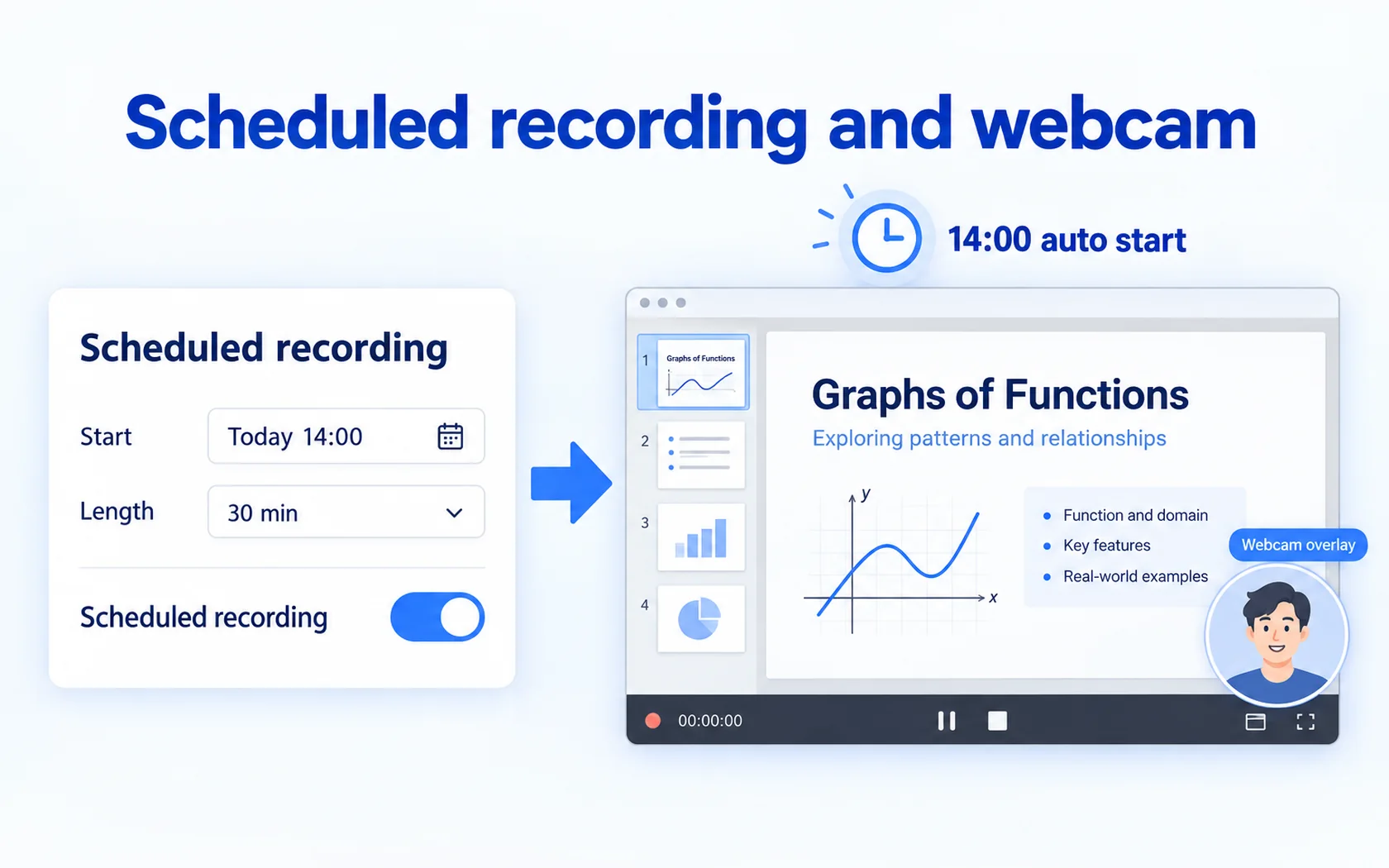
HanFlow Cap records the screen with system sound and microphone. You can show or hide the cursor, pause, take a screenshot while recording, schedule a recording to start at a set time, overlay your webcam, record sound only as M4A, or record a GIF. To trim or cut a recording, use HanFlow Cut, the video editor from the same family; Cap itself does not edit recordings.
Sharing
HanFlow Cap saves captures and recordings as files on your computer. It has no share-link feature, so you share the file the way you usually do — by email, chat or a shared folder. If one-click share links matter most to you, Lightshot covers that.
Which one to choose
- Choose Lightshot if you want quick area screenshots with share links and similar-image search.
- Choose HanFlow Cap if you also need scrolling captures, window and monitor capture, pin to screen, and screen recording with system sound and microphone.
- If you also work on a Mac, HanFlow Cap has a Mac version for macOS 14 or later on Apple silicon.
Trial and license
HanFlow Cap has a 30-day trial with every feature. See pricing for current licenses.
Frequently asked questions
Can HanFlow Cap take scrolling screenshots?
Yes. Scrolling capture saves a long page as one image.
Does HanFlow Cap record the screen with sound?
Yes. It records system sound and microphone to MP4, and can record sound only as M4A or the screen as a GIF.
Does HanFlow Cap make share links?
No. It has no share-link feature; captures and recordings are saved as files on your computer.