
If you want a Camtasia Snagit alternative that records your screen with system sound and microphone in one simple app, HanFlow Cap is one option: it captures a region, window, monitor or full screen with one key, takes scrolling captures of long pages, lets you mark up a capture right away and records MP4, GIF or audio-only M4A, with no ads and no sign-in. Below is what each tool offers, based on their own pages, so you can choose for yourself.
What Camtasia Snagit is good at
Camtasia Snagit describes itself as screen capture and recording software that helps you create annotated screenshots, videos and visual guides. Its page says it offers Step Capture, which turns your clicks into a shareable step-by-step guide, Smart Redact to blur or block emails, phone numbers and credit card details before sharing, and themes for consistent colors, fonts and styles. It also captures scrolling web pages, records video and audio, and organizes captures in a searchable library. It offers volume licensing for teams of five or more (TechSmith). People who search for an alternative often want a lighter tool focused on capture, markup and recording without a guide-building workflow.
What HanFlow Cap does
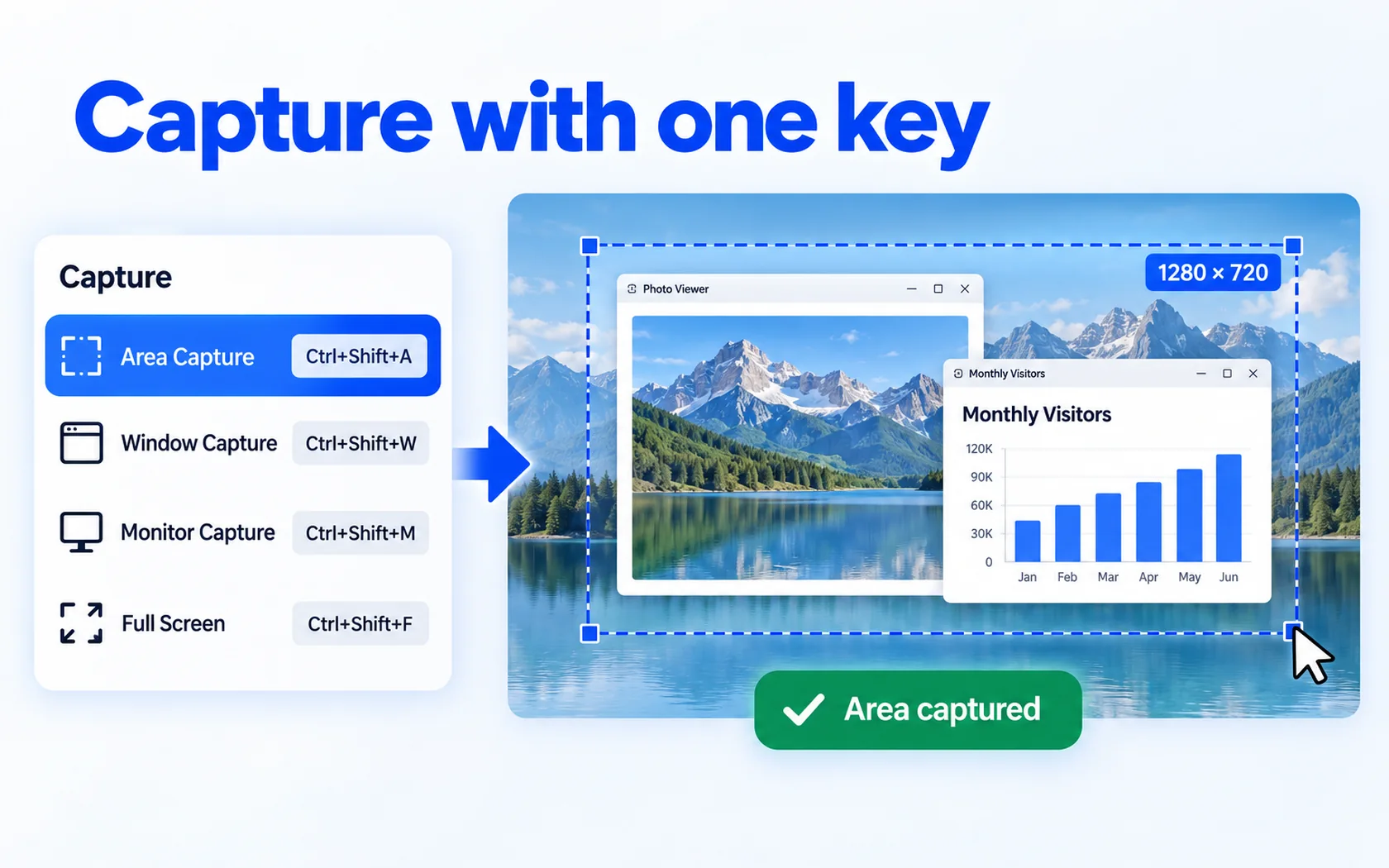
- Capture with one key: region, window, monitor and full screen (Ctrl+Shift+A, W, M, F), fixed-size capture and a delayed capture of 3, 5 or 10 seconds.
- Scrolling capture: save a long web page or document as one image.
- Pin to screen: keep a capture floating on top while you work.
- Edit right away: pen, rectangle, arrow, text, mosaic and crop, 8 shapes and undo.
- Watermark and print for captures, and a watermark for recordings.
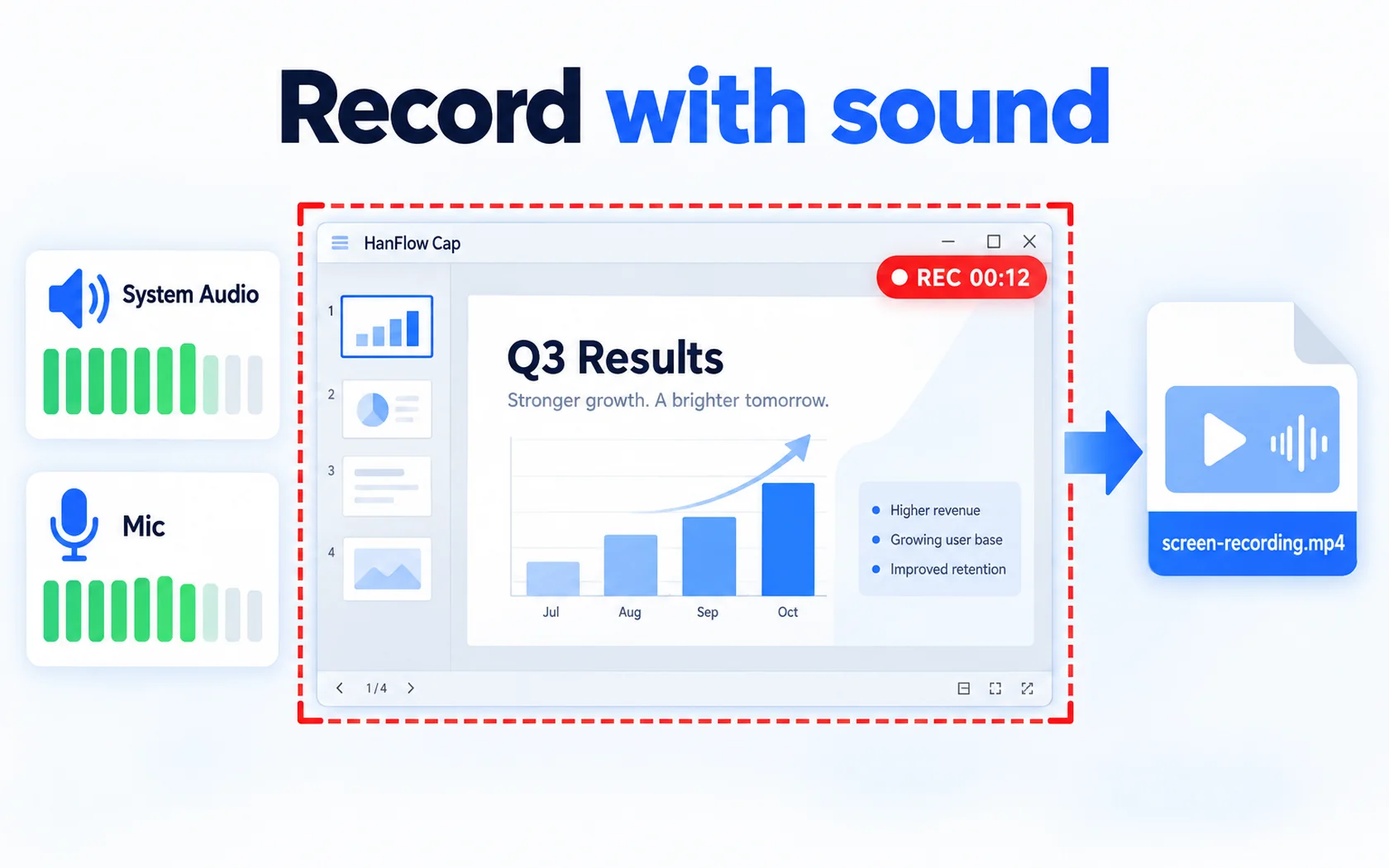
- Save as PNG or JPG; record to MP4, GIF or M4A.
- No ads, no sign-in, 26 interface languages.

Screen recording
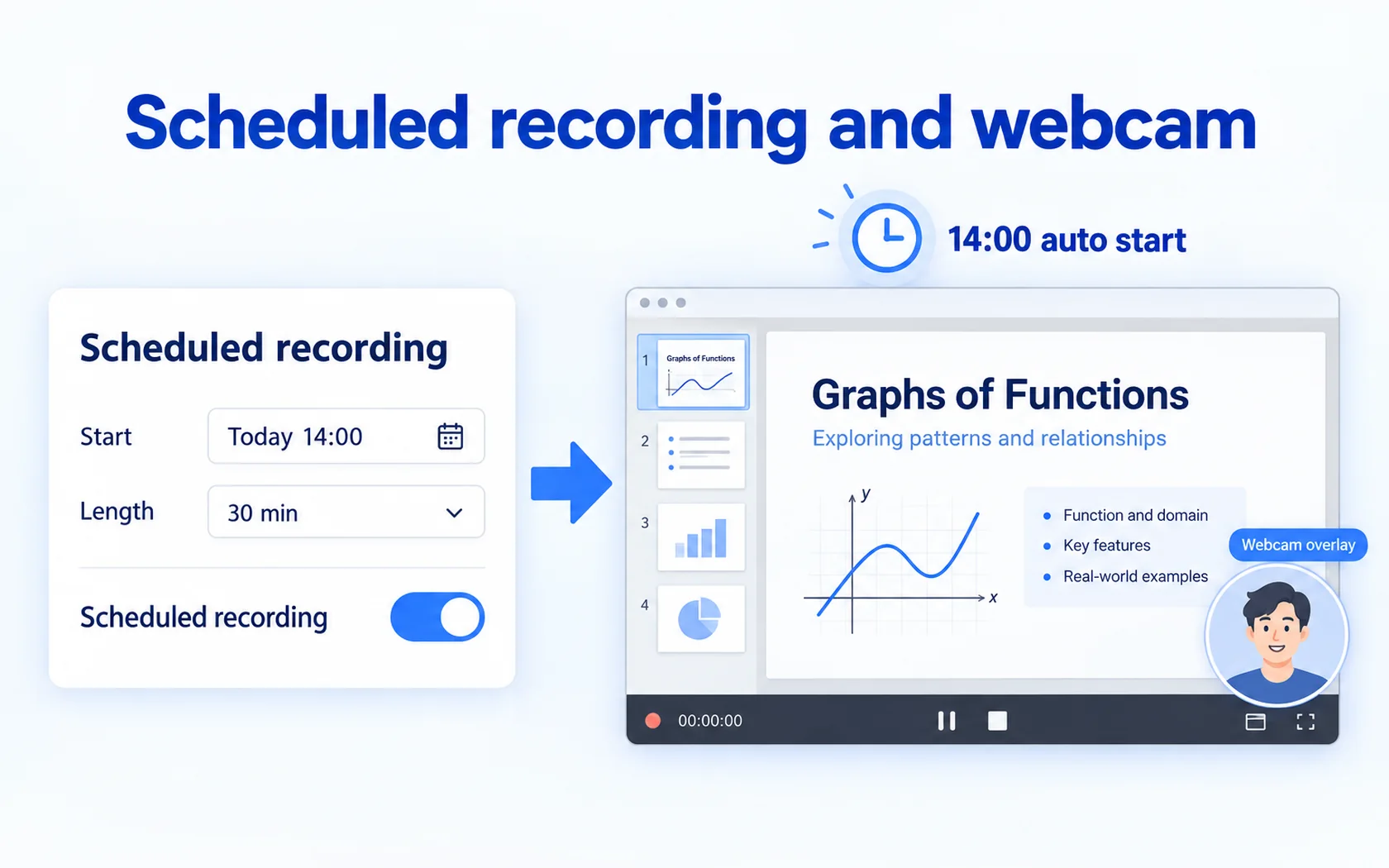
HanFlow Cap records the screen with system sound and microphone. You can show or hide the cursor, pause, take a screenshot while recording, schedule a recording to start at a set time, overlay your webcam, record sound only as M4A, or record a GIF. To trim or cut a recording, use HanFlow Cut, the video editor from the same family; Cap itself does not edit recordings.
Which one to choose
- Choose Camtasia Snagit if you need step-by-step guides, Smart Redact, themes and a team rollout with volume licensing.
- Choose HanFlow Cap if you want capture, markup and recording with sound in one simple app, plus scheduled recording and a webcam overlay.
- If you also work on a Mac, HanFlow Cap has a Mac version for macOS 14 or later on Apple silicon.
Trial and license
HanFlow Cap has a 30-day trial with every feature. See pricing for current licenses.
Frequently asked questions
Can HanFlow Cap take scrolling screenshots?
Yes. Scrolling capture saves a long page as one image.
Does HanFlow Cap record system sound?
Yes. It records system sound and microphone, and can record sound only as M4A.
Does HanFlow Cap make step-by-step guides or redact text automatically?
No. HanFlow Cap captures, marks up and records. It does not generate step-by-step guides or automatically redact sensitive information.
Can it record every game?
Not always. Games in exclusive full-screen mode may record as a black screen.