
A background track can change the feel of a clip entirely. HanFlow Cut lets you import your own music files, place them on a dedicated audio track and adjust everything before you export — all on your computer, with no account or cloud upload required.
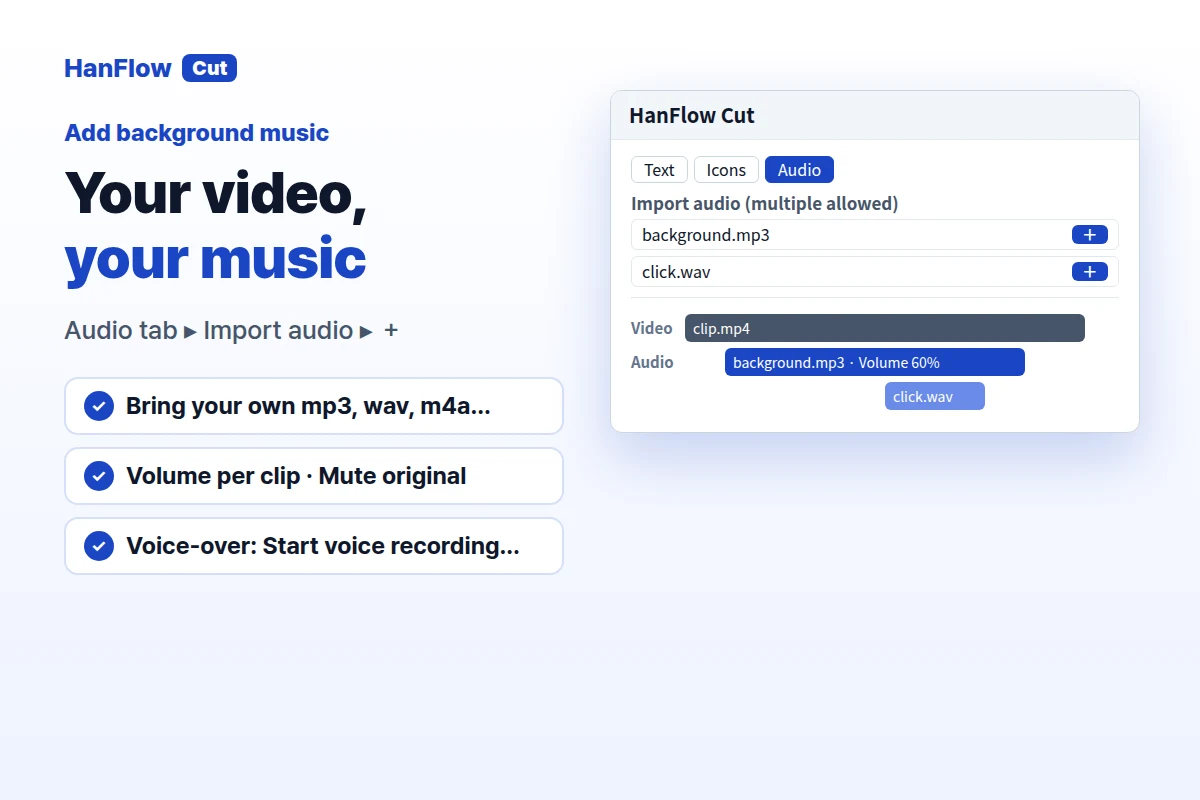
Add music in five steps
- Click Import (or drag and drop) to load your video into HanFlow Cut.
- Switch to the Audio tab.
- Click Import audio and select one or more music files. They appear in the audio list.
- Move the playhead to the point where the music should start and press +. The file lands on an audio track. If tracks overlap, HanFlow Cut splits them onto separate tracks automatically.
- Click Export. The video is saved as MP4 (H.264 video, AAC audio).
Set the volume
Select any clip on the timeline to see its adjustments. Use Volume to raise or lower the music. If the original video has sound you want to silence, select the video clip and press Mute. You can also choose Detach audio to move the video's own sound onto a separate track, then adjust or delete it independently.
Trim the music to fit
Place the playhead where you want the music to end and split the clip, then select the unwanted portion and press Del. To fine-tune, drag the edge of a clip to shorten or extend it. Open the ≡ menu and enable Show audio waveform so you can see exactly where beats and silence fall.
Add a voice-over too
Click Start voice recording to record narration directly inside HanFlow Cut. The recording is saved as a WAV file and added to your media, ready to be placed on the timeline alongside background music.
Frequently asked questions
Does HanFlow Cut include a built-in music library?
No. You import your own audio files — music or sound effects you have the rights to use. HanFlow Cut does not bundle any stock tracks.
Which audio formats can I import?
MP3, WAV, M4A, AAC, FLAC, OGG and WMA.
Can I export just the audio?
Yes. Choose Export audio only (.m4a) to save the sound as an .m4a file without the video.