
In HanFlow Cap, open Menu ▸ Record and turn on Record as GIF (no sound · up to 15fps). Press F1 to show the recording frame and drag its handles around whatever you want to capture. Press F2 to start recording, F2 again to stop — the finished .gif is saved to Videos ▸ HanFlow Cap.
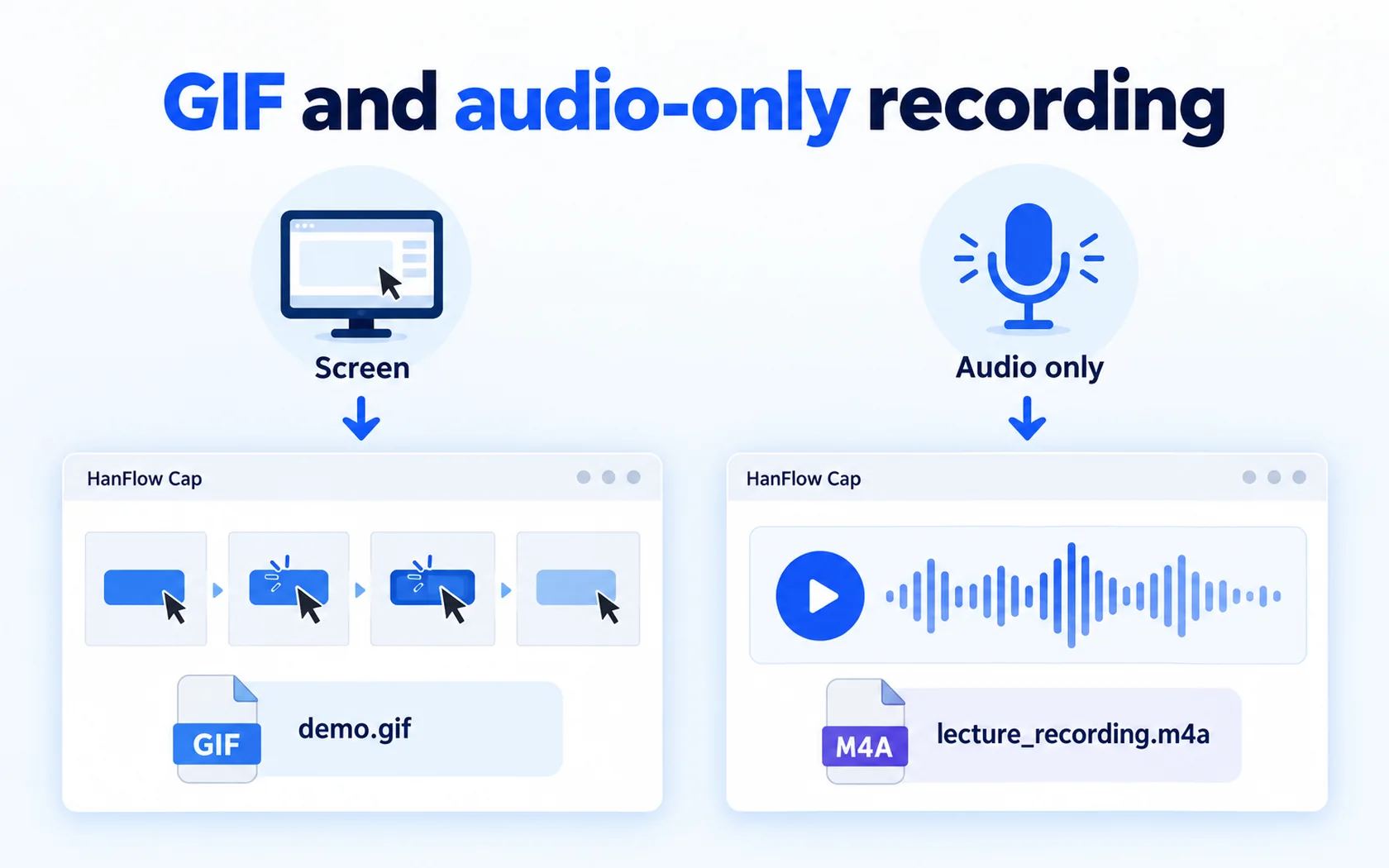
Turn on GIF recording
GIF mode must be set before you start recording. You cannot switch formats while a recording is running. The default format is MP4.
There are two places to enable it:
- Record menu. Menu ▸ Record ▸ Record as GIF (no sound · up to 15fps). It is a check item — click once to turn it on, click again to turn it off.
- Codec settings. Click the Audio button on the toolbar and choose Codec settings…. Point to Format and select GIF (animated · no sound). The other options are MP4 (H.264 + AAC) — default and M4A (audio only · AAC).
When GIF mode is active, the status line reads: Records as animated GIF — no sound · up to 15fps · .gif file.
Record the GIF step by step
- Set the recording frame. Press F1 (or click Rec area) to show the frame on screen. Drag any of its eight handles to resize it. To cover everything at once, use Menu ▸ Fit frame to full screen or Fit frame to this monitor.
- Start recording. Press F2. HanFlow Cap begins capturing the area inside the frame.
- Pause if you need to. Press F3 to pause and F3 again to continue. F4 saves a still image of the frame while you record.
- Stop and save. Press F2 again. The recording stops and the .gif file is written to your Videos ▸ HanFlow Cap folder.
- Find the file. Click the Videos button or go to Menu ▸ Record ▸ Open videos folder.
If you want the mouse cursor to appear in the GIF, make sure Record mouse pointer is enabled before you start. You can also use Scheduled recording… to start after a set number of seconds and stop after another.
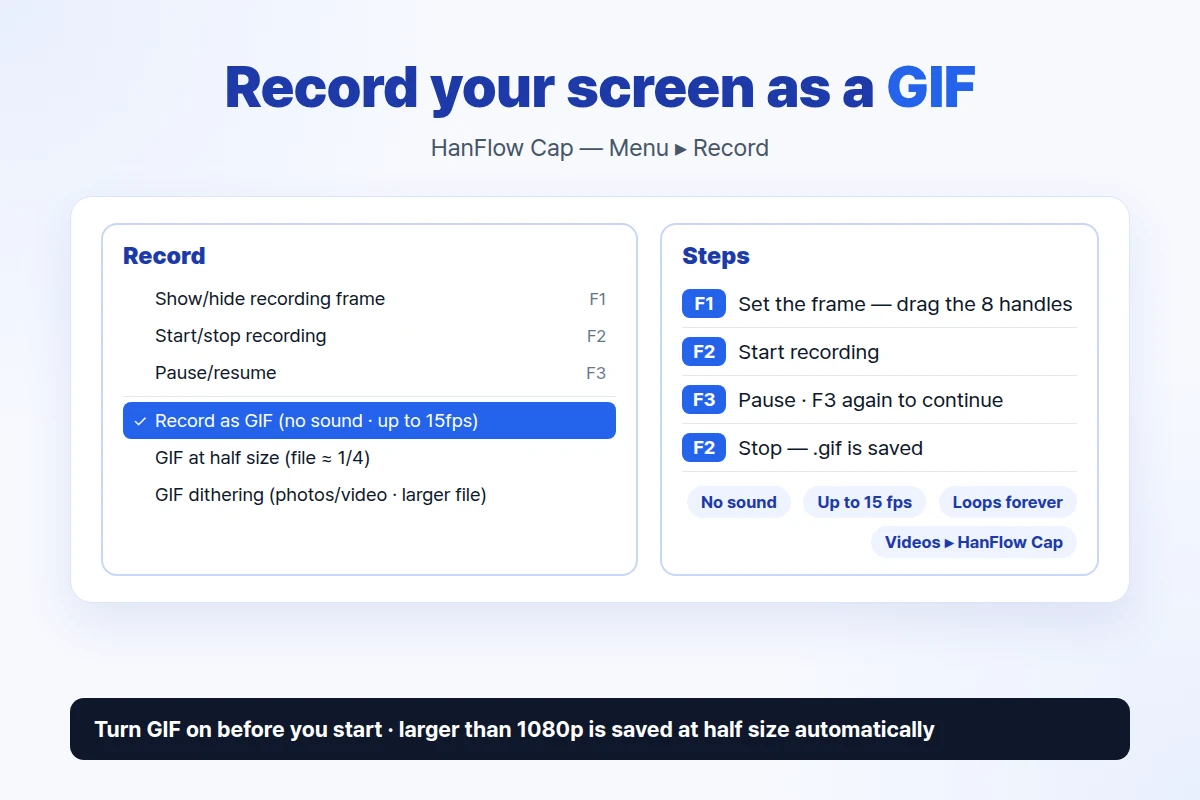
What a GIF recording does differently
A GIF is not a video file. Several things change when you record in this format:
- No sound. System audio and the microphone are both switched off automatically. If you need audio, record as MP4 instead.
- Frame rate capped at 15 fps. Even if you have 30 or 60 fps selected, GIF recording will capture at most 15 frames per second.
- Very large frames are saved at half size. When the recording area is larger than about 1080p (roughly 2.1 million pixels), HanFlow Cap automatically halves the output dimensions so the encoder can keep up at 15 fps.
- Infinite loop. The resulting GIF loops forever, so it plays continuously wherever you embed it.
- 256-color palette. Each frame can use up to 256 colors.
Keep the file small
How big a GIF gets depends on the frame size and what is on screen. A few choices make a real difference.
Record at half size. In the Record menu, turn on GIF at half size (file ≈ 1/4). This halves both width and height, which cuts the file to roughly a quarter of what it would be at full resolution.
Keep the frame tight. Capture only the area you need. A smaller frame means fewer pixels per frame and a smaller file.
Choose dithering wisely. The Record menu has a second GIF option: GIF dithering (reduces color banding in photos/video · larger file). Leave it off for apps, documents, and anything with flat colors — the file will be smaller. Turn it on when you are recording photographs or video content where smooth gradients matter; dithering reduces visible color banding but increases the file size.
Frequently asked questions
Can a GIF have sound?
No. The GIF format does not support audio. When GIF recording is active, both system sound and the microphone are switched off. If you need sound, record as MP4 — that is the default format and it includes H.264 video with AAC audio.
Can I edit the GIF frame by frame?
HanFlow Cap does not include a frame-by-frame GIF editor. If you need to edit individual frames, a dedicated GIF editor is the right tool — see our comparison for options.
Why is my GIF smaller than my screen?
Two possible reasons. You may have GIF at half size turned on in the Record menu — uncheck it if you want full resolution. Alternatively, if your recording frame is larger than 1080p, HanFlow Cap automatically saves at half size to keep up with 15 fps encoding.
Is GIF recording included in the 30-day trial?
Yes. Every feature is available during the 30-day trial. After the trial, new captures, recordings and saving are locked, though you can still open and view files you have already saved.
For a full walkthrough of MP4 recording with sound, see How to record your screen.