
Making a lesson or a how-to video often means recording your screen — with sound — straight to a video file. With a screen recorder you set a frame, press one key to start, and get an MP4 when you stop.
How to record your screen — four steps
- Install and open HanFlow Cap (every feature is yours to try for 30 days).
- Click Rec area (F1) to show the recording frame, then drag its eight handles over the part of the screen you want. For the whole screen, use Fit frame to full screen in the menu.
- Click Recording (F2) to start. Press Pause (F3) to pause, or F4 to save a still of the frame while recording.
- Press F2 again to stop — the recording is saved as MP4. The Videos button opens the folder with your recordings.
Recording sound too
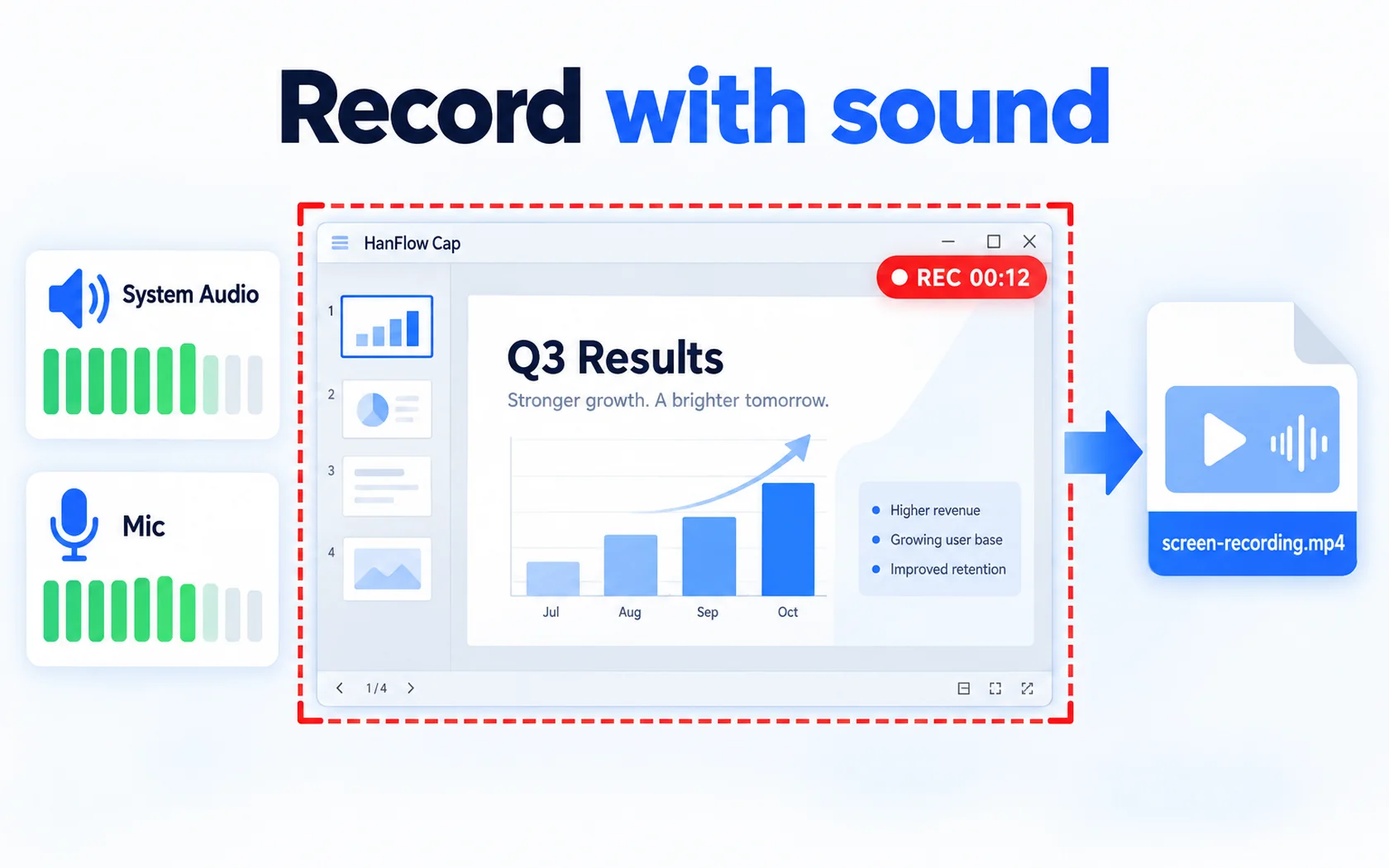
In the recording menu, turn on Record system sound for what your PC plays and Record microphone for your voice. Turn on both to narrate while you record. Record mouse pointer decides whether the pointer shows in the video.
Handy extras
- Scheduled recording — start after a set number of seconds and stop after another.
- Webcam overlay — put your webcam in a corner of the recording.
- GIF recording · sound only (M4A) — for a short animation or an audio file.
Frequently asked questions
What format are recordings saved in?
Video is saved as MP4 (H.264 video, AAC audio). With GIF recording on, you get a GIF; sound-only recordings are M4A.
Can it record games?
Anything shown in a window or on screen is recorded. Some games that run in exclusive full-screen mode may record as a black screen.
Can I trim the recording or add captions?
HanFlow Cap handles the recording; editing such as trimming and captions is done in the video editor HanFlow Cut. See How to trim a video.