
You often want to cut the dead air at the start and end of a clip, or drop a part in the middle. In a video editor you put the playhead where the cut goes, press one button, and export an MP4.
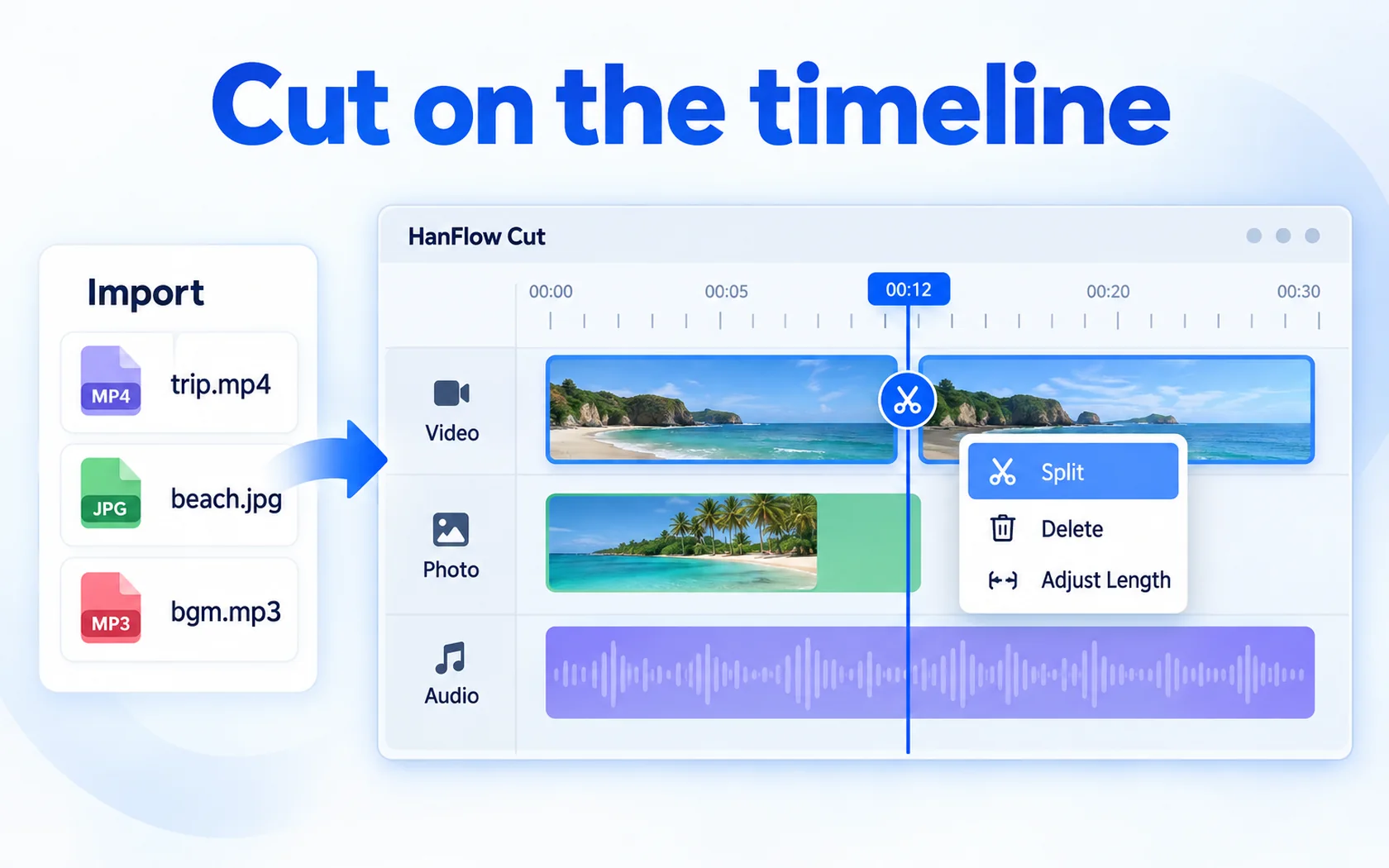
Trim the start and end — four steps
- Install and open HanFlow Cut (every feature is yours to try for 30 days).
- Bring your video in with Import on the left — it goes into the media panel. Click + on the video’s card to put it on the timeline.
- Click the clip on the timeline to select it, put the playhead where the part you want to keep begins, and click Trim start. Everything before it is cut.
- Put the playhead where the part you want to keep ends and click Trim end. Everything after it is cut. When you are done, click Export to make an MP4.
Remove a part in the middle
To take out a middle section, Split (Ctrl+B) once at its start and once at its end so the clip is in three pieces. Select the middle piece and press Del — that part is gone and the rest joins up. If you cut the wrong spot, just undo.
Worth doing after trimming
- Speed — set each clip to 0.5×, 1× or 2×.
- Captions — automatic captions turn speech into subtitles (the speech model downloads once, the first time).
- Size optimization — if the exported video is too large, shrink it with one click.
Frequently asked questions
Does trimming change my original video file?
No. Trimming happens on the timeline only; Export writes the result to a new MP4 file.
Which videos can I import?
mp4, mov, m4v, avi, mkv, webm and wmv. Export is MP4 (H.264, AAC).
Can I trim on a Mac?
Yes — HanFlow Cut for Mac (macOS 13 or later, Apple silicon) can import, trim, join and export MP4.