
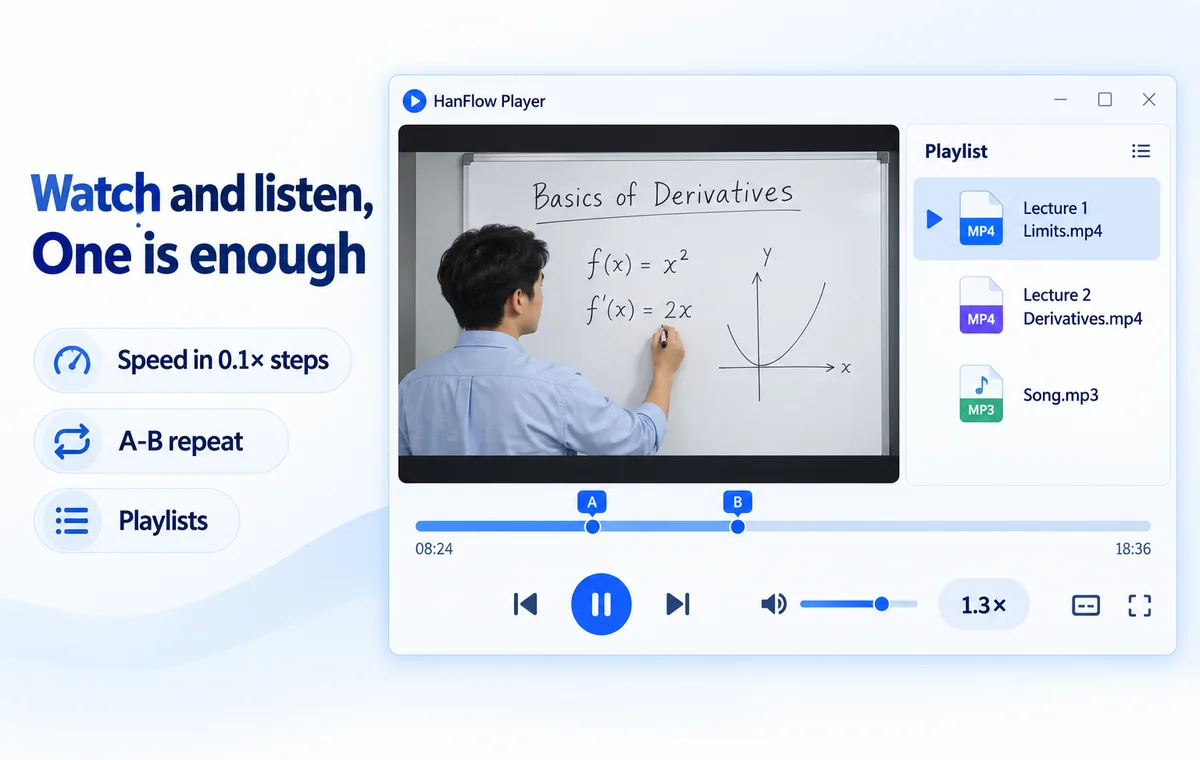
A recorded lecture at normal speed often feels slow — the speaker pauses, repeats, waits for the room. Speed it up to 1.5× or 2× and you get through the recording sooner. A language lesson or tricky tutorial, on the other hand, can move too fast; drop to 0.75× and every word lands. HanFlow Player lets you set playback speed from 0.25× to 3.0× in fine 0.1× steps, for video and music in the same app.
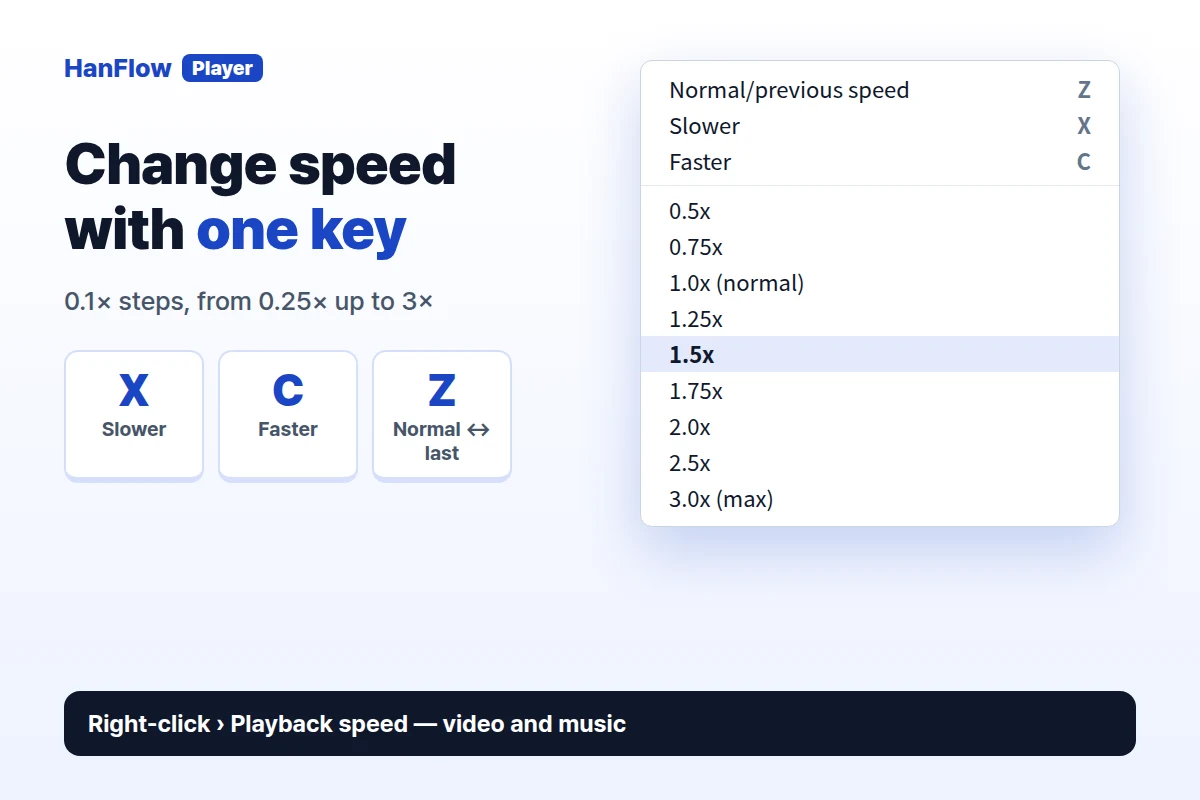
Change speed with one key
Three keys handle most speed changes while the video keeps playing:
- C — "Faster" (+0.1×). Tap it a few times to ramp up gradually.
- X — "Slower" (−0.1×). Bring it back down just as easily.
- Z — "Normal/previous speed." Press once to snap back to 1×; press again to return to the speed you were using. If you haven't changed speed yet, Z jumps to 1.5×.
Because the step size is 0.1×, you can land on speeds like 1.3× or 0.9× — not just the round presets. The range runs from 0.25× all the way to 3.0× (max).
Pick a preset from the menu
Right-click the video and open the Playback speed submenu. It lists Normal/previous speed (Z), Slower (X), Faster (C), then presets: 0.5×, 0.75×, 1.0× (normal), 1.25×, 1.5×, 1.75×, 2.0×, 2.5× and 3.0× (max). A check mark sits next to the current speed.
The control bar shows a Playback speed badge — a small label like "1.5×" — that opens the same menu with a click. Glance at it any time to confirm the speed you are running at.
Which speed for what
- Lectures and recorded meetings — try 1.5× to 2×.
- Tutorials and step-by-step guides — 0.75× gives you time to follow along and pause less.
- Language listening — 0.75× to 0.9× can make fast native speech easier to catch. Pair it with A-B repeat to loop one sentence until every word is clear.
- Music practice — slow a passage down, play along, and nudge the speed up as it gets comfortable.
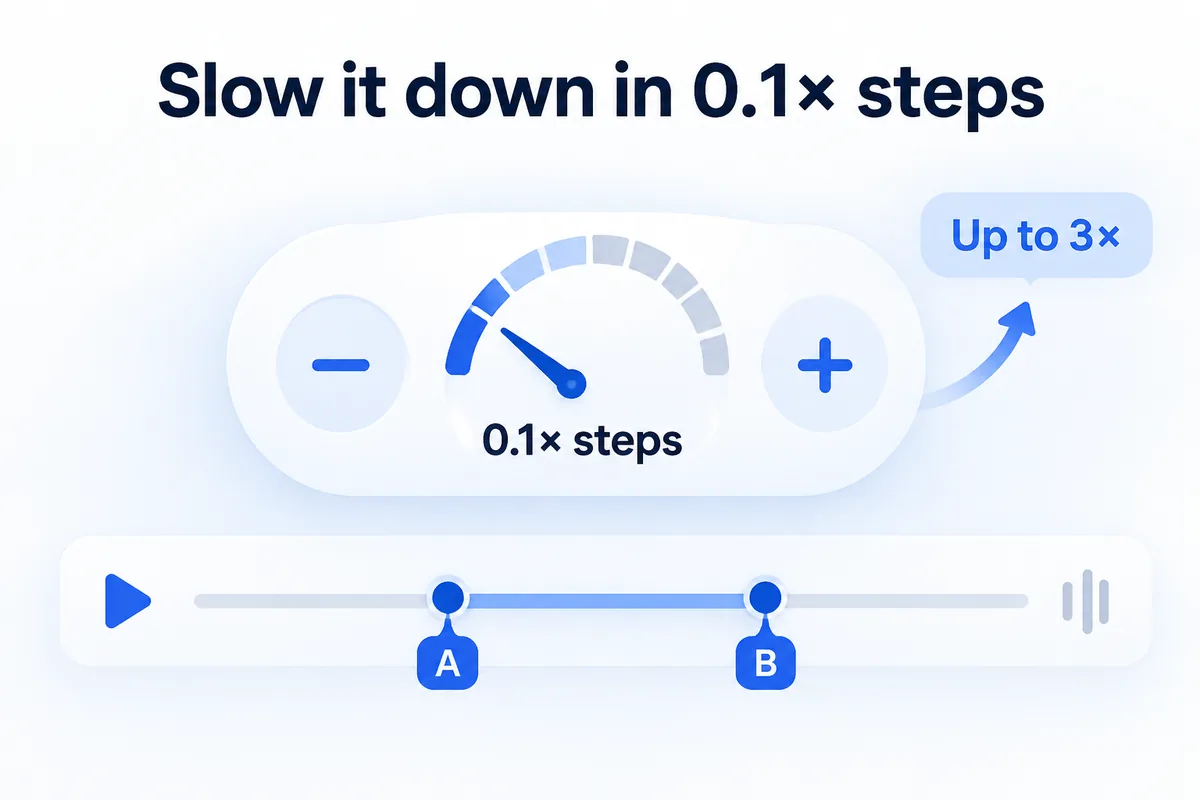
Speed together with A-B repeat
Mark point A, mark point B, and the player loops that stretch until you clear it (F8 on/off, F7 clear). Set a slower speed for the loop, then tap C to raise it bit by bit as the passage starts to feel easy. The two features work together without extra setup. For a closer look at looping, see how to loop part of a video.
HanFlow Player has no ads and needs no sign-in. The 30-day trial unlocks every feature without a payment method. After the trial, opening and playing files (at 1× and up to 100% volume) and A-B repeat keep working; speed control, volume boost above 100% and saving playlists ask for a license. It runs on 64-bit Windows and on macOS 13 or later (Apple silicon).
Frequently asked questions
Can I play a video at 2× on my PC?
Yes. Open the file in HanFlow Player and press C until the speed badge reads 2×, or right-click the video and choose 2.0× from the Playback speed submenu. The player supports speeds up to 3.0×.
How do I go back to normal speed?
Press Z. It toggles between 1.0× (normal) and the last speed you used. You can also right-click and pick 1.0× (normal) from the Playback speed menu.
Does speed control work for music too?
Yes. Video and music open in the same app, and speed, A-B repeat and playlists work the same way for both. On Windows it plays MP4, MKV, WebM, AVI, MOV, WMV and more, plus MP3, M4A, AAC, FLAC, WAV, WMA, OGG and Opus, using the codecs already installed on your PC. The macOS version opens the formats macOS plays — MP4, MOV, M4V, 3GP, MP3, M4A, AAC, FLAC and WAV.
Can HanFlow Player speed up a YouTube video?
No. HanFlow Player plays files on your computer; it does not play streaming addresses. For YouTube, use the site's own speed option.