
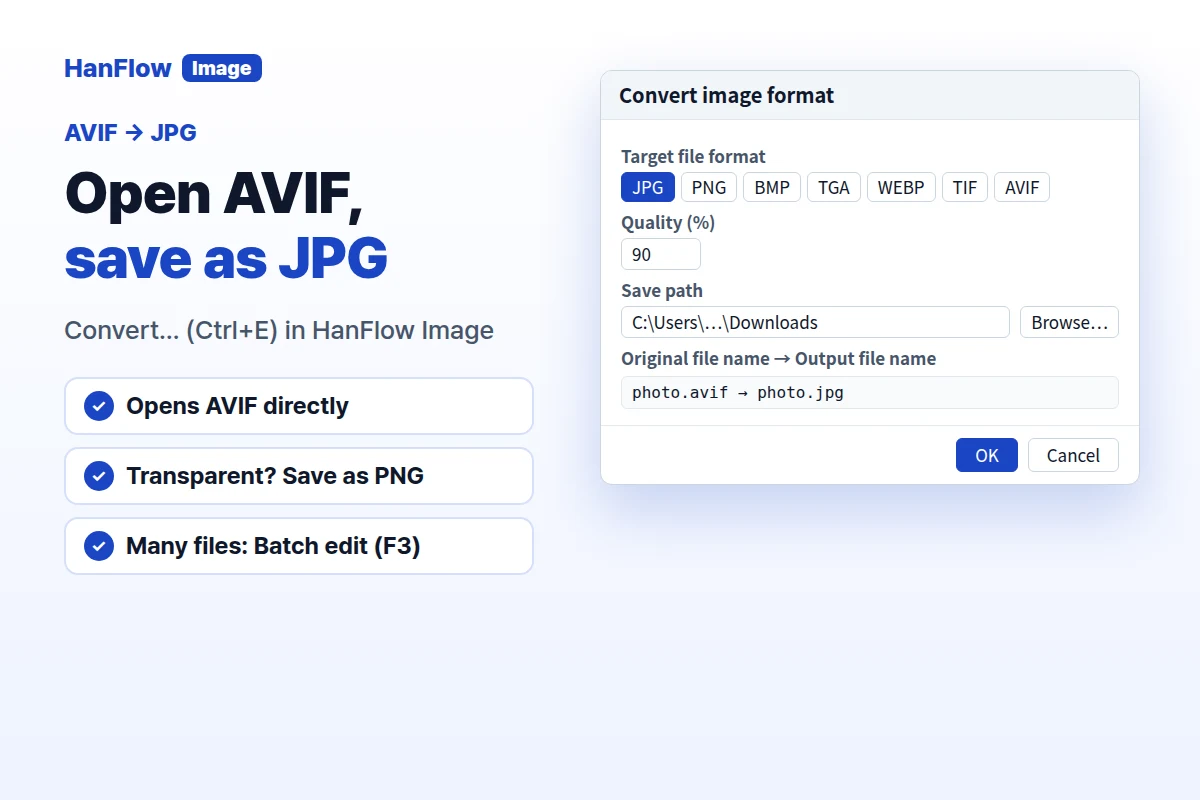
You have an AVIF file — downloaded from a website or saved by some newer devices — and the program you need to open it in won't read it. HanFlow Image opens AVIF directly. Press Ctrl+E, pick JPG, click OK — and a JPG copy is saved next to the original.
Convert AVIF to JPG — five steps
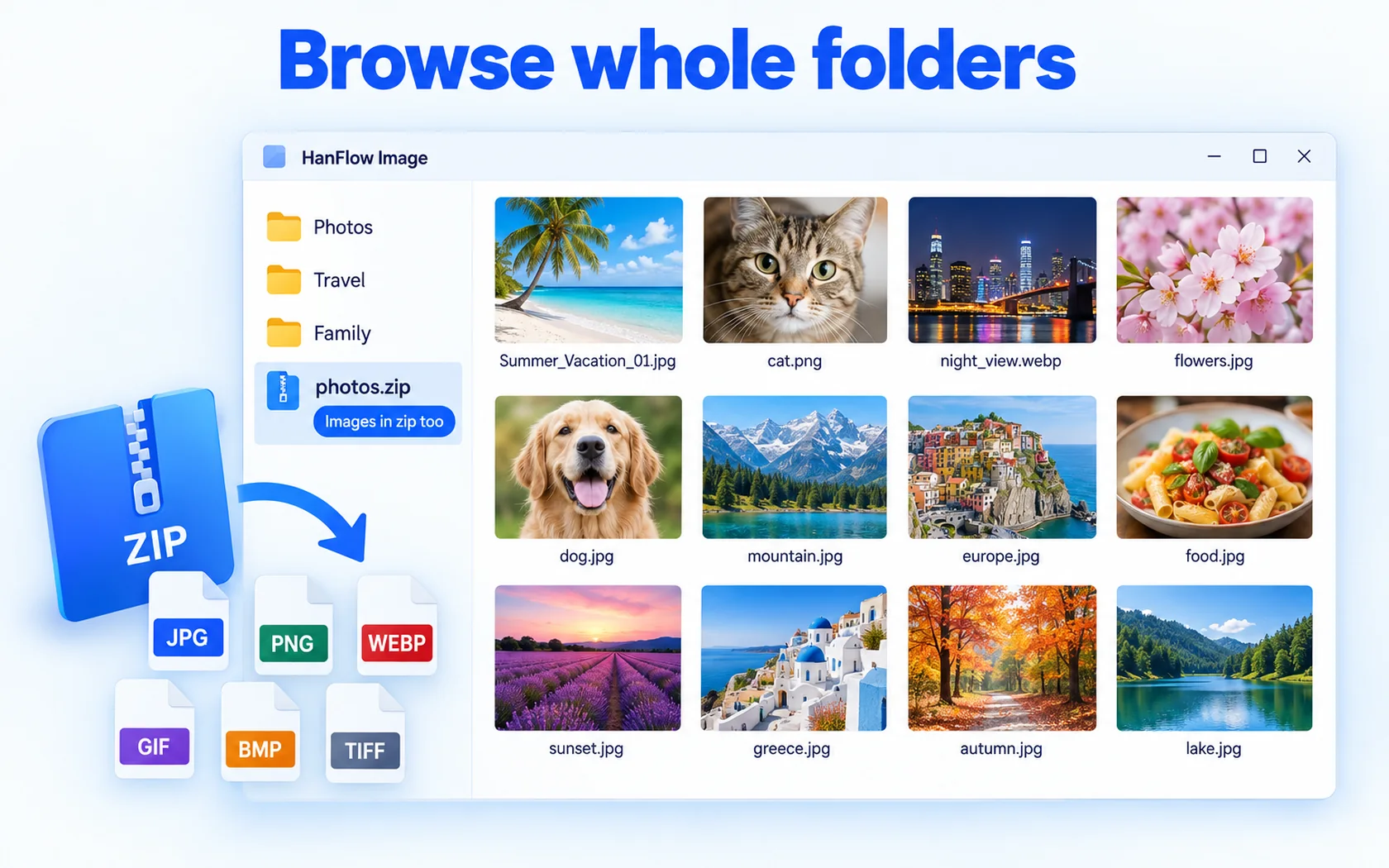
- Install and open HanFlow Image (every feature is yours to try for 30 days). Open the AVIF file. You can also browse a folder in thumbnail view, right-click an AVIF file, and choose Convert….
- Open the Convert window: press Ctrl+E, click the Convert button on the toolbar, or choose Convert… (Ctrl+E) in the menu.
- In the Convert image format window, pick JPG under Target file format. Set Quality (%) — it defaults to 90.
- Under Save path, the original folder is already filled in. Click Browse… to pick a different folder. Under Save options, choose Add text to output file name (before or after the name), how to handle Duplicate files (Add number, Skip, or Overwrite), and whether to Delete originals after conversion (to Recycle Bin). The list shows the Original file name next to the Output file name so you can check before you start.
- Click OK. The file is converted and saved.
Transparent AVIF? Save as PNG
JPG cannot hold transparency. If your AVIF has a transparent background, convert to PNG instead — PNG keeps the transparency intact.
Many files at once
Open Batch edit… (F3). One of the steps lets you choose a format to convert to, so you can process a batch of AVIF files in one go.
HanFlow Image runs on 64-bit Windows. The 30-day trial gives you every feature. After the trial, viewing and opening files stay available. Conversion and batch edit require a license.
Frequently asked questions
Why won't my AVIF open in other apps?
Not every program reads AVIF yet. HanFlow Image opens AVIF, so you can convert it to JPG or PNG for the program you need.
Will the JPG keep transparency?
No. JPG does not support transparency. Convert to PNG if you need to preserve it.
Can I convert JPG back to AVIF?
Yes. Open the JPG, press Ctrl+E, and pick AVIF under Target file format. The same save options apply.