
Saving a whole web page or a long document usually means scrolling a bit, taking a screenshot, scrolling again, and stitching the pieces together later. Scrolling capture does that for you: pick an area, and it scrolls down by itself and joins everything into one tall image.
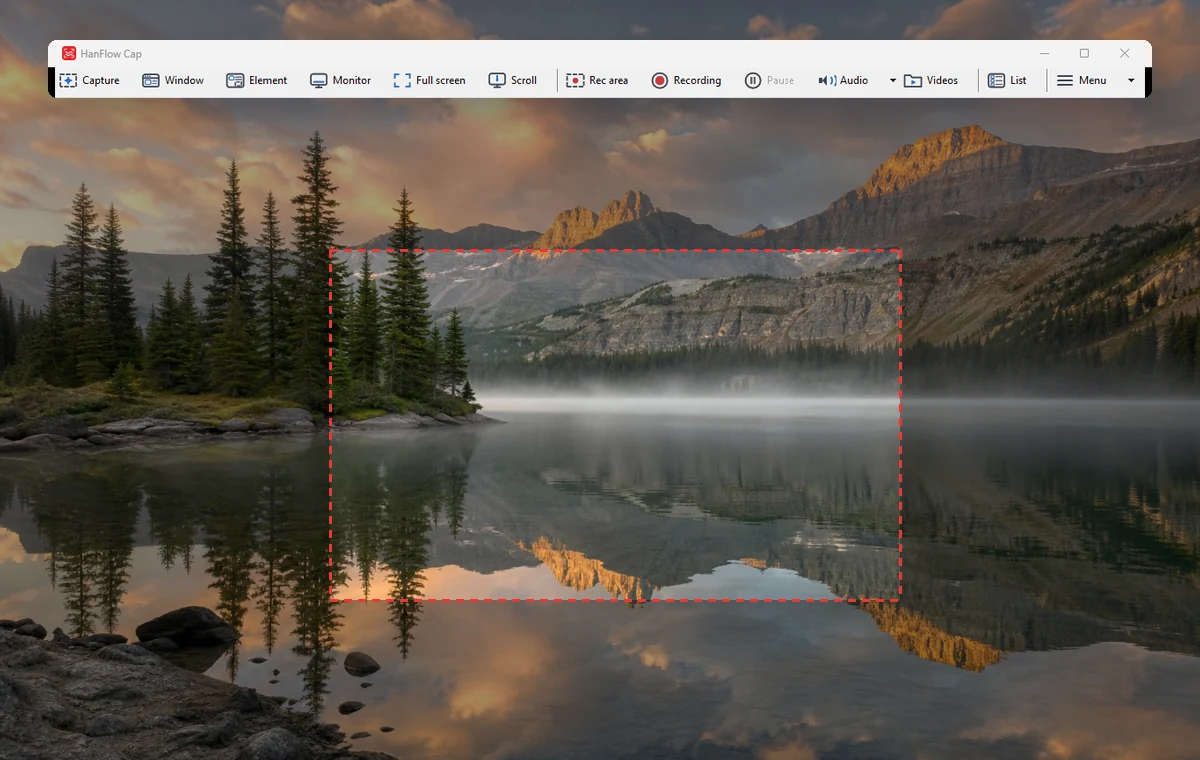
How to use it
- Open the page you want to capture (starting at the top works best).
- Click Scroll on the HanFlow Cap toolbar, or press Ctrl+Shift+L.
- Drag to select the area. As soon as you let go, it starts scrolling down and capturing.
- It stops on its own at the end of the page. Press Esc to stop earlier.
The finished image opens straight in the editor, and the status bar shows how many pieces were joined and the final size.
Polish it right away
- Mark what matters with the pen, rectangles, arrows and text.
- Hide names or phone numbers with the mosaic tool.
- Crop away the parts you don’t need.
- Save as PNG or JPG, or copy it and paste straight into a chat or document.
Good to know
- One capture joins up to 200 pieces or 60 seconds. Split very long pages into parts.
- If the page doesn’t scroll at all (the same view is captured each time), you’ll be told. Click the window once and try again.
- Pages whose content changes while scrolling (animated ads, videos) may show misaligned seams.