
If someone sent you a file ending in .egg or .alz, double-clicking it usually does nothing useful — Windows can only extract zip files on its own. These two formats belong to an archive tool that was popular in Korea, so you need an archive program that can read them.
The quick way — extract from the right-click menu
- Install HanFlow Zip (every feature is available for a 30-day trial).
- In File Explorer, right-click the .egg or .alz file.
- Choose Extract here to extract into the current folder, or Extract to "(name)\" to put everything into a new folder named after the archive.
For archives with many files, extracting to a folder keeps things tidy. Select several archives and choose “Extract each to its own folder” to give each one its own folder.
Look inside before extracting
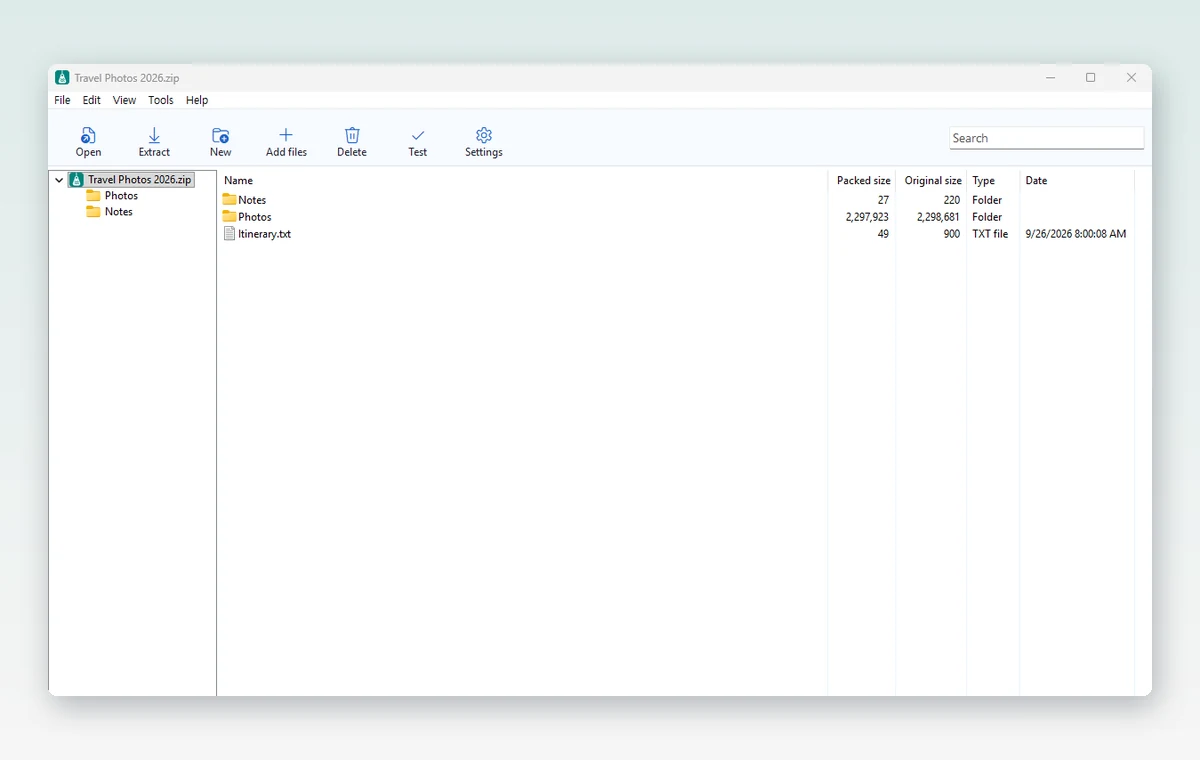
Double-click the archive to see its contents in the HanFlow Zip window — names, sizes and dates. Drag just the files you need into File Explorer; there is no need to extract everything.
When it won’t work
- Password-protected .egg or .alz files can’t be extracted yet. Asking the sender for a zip is usually the fastest fix.
- Entries packed with ALZip’s own AZO method can’t be extracted — HanFlow Zip tells you which ones.
- Split ALZ archives (.a00 …) are not opened yet.
- .egg and .alz are open-only. When you make a new archive, zip or 7z is the format anyone can open.
In short
Right-click → “Extract here” is all it takes for .egg and .alz files. Besides these two, HanFlow Zip opens 26 file extensions, including zip, 7z, rar, tar and iso.