
Clipchamp is Microsoft's video editor, and many Windows users meet it first. If you would rather edit without signing in to an account, keep projects on your own PC and export up to 4K without a Microsoft 365 plan, HanFlow Cut is one option: it cuts and joins clips on a timeline, adds captions from speech, changes speed and sound and exports MP4, with no ads and no sign-in. Below is what each tool offers, based on their own pages, so you can choose for yourself.
What Clipchamp offers
Clipchamp's pricing page lists a plan at no cost: you sign in with a personal Microsoft account, edit and export as many videos as you like, and export without watermarks at up to 1080p. It includes trimming, cropping and resizing, a screen, camera and voice recorder, animated text, AI tools such as subtitles, voiceovers and silence removal, a stock content library and content backup on OneDrive. Premium features, including 4K UHD export, premium stock assets and a brand kit, come with Microsoft 365 Personal and Family plans (Clipchamp). If you already have Microsoft 365 or want a large stock library, Clipchamp may be all you need.
What HanFlow Cut does
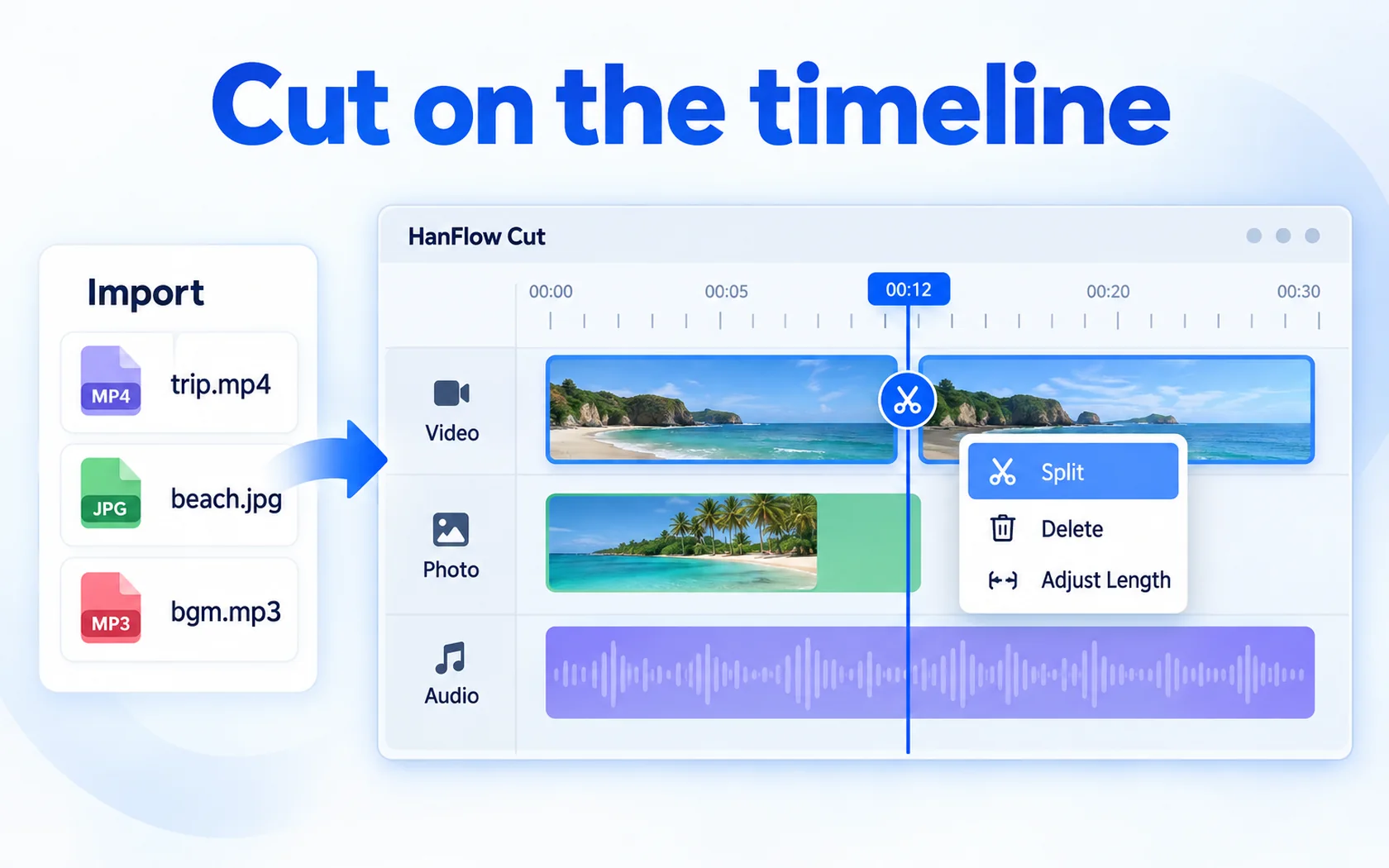
- Timeline editing: import video, photos and sound, then split, delete and change length.
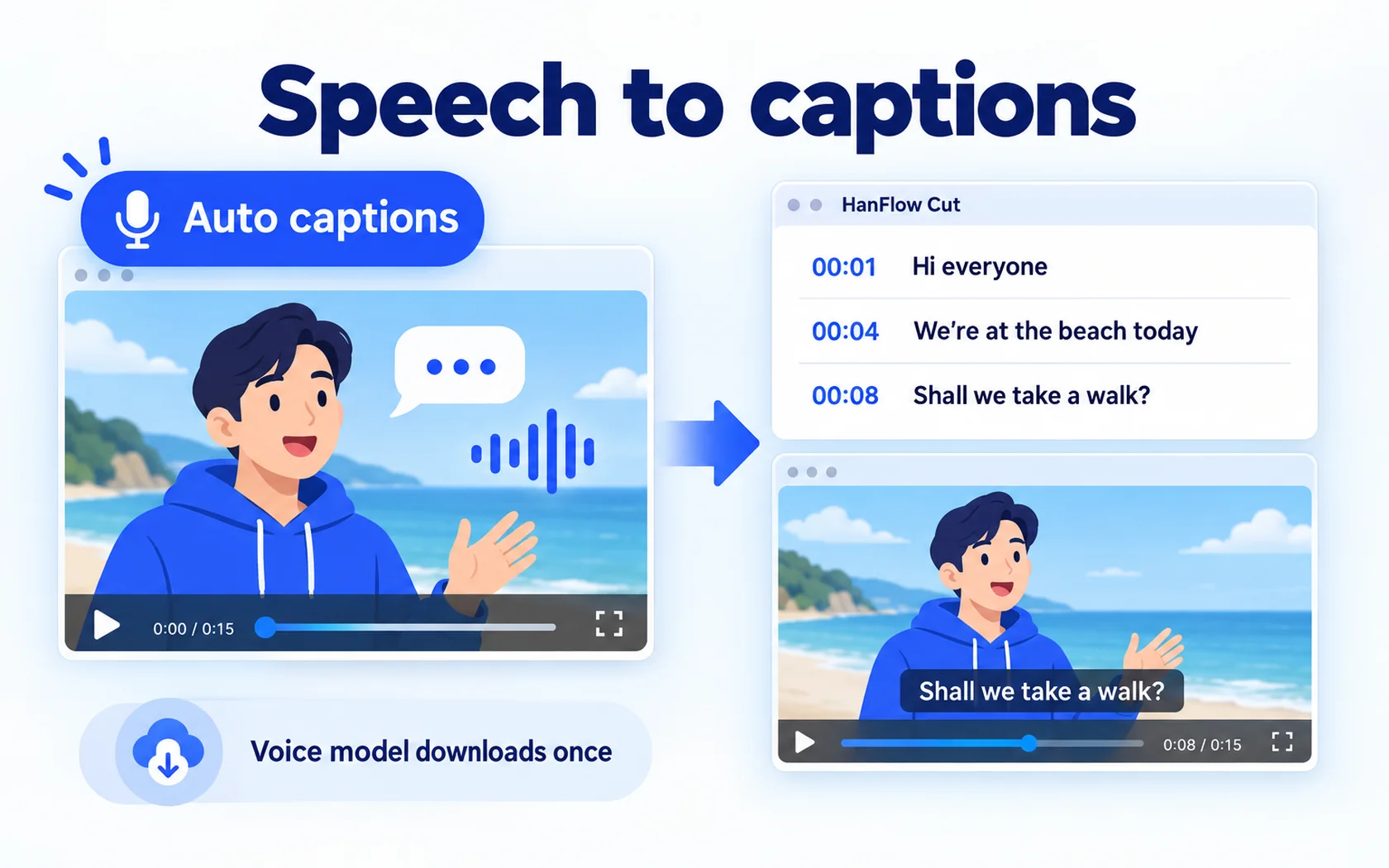
- Captions: automatic captions from speech, 6 caption presets with outline, speech bubble and entrance and exit effects, and .srt import.
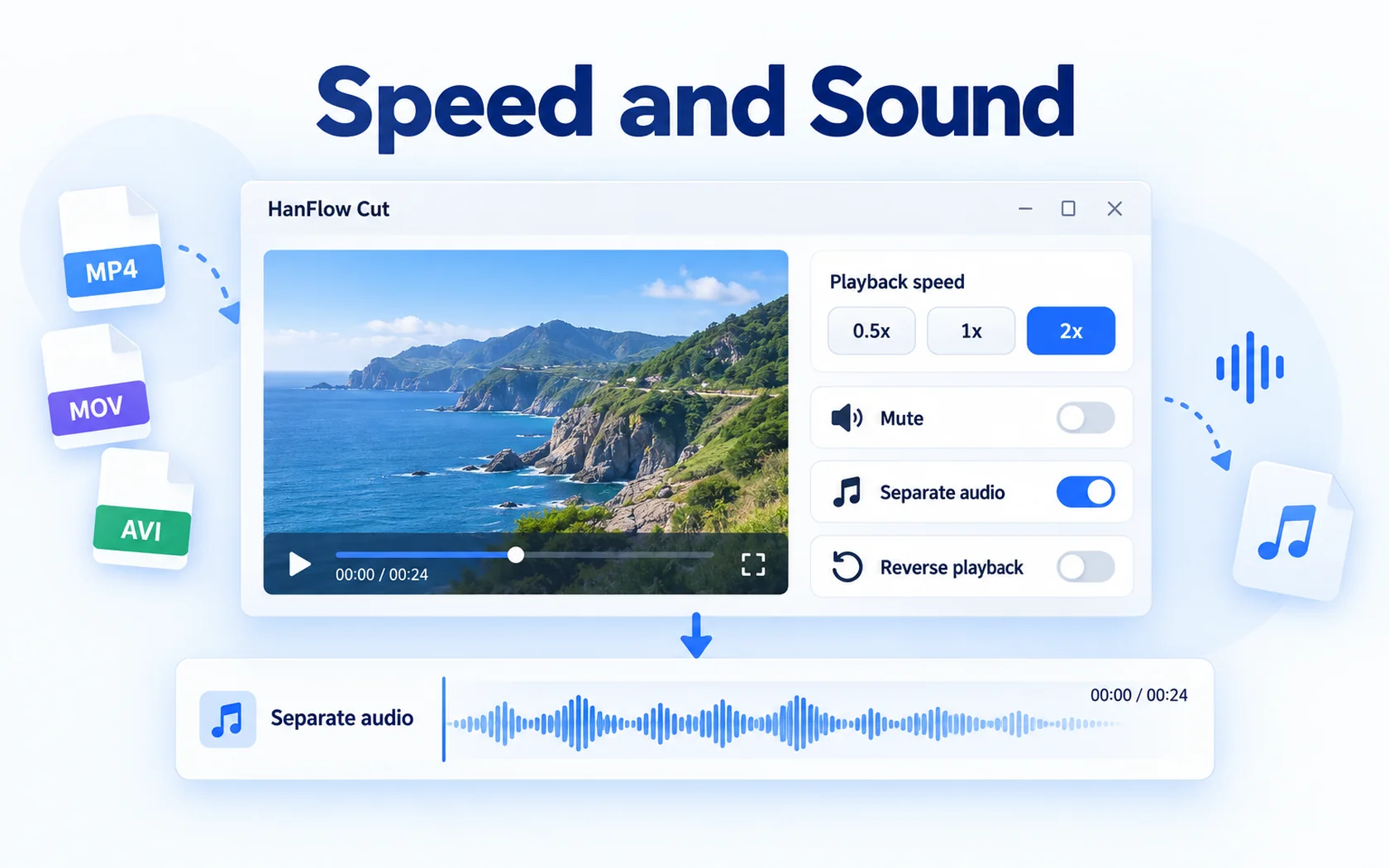
- Speed and sound: 0.5×, 1× and 2× speed, mute, separate audio, reverse, background music, sound effects and voice recording.
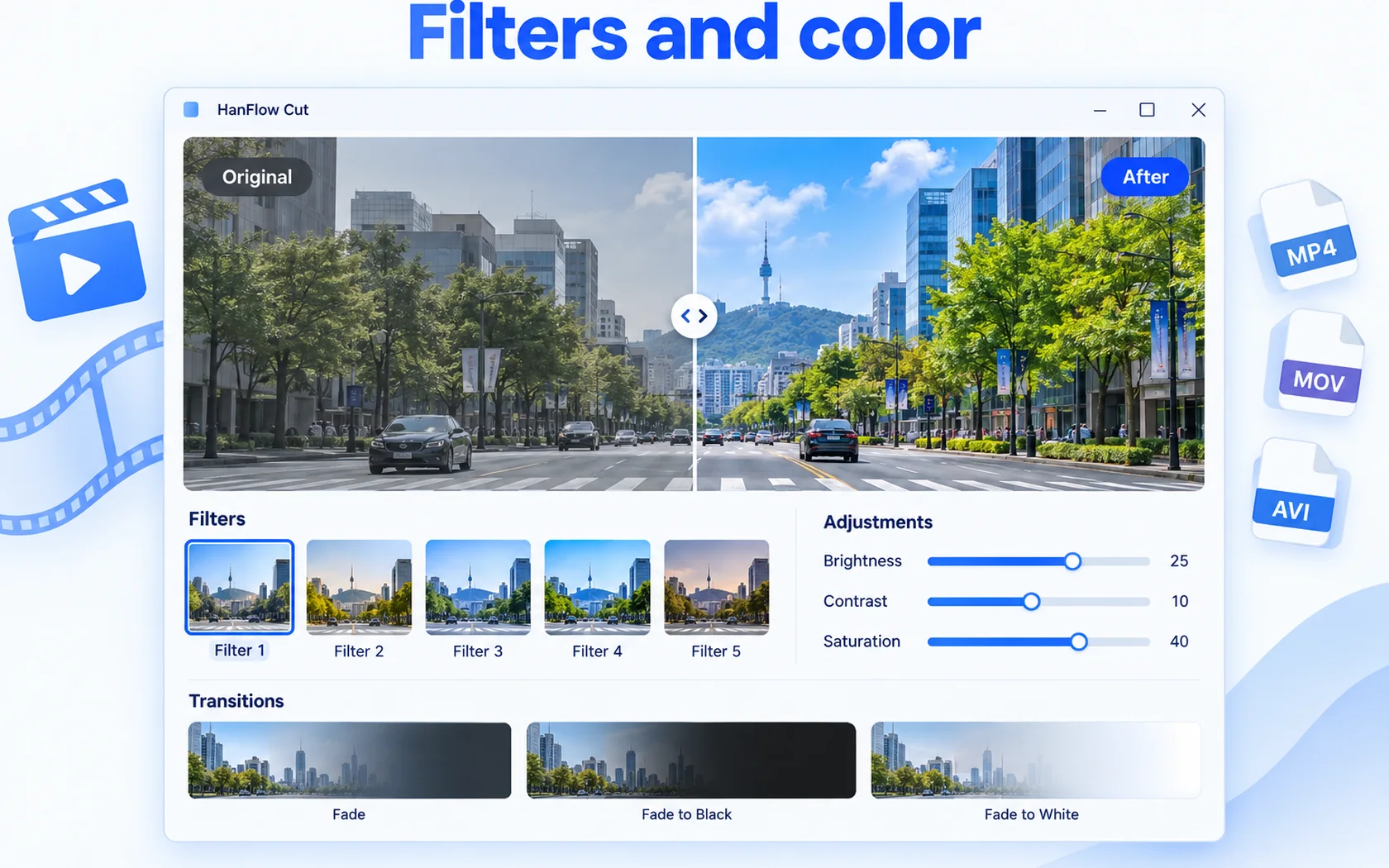
- Look: 5 filters, brightness, contrast and saturation, fades, zoom, position, rotation, mirror, opacity, color-key background removal and 4 overlay tracks.
- Export: MP4 (H.264 and AAC) or M4A, from original resolution up to 4K at 24 to 60 fps, plus file-size optimization and lossless trim.
- No ads, no sign-in, no cloud, and projects save automatically.
Sign in and cloud, or an app on your PC
Clipchamp asks you to sign in with a Microsoft account and backs up content to OneDrive. HanFlow Cut needs no account and keeps your projects on your PC, saving them automatically. Automatic captions download a voice model once the first time you use them; after that they are ready on your PC.
Which one to choose
- Choose Clipchamp if you want a large stock library, AI voiceovers and a screen and camera recorder in one editor, and 1080p export is enough or you already have Microsoft 365.
- Choose HanFlow Cut if you want to edit without an account, keep projects on your PC and export MP4 up to 4K.
There is also a Mac version of HanFlow Cut for macOS 13 or later on Apple silicon. Its first release covers cutting, joining, speed, volume, fades, captions from .srt, background music and MP4 or M4A export; some features such as filters, automatic captions and overlays are on Windows only for now.
Trial and license
HanFlow Cut has a 30-day trial with every feature, and exported videos have no watermark. After the trial you can still open, edit, preview and save projects; exporting video and sound is what needs a license. See pricing for current licenses.
Frequently asked questions
Do I need an account to use HanFlow Cut?
No. HanFlow Cut has no sign-in and no cloud; projects stay on your PC.
Can HanFlow Cut export 4K?
Yes. It exports MP4 from original resolution up to 4K at 24 to 60 fps.
Which formats does it export?
MP4 and M4A. It does not export GIF or MOV, but it can import MOV and many other formats.